Posts

Showing posts from January, 2022

How to Open 2 Different Excel Files on 1 Screen
Image
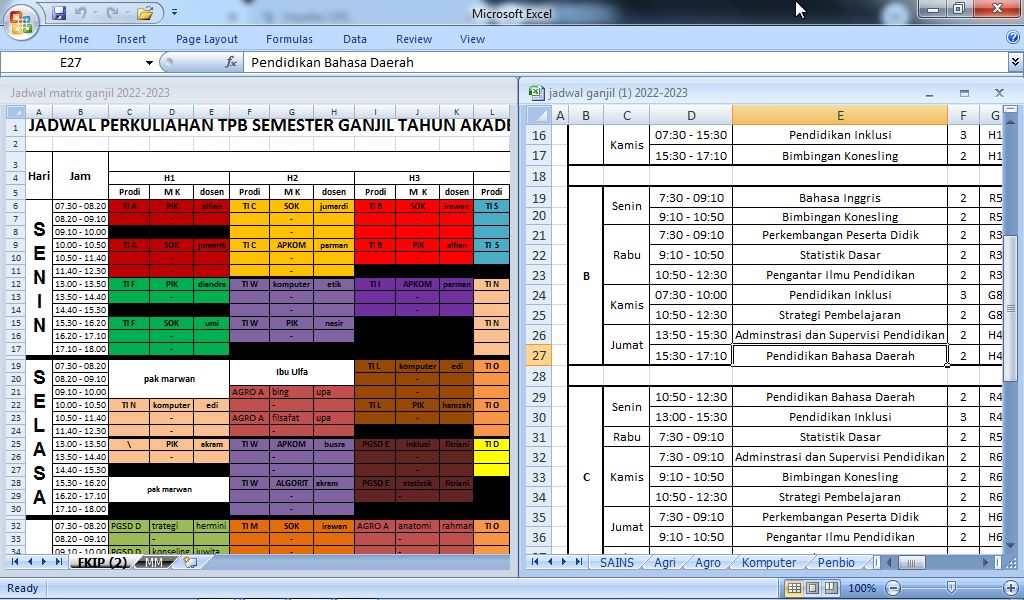
Well, it's different from word files, where document files can be opened simultaneously and can also be minimized so that two files can be juxtaposed left and right in one screen. However, in the excel document, the way to open the two files is slightly different. Okay, as for the way to display 2 excel files or documents in 1 screen, the method is very easy. Open the two excel documents first, then click the Restore button, the button flanked by the Minimize and Close buttons in the upper right corner of the excel document. More tutorials: How to Remove Page 1 Watermark in Excel How to Search for Duplicates in Excel Workbook How to Merge Cells in Microsoft Excel Mail Merging With Microsoft Excel and Word Excel to PDF Converter in Excel 2007 Eits, but you don't click the Restore button on the top, but click the restore button on the bottom. So, set the width so that the document file covers half of the screen. Do the same for the other document. Thus we can open or display two ...
How to Print 4 Pictures on One Page in Word 2010

Image
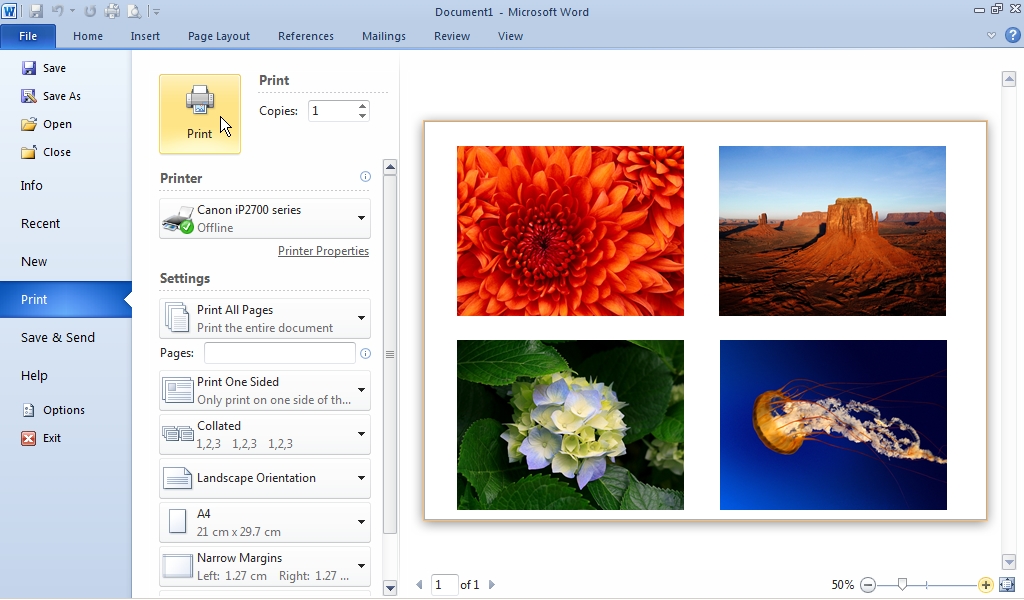
Maybe you want to print some pictures on Microsoft Word for assignment needs or for other needs, but it's a little difficult to arrange the pictures to fit on 1 sheet of paper. Oh yes, this way you can also use more than 4 pictures on 1 sheet of paper. The method is very easy, the key is that you just change the settings on the image so that the position and size of the image can be changed more easily, namely the "Wrap Text" settings. First enter or insert the images that your choose, then set all of these images in Wrap Text to "Behind Text" or "In Front of Text". More Tutorials: How to Set Password for Word Document 2007 How to Divide Into 4 Microsoft Word How to Remove Red Underline in Word How to Insert 2 Tables Side by Side in Word How to Copy Table in Word After you change the settings, please change the size and layout of the image so that it fits on 1 sheet of paper. When it's finished, you can immediately print it and see the results. ...

How to Print 2 Pages on 1 Sheet in Excel 2010

Image
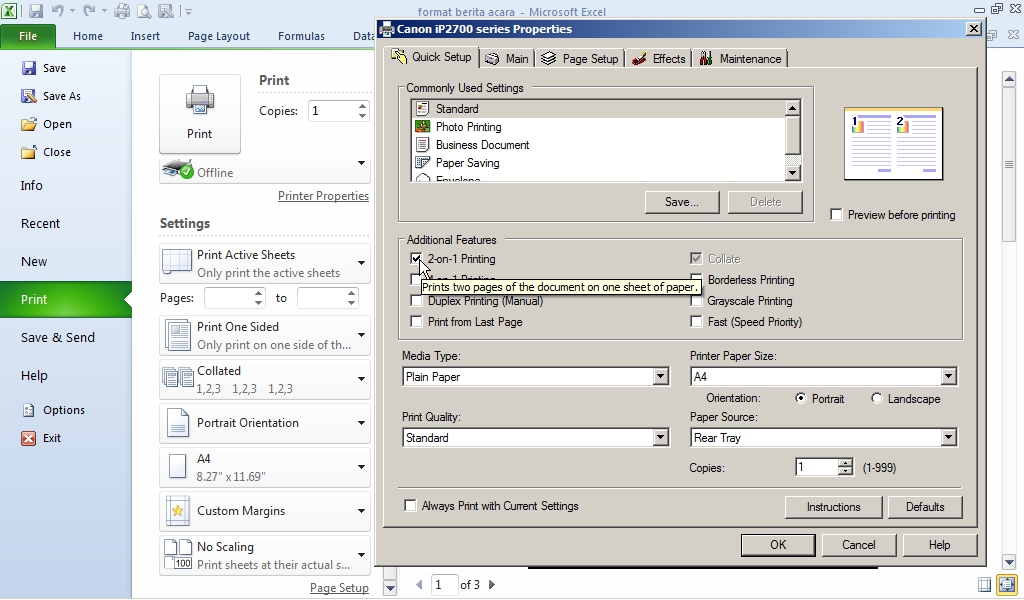
Maybe many of my friends already know how to print 1 sheet of paper 2 pages in Excel, but no it's wrong if I go back to giving the method. The benefit of using this method in printing is that we can save or reduce paper usage when printing. The method is very easy, first of all friends enter the print menu by clicking on the file menu in excel 2010 and selecting Print, or by quickly pressing the P and Ctrl keys on the keyboard simultaneously. After that click Properties... More tutorials: How to Remove Page 1 Watermark in Excel How to Search for Duplicates in Excel Workbook How to Merge Cells in Microsoft Excel Mail Merging With Microsoft Excel and Word Excel to PDF Converter in Excel 2007 Then in the Additional Features section, select 2 in 1 printing. Selecting 2 in 1 printing will automatically change the number of pages per sheet to two. Examples can be seen in the preview that is beside. We can also change the size of the paper that will be used for printing or printing, and f...

How to Print Landscape in PowerPoint

Image
The landscape shape is one of the two page shapes that are selected when printing. This landscape shape is elongated sideways or horizontal. In general, when printing slides in PowerPoint, one page for several slides is printed, namely portrait or vertical. How to print or print landscape on powerpoint? The method is very easy. First of all open the Microsoft Office PowerPoint file which we will print in landscape or landscape form. After that go to the print menu by pressing Ctrl+P on the keyboard or click file then select print. More tutorials: How to Change Uppercase to Lowercase in PowerPoint How to Print 6 Slides on One Page in PowerPoint 2007 How to Autoplay Video in PowerPoint How to Hide Slide in PowerPoint To be able to print several slides on one page in landscape form, you must first change the print layout. Select notes page or outline. After that, change the orientation from portrait to landscape. Well, then select the number of slides that will be included on each page. T...

How to Print Landscape in Excel

Image
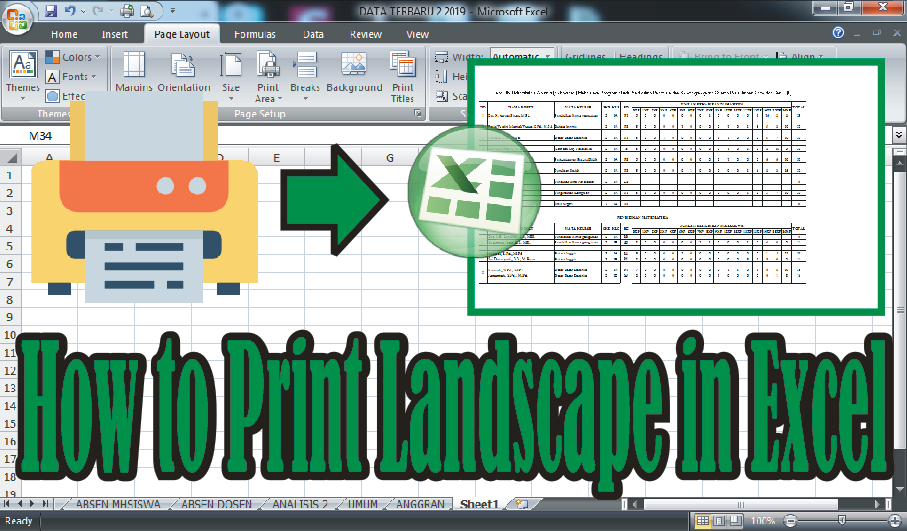
In general, people printing on Microsoft Excel use portrait orientation, but there are times when we use landscape orientation if our worksheet is elongated. How do you print in landscape orientation in Microsoft Excel? There are at least two ways to print in landscape orientation. The first way is before printing, change the page orientation first by selecting the page layout menu, then on the page setup select Orientation and select Landscape. Before printing, look at the print preview to see if the text that we are going to print in landscape is enough for one page, if not, make edits and print. More tutorials: How to Remove Page 1 Watermark in Excel How to Search for Duplicates in Excel Workbook How to Merge Cells in Microsoft Excel Mail Merging With Microsoft Excel and Word Excel to PDF Converter in Excel 2007 The second way is to set it on the print menu, if you use prints with the Canon brand, the method is very easy. First enter the print menu by pressing the Ctrl + P key on th...

How to Print PPT 4 Slides Per Page

Image
Microsoft PowerPoint is one of several Microsoft Office application packages that you can get when installing this application. PowerPoint is generally widely used by people to present their work and usually people also print it to be distributed to people who witness these percentages. How to Print PowerPoint 4 Slides at once on 1 Sheet of Paper is actually almost the same as How to Print PowerPoint 3 Slides at once on 1 Sheet of Paper, only a slight difference lies. More tutorials: How to Change Uppercase to Lowercase in PowerPoint How to Print 6 Slides on One Page in PowerPoint 2007 How to Autoplay Video in PowerPoint How to Hide Slide in PowerPoint Setting up power point so that you can print four slides on one sheet of paper is very easy. First of all, you must first enter the print menu by going to the "Office Button" menu then selecting "Print". Or if you want it to be faster then press the "Ctrl and P" keys on the keyboard simultaneously. After tha...

How To Change Footnote Font in Word

Image
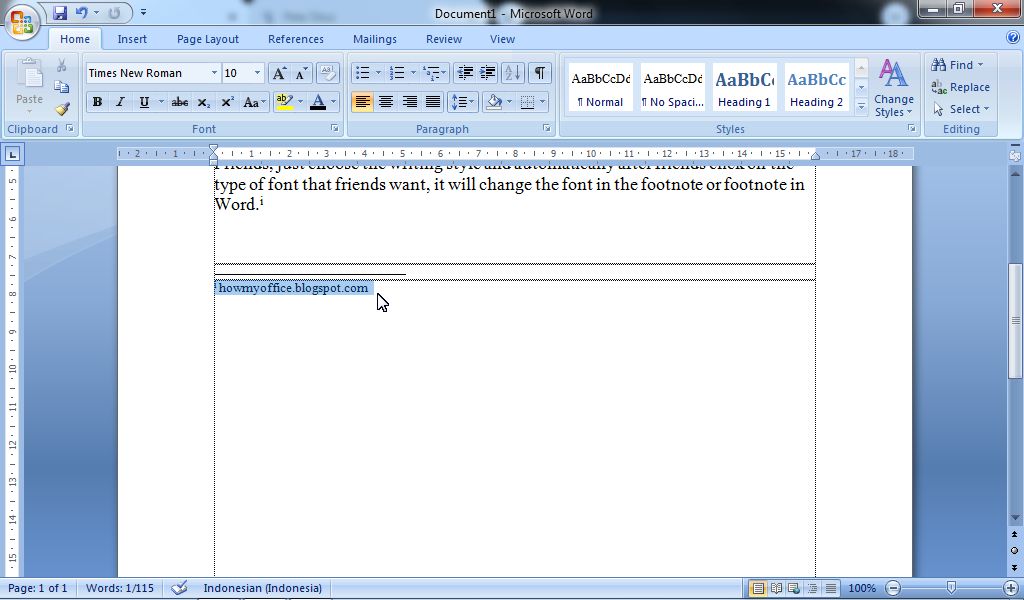
So, if you are wondering, can you change the footnote font? or how to change the footnote font type in word? I answered, the method is very easy and the method is the same as we change the font in writing as usual. Only mark or select the footnote that you want to change the type of writing, after that enter the Home menu then select the type of font or writing that you want to use in the Font Style. More Tutorials: How to Delete Text Box in Word How to Print on Microsoft Word 2007 How to Insert Portrait and Landscape in Same Word Document How to Convert Word 2010 to PDF How to Convert a Word 2007 Document to PDF Just choose the writing style and automatically after you click on the type of font that you want, it will change the font in the footnote or footnote in Word. More Tutorials: How to Move Word Files to Desktop Screen How to Write in Pictures in Word How to Align Page Numbers in a Word Table of Contents How to Make Diagonal Line in Word Tables How to Autorecover S...

How to Put Page Number On Microsoft Word

Image
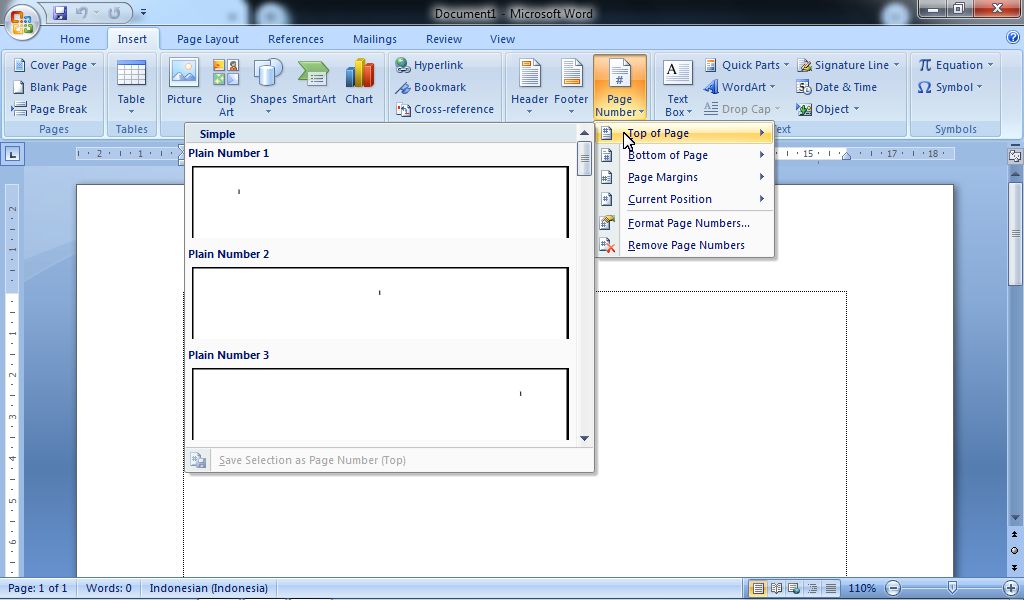
Page numbers are very important when we make a paper or book assignment, because without pages we will be confused to find the parts we want to read in a book or paper. therefore, after we have finished making papers on Microsoft Word, it's a good idea to also put the page number on it. How to put page numbers on a Microsoft Word worksheet is not difficult and even very easy, open the Insert menu then go to header and footer then click page number. More Tutorials: How to Delete Text Box in Word How to Print on Microsoft Word 2007 How to Insert Portrait and Landscape in Same Word Document How to Convert Word 2010 to PDF How to Convert a Word 2007 Document to PDF If you want the page number to appear at the top of the work page, please select the top of page tab, there we can also choose whether you want the page number to be placed on the top left, top center, or top right. And if you want the page number to appear at the bottom of the work page, you select the bottom of page tab , ...

How to show Text Boundaries in Microsoft Word

Image
So usually or many of my friends make the borders using Page Borders, but when printed, the borders will appear or be printed when the document is printed.  So that the border doesn't get printed, we make another line appear. The line I mean is the margin line or  text boundaries  that can be seen but cannot be printed,  To display text boundaries in Microsoft Word, the way is very easy Open a Microsoft Word document Select the "File" menu, then select "Options" After that, select "Advanced" Scroll down until you find "Show text boundaries" Put a check mark on the text, then click "OK" and see the results Thank you and good luck More Tutorials: How to Delete Text Box in Word How to Print on Microsoft Word 2007 How to Insert Portrait and Landscape in Same Word Document How to Convert Word 2010 to PDF How to Convert a Word 2007 Document to PDF More Tutorials: How to Move Word Files to Desktop Screen How to Write in Pictures in Word Ho...

How to Show Vertical and Horizontal Ruler in Word

Image
A ruler or ruler is a very important part of a Microsoft Word worksheet, with a ruler or ruler, we can determine margins, numbering, and so on.  Well, sometimes suddenly or someone deliberately removes the ruler on the Microsoft Word worksheet that we have. There are 2 ways to display the vertical and horizontal rulers in Word, the first way is: Open a Microsoft Office Word document Open "View" menu Put a check mark on the "Ruler" Automatically, horizontal and vertical ruler will appear. The second way to show vertical and horizontal rulers in Word is: Open a Microsoft Office Word document Click the ruler icon above the vertical scroll bar Automatically, horizontal and vertical ruler will appear. Thank you and good luck... More Tutorials: How to Delete Text Box in Word How to Print on Microsoft Word 2007 How to Insert Portrait and Landscape in Same Word Document How to Convert Word 2010 to PDF How to Convert a Word 2007 Document to PDF More Tutorials: How to Move Wo...