Posts

Showing posts from February, 2022

How to Print From Notepad

Image
Notepad is a text editor and source code editor that runs on the Windows operating system. Even though we are text editors, that doesn't mean we can't print data or documents through this application. The way to print in Notepad is almost the same as printing in word, but the only difference is the print menu. Here I have provided a text or document data that we will print later. After that, enter the Print menu, by clicking the File menu and then selecting Print, or by pressing the Ctrl and P keys simultaneously on the keyboard. So, the print menu on Notepad looks like this, different from the print menu on Microsoft Office. As usual, on the other printer menu, there is a section for selecting the type of printer that will be used for printing on Select Printer. In the Preferences section to be able to enter Printer Properties, I happen to be using a Canon printer so the settings for Canon printers appear. In the Page Range section, because Notepad doesn't have pages, it w...

How to Remove Red Underline in PowerPoint

Image
Sometimes when we type in Microsoft PowerPoint, the text we type will appear below it as a wavy red line, sometimes the wavy line is also green. Now, to get rid of wavy lines, the method is very easy. First of all, enter PowerPoint options by clicking the Office Button if you use PowerPoint 2007 and the File menu if you use PowerPoint 2010. After entering PowerPoint Options, open the Proofing menu, then remove the "Check spelling as you type" checklist. After that, click OK to save the settings. Automatically the writing that used to have wavy red lines, now the lines are gone. Now that's how to remove the red line under the text on Microsoft PowerPoint, I hope this tutorial can be useful for all my friends and can help friends in solving problems encountered when operating Microsoft PowerPoint. Good luck. More tutorials: How to Change Uppercase to Lowercase in PowerPoint How to Print 6 Slides on One Page in PowerPoint 2007 How to Autoplay Video in PowerPoint How to Hide ...

How to Remove Text Box Lines in Word

Image
Text boxes or in Indonesian, kotak tulisan or kotak teks are widely used, one of which is to create charts or organizational structures, because these text boxes can easily be moved if you want to adjust their position. Now, sometimes many people want to delete or remove the lines contained in this text box, and maybe some of my friends want to delete them but don't know how. The method is very easy. First of all, friends click or first select the text box or the text box that you want to delete the line, after that friends enter the "Format" menu then click "Shape Outline" and friends click "No Outline". Well, automatically the lines of the text box will disappear. More Tutorials: How to Set Password for Word Document 2007 How to Divide Into 4 Microsoft Word How to Remove Red Underline in Word How to Insert 2 Tables Side by Side in Word How to Copy Table in Word More Tutorials: How to Make a Check Mark In a Box in Word How to Write the Degree Symbol i...

How to Delete Text Box in PowerPoint

Image
Well, sometimes when we are making a presentation on Microsoft PowerPoint or PPT, we are required to delete the text box or text box on the slide. The writing box in question is a box that can be written in it. Okay, right away, the way to delete a text box is very easy, even classified as very easy. You just click on the right line of the text box contained in the PowerPoint slide, then you press the delete button on the keyboard and the text box will automatically disappear. More tutorials: How to Change Uppercase to Lowercase in PowerPoint How to Print 6 Slides on One Page in PowerPoint 2007 How to Autoplay Video in PowerPoint How to Hide Slide in PowerPoint

How to Hide Scrollbar But Still Scroll

Image
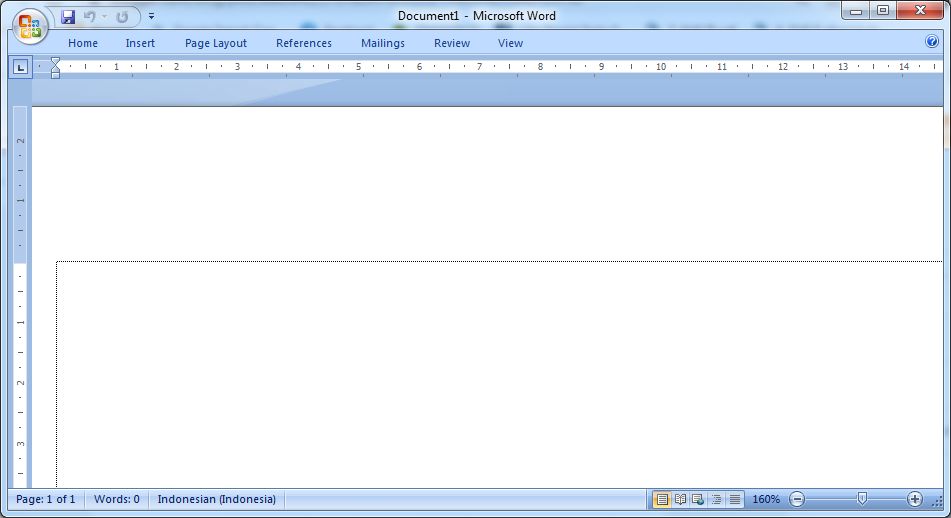
On a Microsoft Word worksheet, we usually see a scroll bar on the right side and at the bottom of the word worksheet, or in cool language it is called a vertical scroll bar and a horizontal scroll bar. Well, it turns out we can hide it, and the method is very easy. First of all go to the file menu, then select Options, after that a new window will appear, namely word options. Then friends select Advanced, look for the display section then uncheck the Show horizontal scroll bar and Show vertical scroll bar . Click OK to save the settings and see the result. Automatically the scroll bars on the right and below will disappear. More Tutorials: How to Set Password for Word Document 2007 How to Divide Into 4 Microsoft Word How to Remove Red Underline in Word How to Insert 2 Tables Side by Side in Word How to Copy Table in Word More Tutorials: How to Make a Check Mark In a Box in Word How to Write the Degree Symbol in Word How to set automatic capital letters at the beginning of sentences in ...

How to View Scroll Bar in Word

Image
On a Microsoft Word worksheet, we usually see a scroll bar on the right side and at the bottom of the word worksheet, or in cool language it is called a vertical scroll bar and a horizontal scroll bar. Well, it turns out that we can bring it up if the scroll bar is not visible on the worksheet and the method is very easy. First of all go to the "File" menu, then select "Options", after that a new window will appear, namely "Word Options". Then select "Advanced", look for the "display section" then check the "Show Horizontal Scroll Bar" and "Show Vertical Scroll Bar" . Click OK to save the settings and see the result. Automatically Scroll bar located on the right side and below will appear. More Tutorials: How to Set Password for Word Document 2007 How to Divide Into 4 Microsoft Word How to Remove Red Underline in Word How to Insert 2 Tables Side by Side in Word How to Copy Table in Word More Tutorials: How to Make a ...

How to Show Margins in Excel 2007 Print Preview

Image
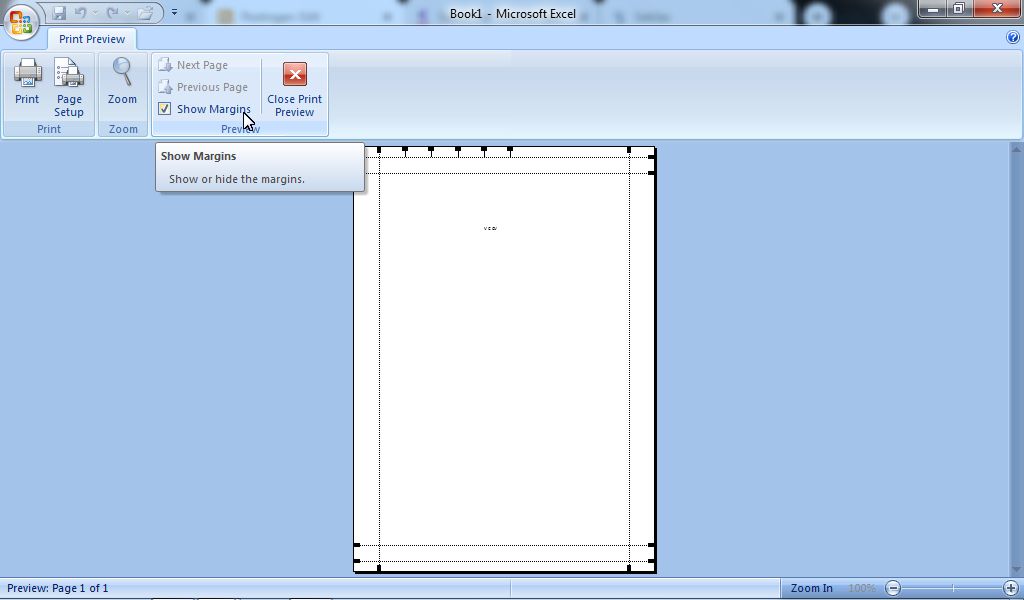
In general, there are two ways that we can use to set margins in Microsoft Office Excel 2007. One of them is to set and edit Excel margins in Print Preview.  The trick is to enter the   Print  menu by pressing the P and Ctrl keys on the keyboard simultaneously.  Then a new Print window will appear, and select Preview in the lower left corner. Or if you want to be quick, you can also click the Office button in the upper left corner of the Excel worksheet, then hover over  Print  and select  Print Preview , after which it will immediately enter the  Print Preview  view.  in the  Preview  section , click  Show Margins . More tutorials: How to Remove Page 1 Watermark in Excel How to Search for Duplicates in Excel Workbook How to Merge Cells in Microsoft Excel Mail Merging With Microsoft Excel and Word Excel to PDF Converter in Excel 2007 Now, after that a margin line will appear around the worksheet.  Set margins as ...

How to Clear Print Area in Excel

Image
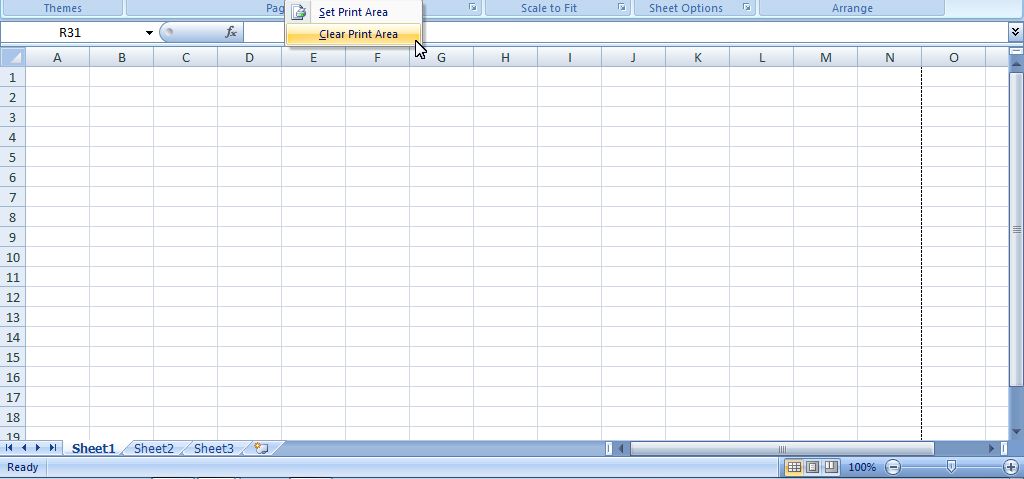
Print Area or print area is used to mark the area to be printed, usually this feature is used when printing an Excel file that extends downwards. Okay, let's get straight to the point, as for getting rid of the print area in Excel, the method is very easy. First open the Excel document that we are going to remove the print area from and make sure the document has an active print area. Then enter the Page Layout menu. Then click Print Area and select Clear Print Area. So automatically the Print Area will disappear. How about friends, it's easy right? that's our tutorial this time entitled how to remove print area in Excel, I hope this post is useful for you. If you have questions, please write them in the comment box below. See you on the next post. More tutorials: How to Remove Page 1 Watermark in Excel How to Search for Duplicates in Excel Workbook How to Merge Cells in Microsoft Excel Mail Merging With Microsoft Excel and Word Excel to PDF Converter in Excel 2007