Posts

Showing posts from October, 2022

How to Rotate Text In a Table in Microsoft Word

Image
Now, usually the table column headings that we make will be very long compared to usual and we can no longer shorten them. For this reason, the best step we can take is to rotate the text contained in the table. Rotating here is directing the writing to be vertical or perpendicular. Now to make writing in the Word table vertical, the method is very easy. Select or select the text that we will rotate, then enter the "Layout" menu, after that select "Text Direction". So immediately the text that we selected earlier will rotate to be perpendicular or vertical. More Tutorials: How to Make Big Curly Brackets in Word How to Delete Page Number in Specific Page How to Set Password for Word Document 2007 How to Divide Into 4 Microsoft Word How to Remove Red Underline in Word

How to Remove Page Numbers on PowerPoint Slides

Image
Actually the numbering of pages or slide numbers in PowerPoint is not so important compared to the numbering of pages in Word. However, with the number on the PowerPoint slide, we can find out how many slides we have opened when presenting it. However, to remove this slide number if it is already on the PowerPoint slide we have, the method is very easy. Enter the "Insert" menu, then select "Slide Number". Remove the checkmark in the "Slide Number" section then click "Apply to All" if you want to remove the page numbers on all slides, or select "Apply" if you want to delete only the slide numbers on the opened slide.

How to Convert Excel 2007 Files to PDF Files

Image
Do you still have friends who use Excel 2007 or do you happen to use a PC that still uses Excel 2007 inside? and convert the Excel 2007 file into a PDF file. Friends, don't be confused, because how to convert an Excel 2007 file into a PDF file is very easy. Set the Excel file data first so that it fits the paper used so that later when it is converted to a PDF file it will be neat. Then friends click the "Office Button" in Excel 2007 which is in the upper left corner of the Excel worksheet, then friends select "Save As". After that, friends, select "PDF or XPS", then a new window will appear "Publish as PDF or XPS". Choose a location to save the changed file later, place it in a location that is easy for friends to see on the computer. For advanced settings, friends can immediately click "Option", then click "Publish" to continue the change process and see the results.

How to Print Full Photos on A4 Paper

Image
Maybe friends are looking for ways on how to print photos on A4 paper in full or without the slightest margin, what's more using the standard printer that is commonly used, namely the Canon iP 2770 printer. So, friends, you can try this tutorial. First, open the photo on your computer using Microsoft Picture Manager or another application, then enter the "Print" menu or simultaneously press the Ctrl key and the P key on the keyboard. Then click "Option" which is on the bottom right, after that a new "Print Settings" window will appear. Select "Printer Properties" to enter the Canon printer settings, after that click "Borderless Printing" and click "OK" if a new window appears. Then click "OK" to save the settings, then click "Print" to start printing and you can see the results.

How to Set Margins to 3222 in Microsoft Word

Image
Maybe friends are working on a paper assignment, and one of the rules that must be followed is setting the margins with a size of 3222. The 3222 margins here mean 3 cm left margin, 2 cm top margin, 2 cm right margin, and 2 cm margin. bottom 2 cm. Okay, go ahead, friends, enter the Page Setup menu, then select Margins and select Custom Margins for advanced margin settings. Then a new window will appear, where friends can directly set the top margin, left margin, right margin, and bottom margin. After everything has been set according to the size that has been determined, friends can immediately click OK to save the settings. And automatically the margins will be adjusted to the size of the margins that we set earlier. More Tutorials: How to Make Big Curly Brackets in Word How to Delete Page Number in Specific Page How to Set Password for Word Document 2007 How to Divide Into 4 Microsoft Word How to Remove Red Underline in Word

How to Change Footnote Fonts in Microsoft Word 2010

Image
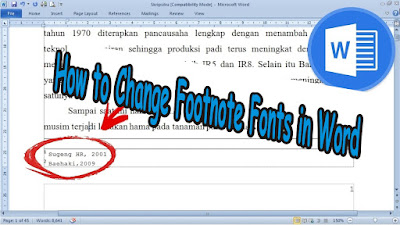
So, if you are wondering, can you change the footnote font? or how to change the footnote font type in word? I answered, the method is very easy and the method is the same as we change the font in writing as usual. Friends only mark or select the footnote that you want to change the type of writing, after that friends enter the Home menu then select the type of font or writing that you want to use in the Font Style. Friends, just choose the writing style and automatically after friends click on the type of font that friends want, it will change the font in the footnote or footnote in Word. More Tutorials: How to Remove Table Lines in Word Without Deleting Text How to Print 2 Pages 1 Paper in Word 2007 How to Print on B5 Binder Paper How to Print One Big Picture on Multiple Pages How to Remove Table Lines in Word Without Using an Eraser

How to Copy a Logo From a Laptop/Computer to Microsoft Word 2010

Image
Maybe some of you want to make a cover page that requires a logo, we can insert the logo quickly without requiring a lot of steps. Usually if we want to insert a logo into a word page, we need to enter the Insert menu and select an image on a laptop or computer. So it turns out that we can directly copy it, the method is very easy and the same as we copy as usual. Friends, first look for the logo on your laptop or computer storage, then open Microsoft Word. Re-open the logo folder that you want your friends to enter into word, right-click on the mouse on the logo and select Copy, or you can directly press the Ctrl key and P key simultaneously on the keyboard. Then friends reopen Microsoft Word. Paste the logo on the word page by right-clicking the mouse on the Word page and then selecting Paste, or you can also press the Ctrl key and the V key simultaneously on the keyboard to speed up the process. Now after that the logo will automatically appear on the Word page, then friends can imm...