Posts

Showing posts from January, 2023

How to Make Straight Colon in Microsoft Word
Image
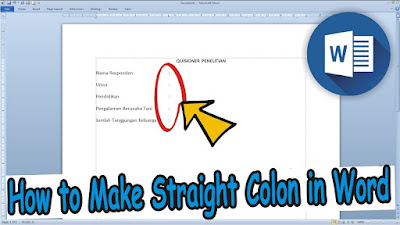
Maybe some of you are still confused when making a list that has colons that we have to straighten from top to bottom so that it looks good. Many of my friends still use the space key to make the colon straight, and that method is wrong. The method is very easy, we don't use the space key on your keyboard, but we use the Tab key. The way friends just press the tab key at the end of a word or sentence can be once or twice, depending on the longest sentence you type. In this way, the friends' colons will be straight from top to bottom. More Tutorials: How to Convert Word 2010 to PDF How to Convert a Word 2007 Document to PDF How to Rotate Text in Table in Microsoft Word How to Delete Table in Microsoft Word Mail Merging With Microsoft Excel and Word

How to Set Automatic Tabs to Indent Paragraphs When Entered

Image
Can you create automatic paragraphs? where if we enter from the first paragraph to the second paragraph automatically at the beginning of the paragraph it will be indented. It will definitely make it easier for friends to type in Word. Well, the method is very easy. First go to the " File " menu then select " Option ", then select " Proofing " then select " Auto Correct Options ". Then a new " AutoCoorect " window will appear, then select the " AutoFormat As You Type " menu and check the box " Set left-and first-indent with tabs and backspace ". After that click " Ok " to save the settings and click " Ok " again. Then friends can try to make a new paragraph by entering at the end of the previous paragraph. Automatically the new line will be indented. More Tutorials: How to Insert 2 Tables Side by Side in Word How to Copy Table in Word How to Delete Text Box in Word How to Print on Microsoft Word 2...

How to Set A5 Paper Size in Word

Image
The way to set or set the A5 paper size in Microsoft Word is very easy. Friends enter the Page Layout menu, then select Size, after that several paper size options will appear that you can choose from. Because we will set the paper size to A5 paper size, so we choose A5 paper size (14.8 cm x 21 cm). If there is no A5 paper size in this option, friends can set the A5 paper size by selecting More Paper Size. After that a new Page Setup window will appear, friends enter A5 paper sizes, namely Width: 14.8 cm and Height: 21 cm. Then click OK to save the settings and see the results, the paper size on the Word worksheet has changed. More Tutorials: How to Insert 2 Tables Side by Side in Word How to Copy Table in Word How to Delete Text Box in Word How to Print on Microsoft Word 2007 How to Insert Portrait and Landscape in Same Word Document

How to Rotate a Photo or Image in Microsoft Word

Image
Maybe some of you are still confused when you insert a picture in Microsoft Word and you want the picture to be rotated for one reason or another. The method for rotating photos or images in Word is very easy. First of all, friends click on the picture or photo that friends have entered into Word. Then point the cursor at the green circle at the top of the image or photo, until the cursor changes to a rotating arrow. Then click and hold the green circle, then swipe to the bottom left or swipe to the bottom right until the image or photo rotates. Friends play the picture or photo according to your wishes and needs. After friends have determined the right position when the image or photo is rotated, friends release the click on the mouse earlier. More Tutorials: How to Insert 2 Tables Side by Side in Word How to Copy Table in Word How to Delete Text Box in Word How to Print on Microsoft Word 2007 How to Insert Portrait and Landscape in Same Word Document