Posts

Showing posts from March, 2023

How to Autorecover Settings in Word
Image
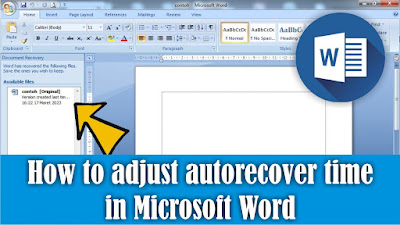
What's restored? what is recovered is the Word data that we created, but suddenly our computer or laptop turns off without having time to save it first. So usually after we turn it back on, our Word data will appear auto recover on the left side. Apparently, to be able to recover our word data automatically, there is a time limit, by default the data in word is saved automatically after 10 minutes. So what if you haven't had 10 minutes yet? then our data will not be recovered. We can set the automatic recovery time by going to the File menu, then selecting Options. Then select the Save section. In the words Save AutoRecover information every, change it to every 1 minute, so that every one minute our data will be recovered automatically. After that, click OK to save the settings and friends can try to type something then wait for 1 minute, then force Word to close, then reopen Word, AutoRecover will appear on the left of the Word worksheet. If you think the explanation above is ...

How to Make a Check Mark In a Box in Word

Image
Maybe some of you have made a design in Microsoft Word, namely the shape or image of a checkmark in the box, but are confused about how to make it. Therefore I will tell how to friends. To make a checkmark in a box in Word can be done in several ways, this time I will share an automatic way without having to make a box first and then the check symbol. Friends go to the Insert menu, then select Symbols and click More Symbols. Then in the Font section, change it to Wingdings. Scroll down to the bottom until you find the check symbol in the box, click on the symbol then click Insert and close the symbol window. To enlarge the tick in the box above, friends, just change the font size on the Home menu. If you think the explanation above is not clear, I suggest you also watch the video tutorial that I have previously prepared below. Good luck. More Tutorials: How to Remove Text Border in Word How to Change Tab Stops in Word How to Remove Text Box Lines in Word How to Hide Scro...

How to Combine Shapes in PowerPoint

Image
So maybe friends want to make a shape from a combination of two different shapes, but friends are confused about how to put the two shapes together. The method is very easy. Friends, select the two shapes or shapes that you want to combine or combine, then enter the Format menu in the Drawing tools. In the Arrange section, friends select Group and select Group again. After friends click Group, the shape was united into one. If you think the explanation above is not clear, I suggest you also watch the video tutorial that I have previously prepared below. Good luck.

How to Appear Leading Zeros in Excel

Image
Maybe there are some friends who are confused when they want to write down a number with a zero in front, every time you type it, the leading zero will disappear. There are several ways you can do it so that zero appears in front of other numbers in Excel. One way is before writing zeros at the beginning of other numbers, friends first type an apostrophe ('). After that type zeros and other numbers, then enter friends, then the zeros will still appear in front. If you think the explanation above is not clear, I suggest you also watch the video tutorial that I have previously prepared below. Good luck.

How to Generate Automatic currency symbol in Excel

Image
If friends type or calculate nominal money in Excel, it's a bit less good if the currency symbol is typed in manually, even better if the currency symbol appears automatically when we type in the nominal money. Now, to generate currency symbols automatically in Excel, the method is very easy. Friends, first determine or select a cell where a currency symbol will appear automatically. After that friends right click on the mouse and select Format Cells. Then a new window will appear Format cells, friends change from General to Accounting. After that, in the Symbol section, select the currency symbol you want, for example the Rupiah currency symbol or Rp. After that click OK to save the settings. To use it, friends just write down the desired amount of money, then press enter on the keyboard, then the currency symbol will automatically appear in front of the amount typed earlier. If you think the explanation above is not clear, I suggest you also watch the video tutorial that I have p...

How to Show Missing Sheet Tabs in Excel

Image
Maybe friends are confused when opening an Excel file, suddenly the sheet tabs are not in place, even though these sheet tabs are very useful when we process data in Excel. Now, to bring it up is very easy. Select the File menu in Microsoft Excel 2010, then select Options at the very bottom. Select Advanced and scroll down until you find the words show sheet tabs and put a check on that text. After that click OK to save the settings and see the results. If you think the explanation above is not clear, I suggest you also watch the video tutorial that I have previously prepared below. Good luck.

How to Show Column and Row Headers in Excel

Image
Maybe you are confused when you open Microsoft Excel and find that the column and row headers are not in place. Even though column and row headers are very important, because there we can find commands for setting columns and rows in Excel. Now to bring up column and row headers, the method is very easy, go to the File menu, then select Options. Select Advanced, then find Show row and column headers and check the text. After that click OK to save the settings and see the results. If you think the explanation above is not clear, I suggest you also watch the video tutorial that I have previously prepared below. Good luck.

How to Write the Degree Symbol in Word

Image
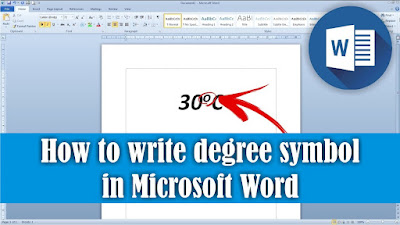
Maybe friends are a bit confused when typing a degree but don't know how to make the symbol. To make a degree symbol in Microsoft Word, we can use three ways, one of which I will share with all my friends. First, type the number you want to add the degree symbol to, for example we will make 37 degrees. So first make the number 37, then place the cursor at the end of the number. After that, friends, click Superscript on the Home menu, which has the symbol X squared 2. You can also make a superscript by pressing the Ctrl key, Shift key, and + button simultaneously on the keyboard. Then our cursor will shrink, now type the lowercase O as a form of the degree symbol, after that friends click Superscript again to return the cursor to normal. If you think the explanation above is not clear, I suggest you also watch the video tutorial that I have previously prepared below. Good luck. More Tutorials: How to Remove Text Border in Word How to Change Tab Stops in Word How to Rem...

How to set automatic capital letters at the beginning of sentences in Word

Image
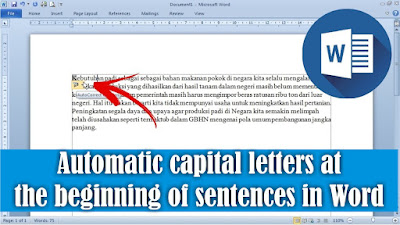
Usually when we type in Word, the text we type will automatically change the first letter of the sentence to capital letters. If that doesn't happen, then friends can set it so that the first letter in the sentence in the word can be automatic. It's very easy, go to the File menu, then select Options. Then a new Word Options window will appear, after that select the Proofing tab. On the Proofing tab, click the AutoCorrect Options button, then a new AutoCorrect window will appear. In the new AutoCorrect window, friends select the AutoCorrect tab. Check the words Capitalize first letter of sentences, then click OK to save the settings and click OK again to close Word Options. Try typing a sentence and friends can see the changes. More Tutorials: How to Remove Text Border in Word How to Change Tab Stops in Word How to Remove Text Box Lines in Word How to Hide Scrollbar But Still Scroll How to View Scroll Bar in Word