Posts

Showing posts from July, 2023

How to Split a PDF File Into Several New Files
Image
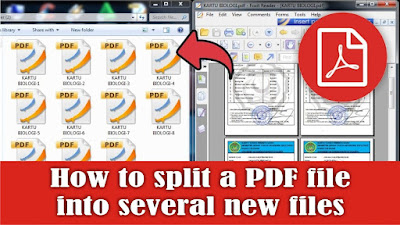
There are times when we get a PDF file containing test cards from several students, now these cards will be given to each student, but how can they be divided if the cards are combined in one pdf file? The car is that we separate it first, then we divide it. It is very easy to separate it, but what is important is that we need our computer or laptop to be connected to the internet network because later it will be separated online. After your laptop or computer is connected to the internet, open the ilovepdf.com site site . Maybe some of my friends are familiar with this site, okay then friends choose Split PDF. Select the PDF file to split. Then select Extract Pages, friends can see the PDF file that was previously one into several files depending on how many pages there are. After that, you can leave the Extract Mode to extract all pages, then select Split PDF to proceed to the splitting process. Now after that friends can download the PDF which has been separated, or it will be downl...
How to Print PDF File 1 Page Into 4 Parts

Image
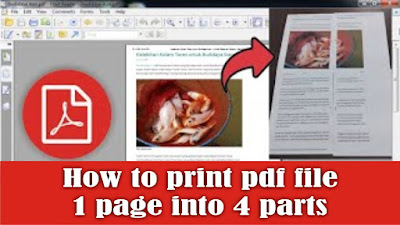
Maybe friends have an image file, but the file is in the form of a PDF file and friends want to print the PDF image in large size. Now, the way to print a large 1-page PDF file into 4 parts is very easy. First, friends, first open the PDF file that will be printed into 4 parts or paper, then friends, enter the print menu. So here I am using a Canon brand print which has features that make it easier for us to print into 4 parts. Then go to Properties, then the Canon Ip 2700 series properties dialog box will appear. Then select the Page Setup menu and in the Page Layout section, change it from Normal Size to Tiling/Poster. To print into 4 parts, friends, open the settings on Specify. Then the Tiling/Poster Printing dialog box will appear again, then change the Image Divisions from Divided into 2 to Divided into 4 (2 x 2). After that click OK to save the settings and click OK again to close the Canon Ip 2700 series properties. Then friends click Print to continue the printing process and ...

How to Delete Files on Google Drive

Image
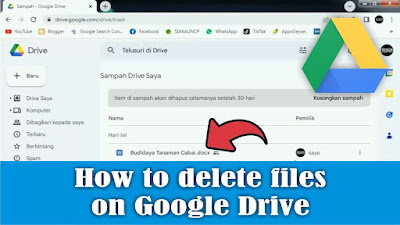
Sometimes friends want to delete files in your Google Drive, but are still confused about how. Maybe friends who have been using the Google Drive storage service for a long time already know how. As for deleting files on Google Drive, the method is very easy, first open Google Drive, friends using a Google account. Then first determine the files to be deleted, click with the mouse, then friends can right click on the mouse. Then select move to trash, or you can also click on the three dots in the file and select move to trash, or you can also press the Delete button on your keyboard. And all files that were deleted earlier will be stored first in the trash. If you want to delete it permanently, you can delete it in the trash on your Google Drive. Well, how about friends, how easy is it? That's how to delete files on Google Drive. Hopefully this tutorial can be useful for all my friends.