Posts

Showing posts from March, 2022

How to Turn Zip Into PDF

Image
So usually when we download PDF documents on the internet, the downloaded files will be in the form of Zip files which contain several PDF files that we need. Indeed, archiving files into Zip or Rar makes it very easy to send many documents in one file. To remove the PDF file from the Zip file, the method is very easy, first install the Zip file opener application. Incidentally, here I am using the WinZip application to open Zip files, although well, we can also use the WinRar application. Okay, open the zip file using WinZip, then on the right side there is the words Unzip All Files, click the down arrow to specify the location where the PDF file is saved later, after that friends click Unzip to proceed to the file extraction process. Then the PDF file contained in the Zip file will come out at the specified location. More tutorials: How to Print Booklet in PDF Both Sides How to Change Page Setup in PDF How to Print 2 Page in 1 Paper PDF How to Print B5 in PDF How to Convert RAR to PD...
How to Remove a Page Number From PowerPoint

Image
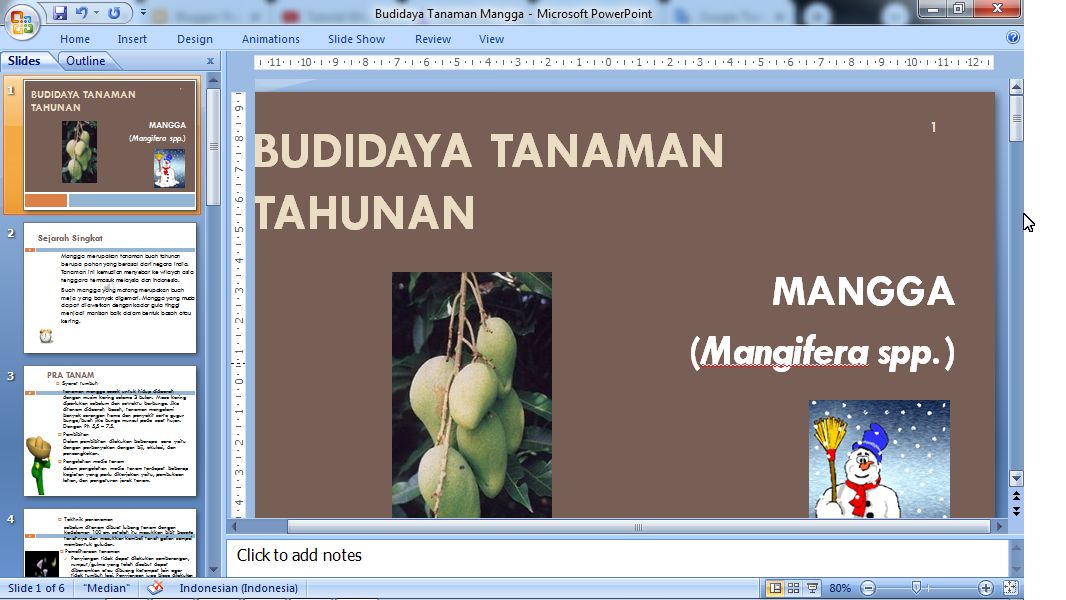
Actually the numbering of pages or slide numbers in PowerPoint is not so important compared to the numbering of pages in Word. However, with the number on the PowerPoint slide, we can find out how many slides we have opened when presenting it. However, to remove this slide number if it is already on the PowerPoint slide we have, the method is very easy. Enter the "Insert" menu, then select "Slide Number". Remove the checkmark in the "Slide Number" section then click "Apply to All" if you want to remove the page numbers on all slides, or select "Apply" if you want to remove only the slide numbers on the opened slide. More tutorials: How to Display Notes on PowerPoint How to Print Certain Slides in PowerPoint How to Show Thumbnails in PowerPoint How to Convert PowerPoint 2007 Slide to Picture

Mail Merging With Microsoft Excel and Word

Image
Friends, make a list of data in the form of names that will be entered into Microsoft Word, don't forget to put column headings in the table. We can make other data if needed, for example addresses or others. After everything has been made, friends, save it in place and close Excel. After that, open Microsoft Word and create a format that later we will enter the data in Excel into that format. Even better if the format or template has been provided beforehand. After that we enter the part to connect Excel and Word using Mailings. More Tutorials: How to Print on B5 Binder Paper How to Print One Big Picture on Multiple Pages How to Remove Table Lines in Word Without Using an Eraser How to Make Big Curly Brackets in Word How to Delete Page Number in Specific Page Enter the "Mailings" menu, then select "Select Recipients" and select "Use Existing List". Then a new "Select Data Source" window will appear, there, look for the Excel data that was cr...

How to Delete a Slide in PowerPoint

Image
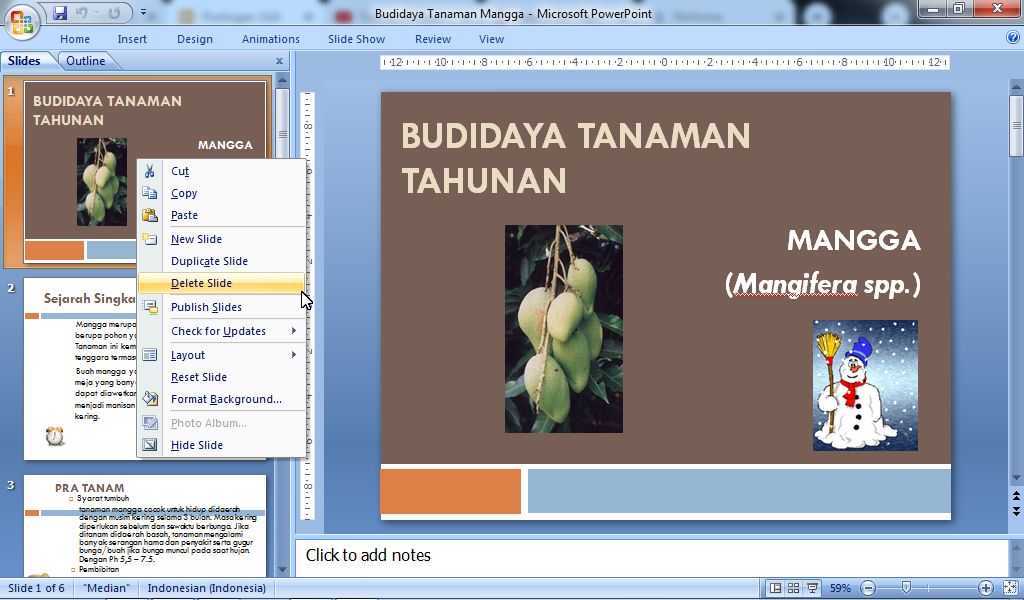
Maybe most of my friends already know how to delete PPT or Powerpoint slides, but maybe there are still many other friends who don't know about it so they get confused when deleting the wrong or unused slides. To delete the wrong or unnecessary PowerPoint slides, the method is very easy, first determine the slides to be deleted, the slides to be deleted can be seen on the slides on the left side of the PowerPoint screen. Then  right-click on the mouse on the slide you want to delete, after that select "Delete Slide". Now, the slide will be automatically deleted, if you are mistaken in deleting it, you can click "Undo" so that the deleted slide can reappear and you can delete the other slides they want. More tutorials: How to Display Notes on PowerPoint How to Print Certain Slides in PowerPoint How to Show Thumbnails in PowerPoint How to Convert PowerPoint 2007 Slide to Picture

How to Remove Text Border in Word

Image
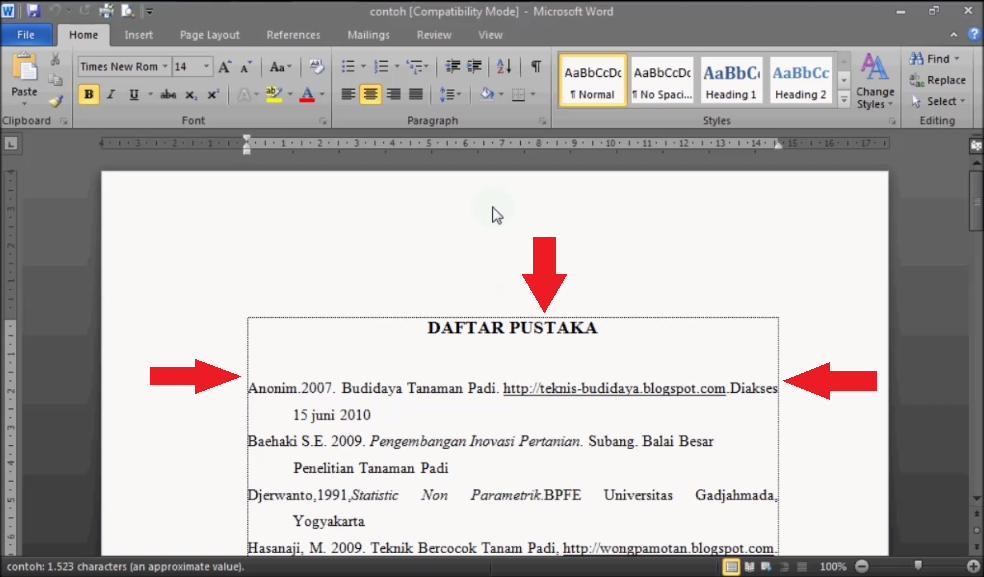
Text boundaries or text boundaries in Microsoft Office Word have functions that can help us work on word worksheets. One of its functions is to help us see the boundaries and size of the text on the top, bottom and sides. However, there are some people who feel disturbed by the existence of a text border on a Microsoft Office word worksheet. Therefore, in this tutorial post, I will provide a way to get rid of these lines. The method is very easy. More Tutorials: How to Print on B5 Binder Paper How to Print One Big Picture on Multiple Pages How to Remove Table Lines in Word Without Using an Eraser How to Make Big Curly Brackets in Word How to Delete Page Number in Specific Page First of all, open Microsoft Office Word, either version 2007 or version 2010. Then enter "Word Options" by using Word 2007, click "Office Button" and select Word Options. Meanwhile, if using word 2010, click "File" then select Options. After entering Word Options, select "Advan...

How to Change Tab Stops in Word

Image
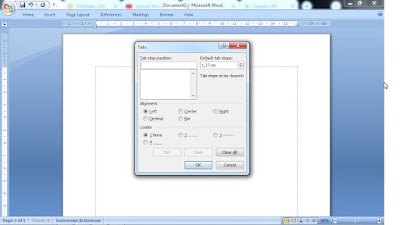
Tabs have many functions and are often used in creating a document in Word, one of which is that we can make the beginning of a paragraph indented by using tabs. So it turns out that we can also change the distance the tab jumps, friends, the method is very easy. First enter the "Paragraph" setting, by right-clicking on the mouse, then selecting paragraph. Now a new Paragraph settings window will appear as below. Then friends click " Tabs..." which is on the bottom left to enter the tab settings. Now, after entering the tab settings, friends can change the tab button jump distance on the " Default tab stops" . There you can change whether you want to get closer or further away, after that click OK to save the settings and see the results. So, that's the way to set tabs in Microsoft Word 2010, how about friends? easy right? Good luck More Tutorials: How to Print on B5 Binder Paper How to Print One Big Picture on Multiple Pages How to Remove Table Lines ...

How to Know PDF Paper Size

Image
PDF files are files that are widely used for digital document exchange purposes. To open this PDF file, you need a PDF file opener application, one of the applications for opening PDF files is Adobe Reader. When opening a PDF file we cannot edit what is in the file. Such as writing, margins, paper size and others like those in Microsoft Word. However, we can see the paper size of the PDF file before the file is printed, and the paper size can even be changed as needed. The method is very easy. More tutorials: How to Print Booklet in PDF Both Sides How to Change Page Setup in PDF How to Print 2 Page in 1 Paper PDF How to Print B5 in PDF How to Convert RAR to PDF Friends enter the Print menu by simultaneously pressing the Ctrl key and the P key on the keyboard, or you can also click the print icon at the top. Then select Page Setup in the lower left corner. After that a new Page Setup window will appear, where friends can see the paper size of the PDF file that friends open, there friend...

Excel to PDF Converter in Excel 2007

Image
Do you use Excel 2007 or do you happen to use a PC that still uses Excel 2007 inside? and convert the Excel 2007 file into a PDF file. Don't be confused, because how to convert an Excel 2007 file into a PDF file is very easy. Set the Excel file data first so that it fits the paper used so that later when it is converted to a PDF file it will be neat. Then click the "Office Button" in Excel 2007 which is in the upper left corner of the Excel worksheet, then select "Save As". After that, select "PDF or XPS", then a new window will appear "Publish as PDF or XPS". Choose a location to save the changed file later, place it in a location that is easy for friends to see on the computer. For advanced settings, friends can immediately click "Option", then click "Publish" to continue the change process and see the results. More tutorials: How to Remove Text Box From Excel How to Clear Print Titles in Excel How to Show Formula Bar on...