Posts

Showing posts from April, 2022

How to Change Character Spacing in PowerPoint

Image
Sometimes when we type in Microsoft PowerPoint, the text we type is too long or too short, even though we want the sentence or title to fit in the space we have provided. Well, here we need to adjust the spacing between letters or characters. As for how to adjust the spacing between letters or characters in Microsoft PowerPoint, the method is very easy, first select the text where we will adjust the spacing between letters or characters. After that, go to the "Home" menu and in the "Font" section, click or select "Character Spacing". More tutorials: How to Display Notes on PowerPoint How to Print Certain Slides in PowerPoint How to Show Thumbnails in PowerPoint How to Convert PowerPoint 2007 Slide to Picture Then there are several choices, if you choose "Tight" or "Very Tight" the space will be narrower, and if you choose "Loose" or "Very Loose" then the spacing will be even more stretched. Choose according to the se...
How to Delete Text Box in Word

Image
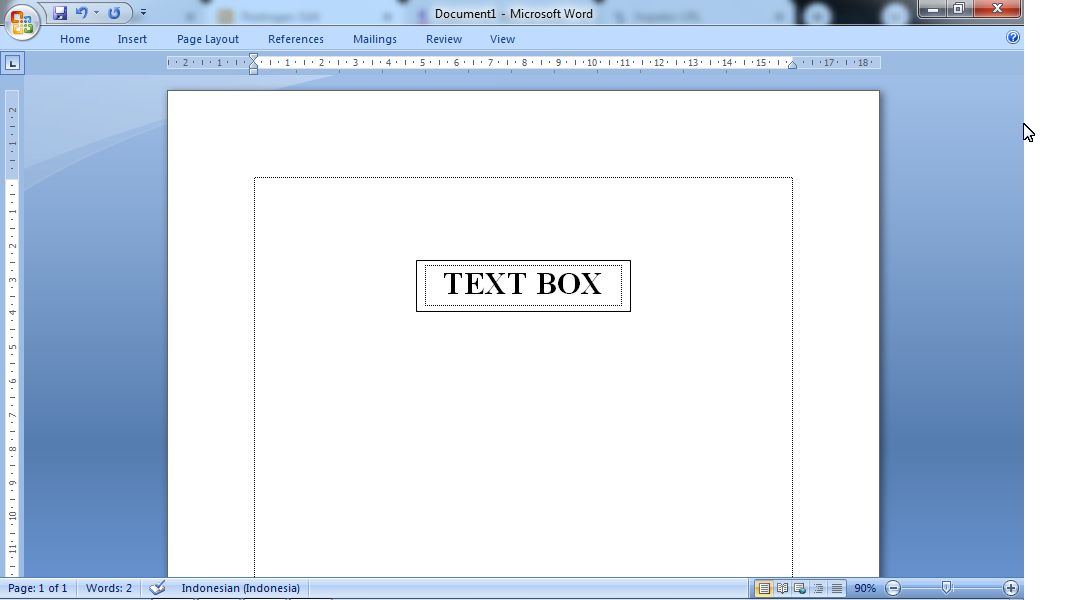
Well, as you know, text boxes are usually used to create a chart, whether it's a structural chart or something else. And usually we are wrong or mistaken in making it so we need to delete one or several existing text boxes. As for how to delete or remove text boxes in Microsoft Word, the method is very easy, friends. First, move the cursor to the outer line of the text box until the cursor changes shape, after that click, then press the Delete button on the keyboard on the laptop or on the computer. And automatically the text box or text box will disappear or be deleted. More Tutorials: How to Set Default Paper Size in Word How to Change Line Spacing to 1.5 in Word How to Set Paper Size in Word How to Remove Table Lines in Word Without Deleting Text How to Print 2 Pages 1 Paper in Word 2007 More Tutorials: How to Set Automatic Tabs to Indent Paragraphs When Entered How to Set A5 Paper Size in Word How to Rotate a Photo or Image in Microsoft Word How to Print 1 Image Into 2 Parts in...

How to Print on Microsoft Word 2007

Image
Go directly to the " Office Button" , then select " Print". After that a new window will appear "Print". Before printing, in the "Printer" section, you must first select the type or type of print that we will use.  In the "Page range" section, there are several options for printing. Select "All" to print all the pages in the document, select " Current Page" if you want to print only one sheet that we want, for example we only want to print page 3 without printing pages 1 and 2. More Tutorials: How to Set Default Paper Size in Word How to Change Line Spacing to 1.5 in Word How to Set Paper Size in Word How to Remove Table Lines in Word Without Deleting Text How to Print 2 Pages 1 Paper in Word 2007 And select " Page" , if you want to skip the pages to be printed. For example pages 1,3,5 and 6 (how to write, 1,3,5,6).In the " Copies " section , we can duplicate or we can determine how many files are...

How to Insert Portrait and Landscape in Same Word Document

Image
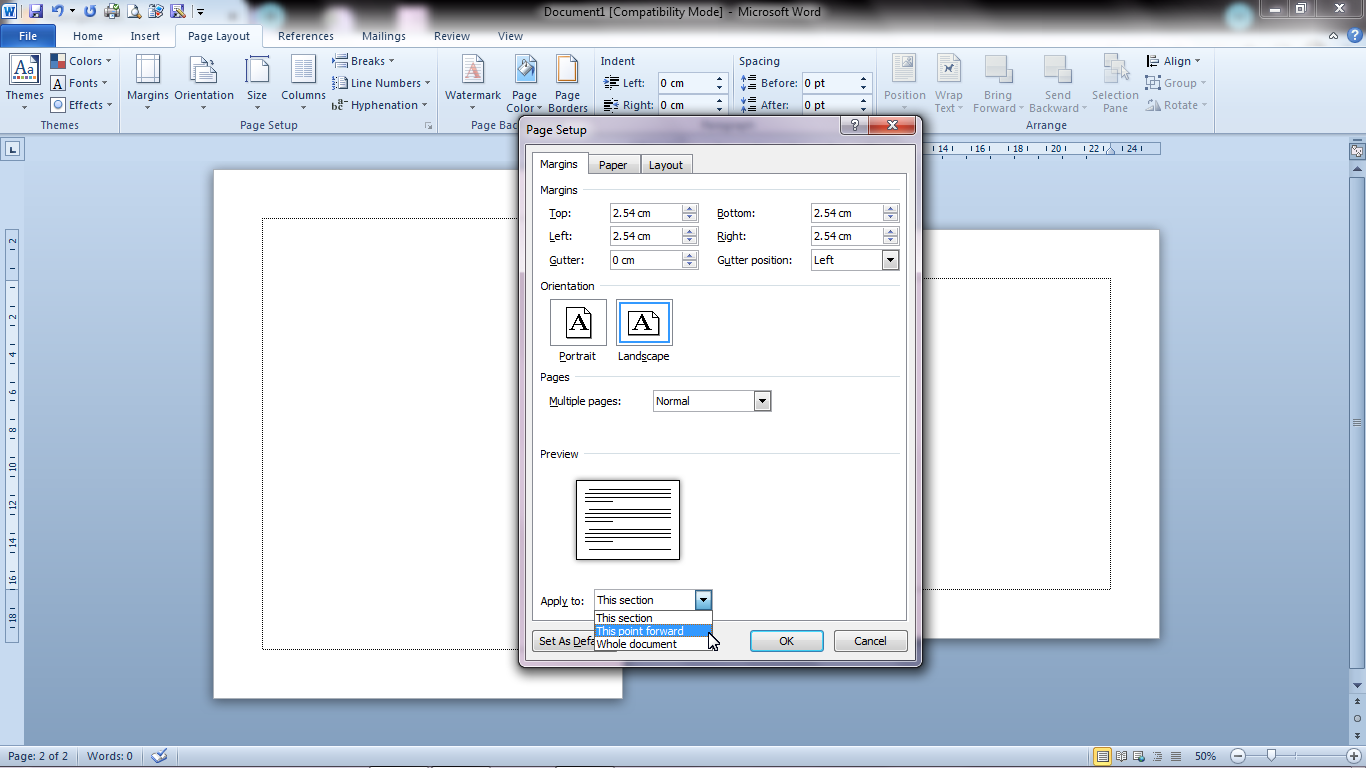
Actually, the method is very easy and almost everyone knows about it. The first step is to determine which page we will change to landscape. After that, select the "Page Layout" menu, then select " Page Setup" , click the arrow in the lower right corner. There will be a " Page Setup" Dialog box that will appear, change the paper shape from " Portrait" to " Landscape" , then change " Whole Document" to " This Point Forward" , then click Ok. More Tutorials: How to Set Default Paper Size in Word How to Change Line Spacing to 1.5 in Word How to Set Paper Size in Word How to Remove Table Lines in Word Without Deleting Text How to Print 2 Pages 1 Paper in Word 2007 So now one of our pages has changed to landscape, to change it back to portrait, please follow the steps as above. I hope my article is useful for all readers and if anyone wants to comment, please write it in the comments box below. Stay tuned and keep up with ...

How to Merge Cells in Microsoft Excel

Image
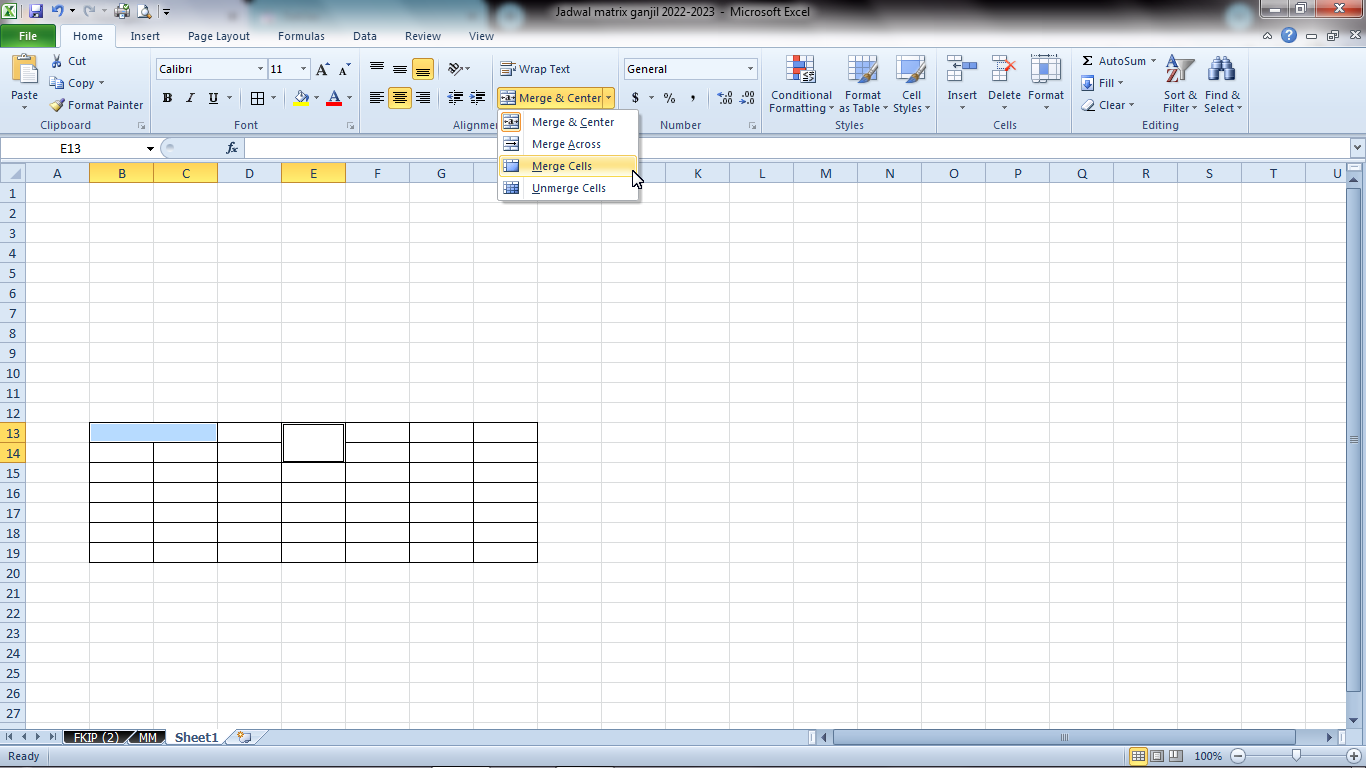
Merging two cells into one is very useful when we are making a table, there are times when one cell is not enough to make a table in excel, therefore it is necessary to combine two cells into one. Here's how to combine two cells into one in Excel, it's very easy. the first step select the two  cells that will be combined. Then select " Merge and Center" in the " Alignment " section of the "Home" menu. Finally, the cells that were previously two have merged into one. More tutorials: How to Remove Text Box From Excel How to Clear Print Titles in Excel How to Show Formula Bar on Excel How to Hide and Unhide Excel Worksheet How to Copy Sheet to Another Excel File

How to Convert Word 2010 to PDF

Image
Well, sometimes we are required to send a file, where the file we want to send is in the form of a PDF file, while the existing file is in the form of a Word document file. Don't be confused, because it's very easy to convert a Word document file into a PDF file ready to be sent. The first step, open the Word document which will later be converted into PDF. Then select the "File" menu, and select "Save As". After that a new "Save As" window will appear, please specify the location where the PDF file will be saved later, then change the file name if necessary. More Tutorials: How to Set Default Paper Size in Word How to Change Line Spacing to 1.5 in Word How to Set Paper Size in Word How to Remove Table Lines in Word Without Deleting Text How to Print 2 Pages 1 Paper in Word 2007 In the "Save as type" section, change from "Word Document" to PDF. Friends can proceed to the next settings if needed by clicking "Options..."...

How to Convert a Word 2007 Document to PDF

Image
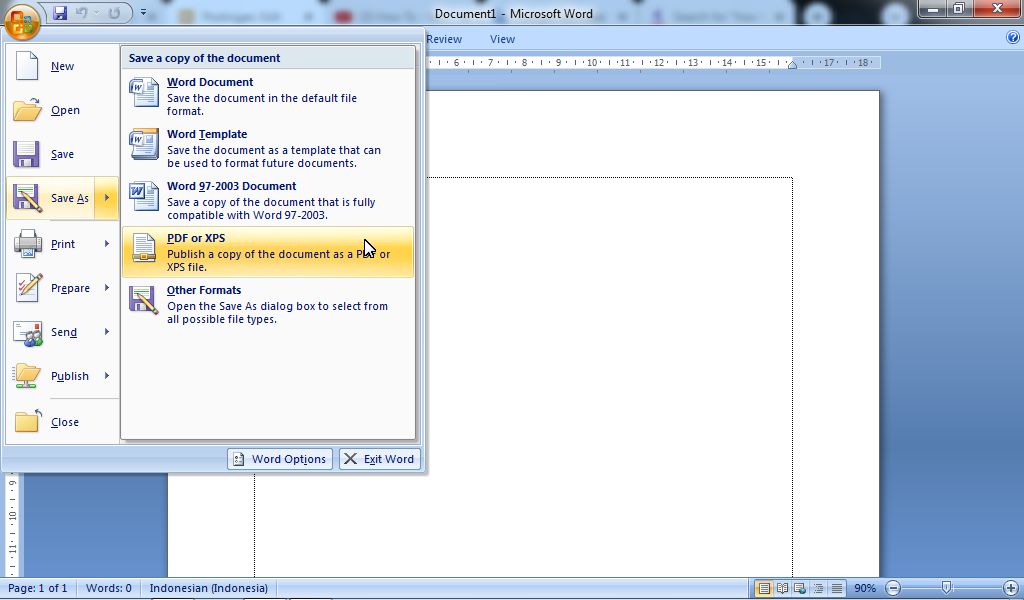
PDF is a document format that is used by many people and is very popular for sending between documents. Initially, PDF documents (Portable Format Documents) could only be opened and created using software from Adobe, but in the end, a lot of software has been created to be able to read PDF format documents. PDF documents are also now easy to create, one of which is by writing an article in Microsoft Word and then converting or saving the text to PDF format. How to change it? How to change it is very easy, in the following we will provide the steps. More Tutorials: How to Set Default Paper Size in Word How to Change Line Spacing to 1.5 in Word How to Set Paper Size in Word How to Remove Table Lines in Word Without Deleting Text How to Print 2 Pages 1 Paper in Word 2007 First of all, create or open a Microsoft Office Word 2007 document which will later be converted into a PDF file. Then click the "Office Button" which is in the upper left corner. Then select "Save As"...

How to Rotate Text in Table in Microsoft Word

Image
Now, usually the table column headings that we make will be very long compared to usual and we can no longer shorten them. For this reason, the best step we can take is to rotate the text contained in the table. Rotating here is directing the writing to be vertical or perpendicular. Now to make writing in the Word table vertical, the method is very easy. Select or select the text that we will rotate, then enter the "Layout" menu, after that select "Text Direction". So immediately the text that we selected earlier will rotate to be perpendicular or vertical. Hopefully this tutorial can be useful for all my friends, if there are friends who are still confused, please write down your questions in the comments box below. Good luck. More Tutorials: How to Print on B5 Binder Paper How to Print One Big Picture on Multiple Pages How to Remove Table Lines in Word Without Using an Eraser How to Make Big Curly Brackets in Word How to Delete Page Number in Specific Page More Tu...

How to Delete Table in Microsoft Word

Image
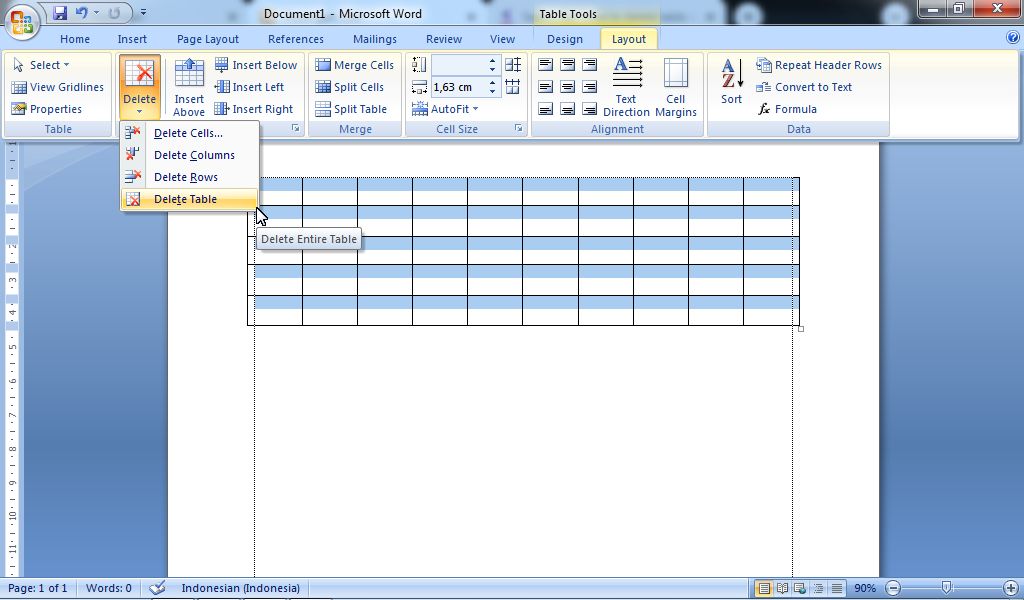
There are times when we make a mistake when creating a table, or when creating the table there are some columns, rows or even the table that is wrong and we want to delete it, but we don't know how to delete it. For this reason, in my article this time, I will share with all my visitor friends about how to delete columns, rows and tables in Microsoft Office Word 2007. More Tutorials: How to Print on B5 Binder Paper How to Print One Big Picture on Multiple Pages How to Remove Table Lines in Word Without Using an Eraser How to Make Big Curly Brackets in Word How to Delete Page Number in Specific Page In the following, I will describe one by one how to delete unused columns, rows or tables. Although the method that I will give you may already be known by many other. Before deleting an entire table, friends must first select all tables that you want to delete or delete. After that go to the  " Layout " menu then select " Delete" , then four delete options will appea...