Posts

Showing posts from June, 2022

How to Print 2 Page in 1 Paper PDF

Image
Similar to Microsoft Office PowerPoint, PDF files opened with Adobe Acrobat Reader DC software can also be printed with 2 pages on 1 sheet of paper. With this it can make it easier for friends who will print or print files that have a lot of pages, besides that it can also reduce the amount of paper usage by up to 50 percent. The way to print 2 PDF pages on 1 sheet of paper is very easy, in the following we will describe the steps. First of all, open the PDF file that will be printed using the Adobe Acrobat Reader DC software. More tutorials: How to Convert Word 2010 to PDF How to Convert a Word 2007 Document to PDF How to Turn Zip Into PDF How to Know PDF Paper Size Excel to PDF Converter in Excel 2007 Then go to the Print menu, by pressing Ctrl + P on the keyboard or by clicking on the print icon on the menu above the PDF file. After entering the print menu, in "Page Sizing & Handing" select "Multiple" to print 2 pages on 1 paper. Then change "Page per sh...
How to Hide and Unhide Excel Worksheet

Image
Worksheets are pages that are used to create or process data in Microsoft Excel, this worksheet is different from the pages in Microsoft Word. Now in use, this worksheet can be made many according to needs and when one or several of these worksheets are temporarily needed and you don't want to delete them, this worksheet can be hidden. How do I hide this worksheet? the method is very easy, first of all open the Excel file where we will hide the worksheet later. After that, right-click on the Work Sheet and select "Hide" to hide, the worksheet will automatically be hidden. More tutorials: How to Show Margins in Excel 2007 Print Preview How to Clear Print Area in Excel How to Open 2 Different Excel Files on 1 Screen How to Print 2 Pages on 1 Sheet in Excel 2010 How to Print Landscape in Excel How do I bring it back up? How to bring up a hidden worksheet is very easy. First, right-click one of the worksheets, then select "Unhide" after that a hidden worksheet will ...

How to Delete Page Number in Specific Page

Image
Usually, in making a paper assignment or report, there are guidelines that we must follow, and one of the contents of these guidelines is to remove the page numbers on certain pages. In Microsoft Word it is very difficult to remove page numbers on certain pages, in fact I don't think I can. Therefore we trick it to cover the page number, trick it by covering the page number using the Shapes box. The trick is to first make a Shapes box or other shape according to your wish, in the " Insert " menu, then click " Shapes " and select the shape you want. I suggest using a square shape. More Tutorials: How to Remove Text Box Lines in Word How to Hide Scrollbar But Still Scroll How to View Scroll Bar in Word How to Print 4 Pictures on One Page in Word 2010 Then friends resize according to the size of the page number or until the page number is not visible. To remove the lines on the Shapes, you can enter the " Format " menu, then on " Shape Outline "...

How to Set Password for Word Document 2007

Image
Setting a password on a document in Microsoft Office Word 2007 is one way to secure or protect our Word documents from prying eyes. As for how to set a password in Microsoft Word 2007, the method is very easy, first of all, click the " Office Button " which is in the upper left corner of the worksheet. Then select " Prepare ", then select " Encrypt Document ". Enter the password that will be used to secure the document. You should enter a password that is easy to remember. after that click " OK ". Re-enter the password, then click " OK ". Close and save the document, then we test the security. Reopen the document that we have installed a security code or password. Well, how are friends? It's easy, isn't it, how to put a password on a document in Microsoft Office Word 2007? Please practice and try on each computer. That's all for our tutorial this time, don't forget to comment and share this tutorial with your other frien...

How to Copy Sheet to Another Excel File

Image
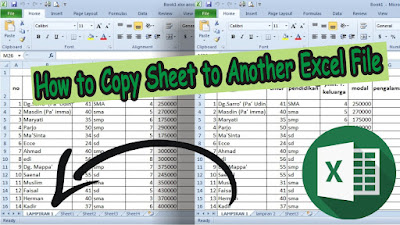
Well, there are times when we create a document in Excel, we also want to include Excel data contained in other files. Actually, we can definitely copy the data contained in the sheet in another Excel file to be included in the Excel file that we are creating, but the column and row settings will be disassembled or will not follow the settings in the previous file. So, the way to move an Excel sheet to another Excel file is very easy. First open the Excel file that we need for the sheet moving process, then right-click the mouse on the sheet that will be moved. More tutorials: How to Show Margins in Excel 2007 Print Preview How to Clear Print Area in Excel How to Open 2 Different Excel Files on 1 Screen How to Print 2 Pages on 1 Sheet in Excel 2010 How to Print Landscape in Excel Then select " Move or Copy ", then in the " To book " section, select the destination Excel file from the sheet you want to move. Then decide whether you want to move the sheet or just copy...

How to Divide Into 4 Microsoft Word

Image
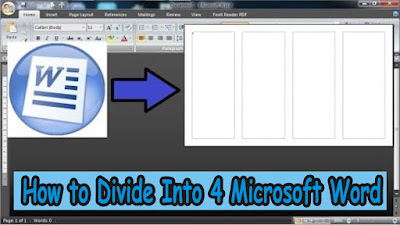
The way to divide a Microsoft Word worksheet into four parts is very easy. First of all open Microsoft Office Word which later we will divide the work paper into 4 columns. After that, select the " Page Layout " menu , then select " Columns " , and select " More Columns.. " for more advanced settings. After that a new window will appear in the form of advanced settings from " Columns ". In the " Number of columns " section , change it to 4. You can see changes to the number of columns or sections in the worksheet in " Preview " . Click " Line Between " if you want a dividing line between the existing columns. More Tutorials: How To Change Footnote Font in Word How to Put Page Number On Microsoft Word How to show Text Boundaries in Microsoft Word How to Show Vertical and Horizontal Ruler in Word After everything is in order, just click " OK " to save the settings. Well, now the Microsoft Word worksheet has b...

How to Remove Red Underline in Word

Image
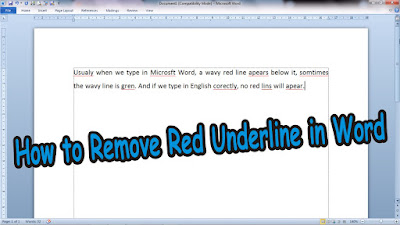
Usually when we type in Microsoft Word, a wavy red line appears below it, sometimes the wavy line is green. And if we type in English correctly, no red lines will appear. Now, to remove the line forever from the Word worksheet, the method is very easy. First of all friends enter " Word Options ", if in Word 2007 click " Office Button " then select " Option ", if in Word 2010 click "File" then select " Option ". After that, if you have entered " Word Options ", friends select " Proofing ". More Tutorials: How To Change Footnote Font in Word How to Put Page Number On Microsoft Word How to show Text Boundaries in Microsoft Word How to Show Vertical and Horizontal Ruler in Word Then in the " When correcting spelling and grammar in Word " section, uncheck the words " Check spelling as you type " then click " OK " to save the settings and automatically the wavy red line under the writing will ...

How to Remove Page 1 Watermark in Excel

Image
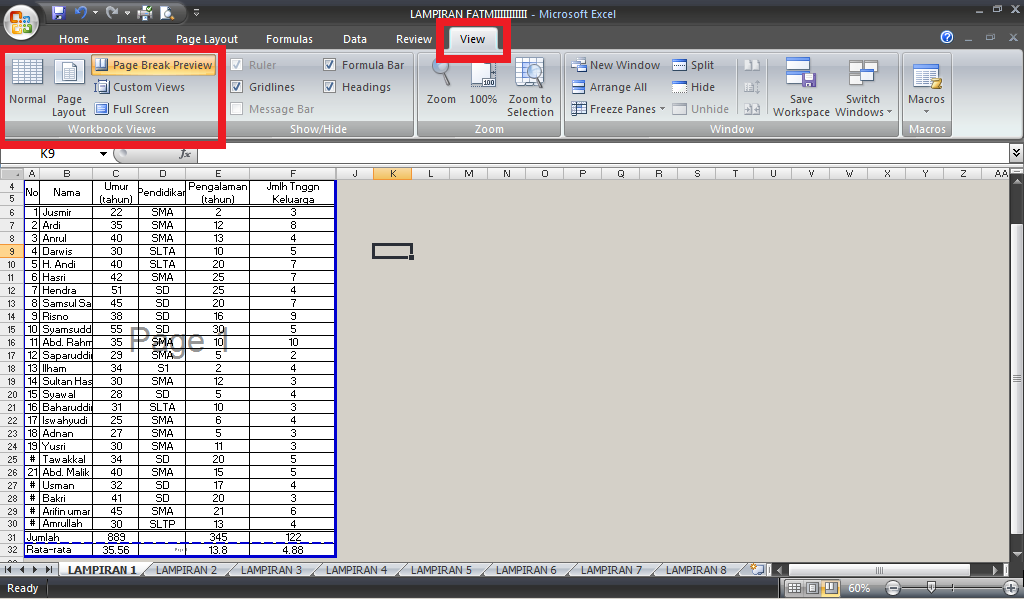
Usually when we are given Excel files from friends or bosses at work to view or study, sometimes the appearance is slightly different from the display we usually know. The worksheet display in question is the presence of a Page writing watermark in the middle of the worksheet. Actually the Page writing watermark in Excel cannot be deleted or removed, but the watermark can disappear if the worksheet view is changed. So, if friends don't know how to change the appearance of an excel worksheet, the method is very easy. First of all, friends, enter the "View" menu, then in the "Workbook Views" section, friends, select "Normal". More tutorials: How to Remove Text Box From Excel How to Clear Print Titles in Excel How to Show Formula Bar on Excel How to Hide and Unhide Excel Worksheet How to Copy Sheet to Another Excel File So, now the display of our excel worksheet has returned to normal view and the page writing watermark in the middle of the worksheet has ...