Posts

Showing posts from July, 2022

How to Remove Table Lines in Word Without Deleting Text
Image
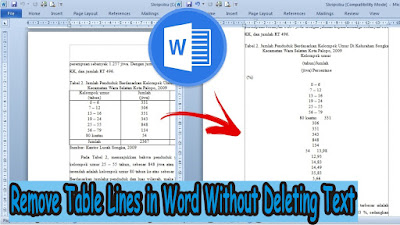
On this occasion, I again shared with all my friends a tutorial, which hopefully this tutorial can be useful. The title of this tutorial is how to quickly delete table lines in Word 2010 without removing text. Okay, let's get straight to it, as for the method, it's very easy. First prepare a table in advance, which later we will remove the lines and leave only the writing in the word document. After that, click on the table so that the " Table Tools " menu appears. More Tutorials: How to Rotate Text in Table in Microsoft Word How to Delete Table in Microsoft Word Mail Merging With Microsoft Excel and Word How to Remove Text Border in Word How to Change Tab Stops in Word In " Table Tools ", select " Layout ". Now in the " Data " section of " Layout" , click " Convert to Text ". Then a new window will appear " Convert Table to Text ", just click " OK ". So, the table will automatically disappear and o...
How to Change Page Setup in PDF

Image
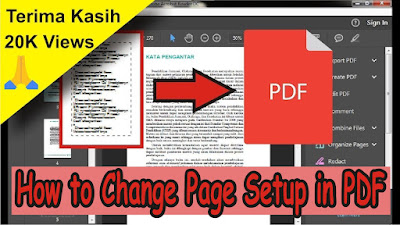
Maybe there are still many of you who don't know how to set page setup or paper size in PDF. Indeed, PDF is very different from Microsoft Office, in Microsoft Office we can easily set the page setup or paper size to make it easier to print or print. Then, how do you set page setup in PDF? In this post, it will be revealed how to set a closing page, how to set the paper size, how to find out the paper size and how to change the paper size in PDF. First of all open the PDF file, incidentally which uses Adobe Acrobat Reader DC to open the PDF file. More tutorials: How to Convert Word 2010 to PDF How to Convert a Word 2007 Document to PDF How to Turn Zip Into PDF How to Know PDF Paper Size Excel to PDF Converter in Excel 2007 To set and change the page setup or paper size, please, friends, go directly to the Print menu by simultaneously pressing the Ctrl key and the P key on the keyboard. Or you can also click on the print icon in the top menu. For more details, consider the following ...

How to Print 2 Pages 1 Paper in Word 2007

Image
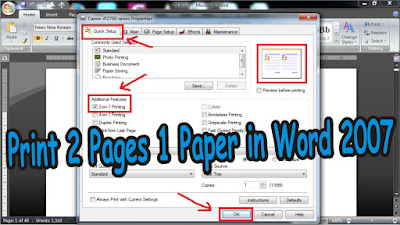
There are several benefits of printing 2 pages 1 paper in Word 2007, one of which is that it can save paper used . The method is very easy, prepare a Word 2007 document that has many pages in advance, indeed this method can be useful if the file we are going to print has many pages. First enter the " Print " menu, by pressing the Ctrl and P keys simultaneously, or enter the " Office Button " menu. Then go to " Print Properties ", incidentally this method uses a Canon printer. More Tutorials: How to Rotate Text in Table in Microsoft Word How to Delete Table in Microsoft Word Mail Merging With Microsoft Excel and Word How to Remove Text Border in Word How to Change Tab Stops in Word After that, in the " Additional Features " section, select " 2-on-1 " Printing to print 2 pages on 1 paper. After that, click " OK " and click " OK " again to start printing. That's all for our tutorial on this occasion, if you have any...

How to Change Uppercase to Lowercase in PowerPoint

Image
Sometimes when we are typing in Microsoft PowerPoint, we forget to change the Caps Lock or change from uppercase (capital) to lowercase so that if we retype it it will take a long time. Therefore there is an easy way so that we are not tired of retyping. First, select the one you want to change to lowercase, then enter the "Home" menu, and in the "Font" section, select "Change Case". Then several options will appear, friends select "lowercase" to change all letters to lowercase. Now automatically the writing that was previously all capital letters changes to all lowercase letters, friends can also change to another display such as the first letter in each word in capitals, the letters in each sentence are capitals, and so on. More tutorials: How to Remove Red Underline in PowerPoint How to Delete Text Box in PowerPoint How to Print Landscape in PowerPoint How to Print PPT 4 Slides Per Page That's the way to change capital letters to lowercase...

How to Print on B5 Binder Paper

Image
Maybe some of my friends want to print the results of their notes in Microsoft Word using Binder B5 paper but don't know how to set or change the paper settings. Now this tutorial is perfect for friends who are confused about how to do it. The method is very easy, first, friends, first open the Word document that will be printed on Binder B5 paper, then friends, enter the "Page Layout" menu. Then, friends, click "Size", there, friends, select the paper size that has been agreed upon previously, namely B5 size paper. Now, our document's paper size has changed to B5 paper size and is ready to be printed. More Tutorials: How to Remove Text Box Lines in Word How to Hide Scrollbar But Still Scroll How to View Scroll Bar in Word How to Print 4 Pictures on One Page in Word 2010 More Tutorials: How to Change Footnote Fonts in Microsoft Word 2010 How to Copy a Logo From a Laptop/Computer to Microsoft Word 2010 How to Set Default Paper Size in Word How to Change Line ...

How to Print One Big Picture on Multiple Pages

Image
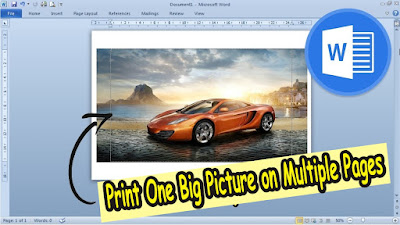
In this tutorial, we will print an image into several parts, it can be 1 image into 2 or 16 parts. However, to print it into several parts we need to use a Canon printer, I don't know if I can use another printer because here I am using a Canon printer. Okay, let's just do it. First of all, provide the image that will be printed into several parts, of course, put it in Microsoft Word. Then friends enter the "Print" menu by pressing the Ctrl and P keys simultaneously. Then friends go to "Canon Properties", select the "Page Setup" menu, in the "Page Layout" section change from "Normal size" to "Tiling/Poster". To organize it into several sections, friends click "Specify". Change from "Divided into 2" to "Divided into 4" or to "Divided into 16", according to what your friends want. After that click "OK" to save the settings and please print and see the results. More Tutori...

How to Remove Table Lines in Word Without Using an Eraser

Image
Well, the Eraseris one of the features on tables in Word which functions to delete unnecessary table lines, but for one reason or another you sometimes don't find the location of this Eraser so it's a headache if you want to delete lines in tables. It turns out that we can also delete table lines in Microsoft without using Eraser, how to use "Borders and Shading". The method is friends, first select the part of the table that will delete the lines, then friends enter the " Home " menu then in the " Paragraph " section, friends select " Borders ". Then friends can choose " No Border ", automatically the lines in the selected part of the table will disappear. More Tutorials: How to Remove Text Box Lines in Word How to Hide Scrollbar But Still Scroll How to View Scroll Bar in Word How to Print 4 Pictures on One Page in Word 2010 More Tutorials: How to Change Footnote Fonts in Microsoft Word 2010 How to Copy a Logo From a Laptop/Com...

How to Make Big Curly Brackets in Word

Image
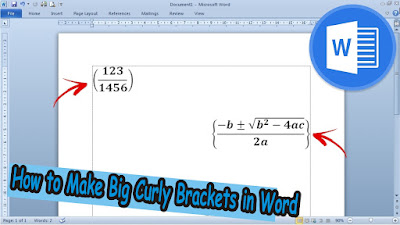
Usually we make brackets to fill them with writing where the size of the brackets is not that big or just standard. However, sometimes we also have to make brackets that contain a formula or fraction that requires the brackets to be large. Well, to make parentheses large enough to fit the contents such as formulas or fractions, the method is very simple. Here we use the parentheses in the Equation, found in the "Insert" menu. Friends go to "Equation" then friends select "Bracket", found in the "Structures" section. More Tutorials: How to Remove Text Box Lines in Word How to Hide Scrollbar But Still Scroll How to View Scroll Bar in Word How to Print 4 Pictures on One Page in Word 2010 In this bracket, friends can choose various shapes and sizes of brackets according to the needs and wishes of friends. After friends select the desired form of brackets, friends can fill in the brackets by clicking on the small box inside. Can fill it with writing, o...

How to Show Formula Bar on Excel

Image
The formula bar is the formula box located at the top of the Excel worksheet, this formula bar functions to bring up formulas in performing calculations in Excel. The way to display or remove the formula bar in an Excel worksheet is very easy and for sure all of your friends already know it, first open the Excel 2007 worksheet, then select the "View" menu. On the View menu, there are several commands in it. To display and remove the Formula Bar, friends, please check the box that says "Formula Bar" to appear, whereas if you want to remove it, please remove the check by clicking the small box again. That's all for my tutorial on this occasion entitled how to show and remove the Formula Bar in Microsoft Excel 2007, I hope friends will get some knowledge from this tutorial. Don't forget to check out our other recent tutorials. good luck More tutorials: How to Show Margins in Excel 2007 Print Preview How to Clear Print Area in Excel How to Open 2 Different Excel...

How to Extract Zip File to Srt

Image
So, this time we will also change the Zip subtitle file to Srt but by using the Winzip software. Winzip is almost the same as Winrar, both are software for filing files, but Winzip can also compress file sizes. Actually, to open Zip files you have to use WinZip software, but sometimes Zip files can also be opened using WinRar. As for how to change the subtitle file to Zip format. to Format Srt. the method is very easy. In principle, the subtitle file with the Srt format. already in the zip file. We're only going to output the Srt file. so that it can be used. First right click on the zip file, then select " Extract to here " to remove the Srt file. which is in the zip file. in the same folder. Wait... The process is in progress. Well, subtitle file Srt. has come out of the Zip file and is ready to be used to watch your friends' favorite movies. Do the same for the Zip format Subtitle file other. Now that's the way to convert a zipped subtitle file into an srt file...