Posts

Showing posts from September, 2023

How to change text in Ms. Word into an image

Image
Have you ever thought about whether you can change writing in Word into an image? It turns out you can. Here we do not use screenshot software, nor do we use a camera, but we use the features of Microsoft Word. The method is very easy, friends, read this tutorial until the end to find out how. First determine the text that we will convert into an image, then select all the text. After that, right click with the mouse on the text that was selected earlier. Then select Copy, then place the cursor on a blank page, then go to the Home menu, then click the down arrow on Paste and select Paste Special. Then a new Paste Special window will appear, then select Picture and select OK. So, automatically the text that we copied earlier will be pasted in the form of an image. How about it friends, it's easy, right? That's how to change text in Word into an image, I hope this tutorial can be useful for all of you.

How to make 3 lines on the cover in Ms Word mobile

Image
There are various forms of paper covers, one of which we often see is the form of a paper cover which has 3 lines in the middle of the paper cover. So, this time we will make a paper cover with 3 lines in Ms Word mobile using the WPS Office application. The method is very easy, read this tutorial until the end to find out how. Friends, open a Ms Word document using the WPS Office application on their mobile, then enter edit mode. Then go to the tools menu in the lower left corner, then select insert. Then in the Shape section, friends, click the three dots next to it. After that, select the line shape, the line will automatically appear on the Word worksheet. Arrange the lines so they are perpendicular, create two other lines to the left and right of the first line. Usually the other two lines are shorter than the first line we made. After that, friends, you can edit these three lines. Edit it in the Drawing Tools in the Tools menu, where we can adjust the line thickness, line color an...

How to make a horizontal line in Microsoft Word mobile

Image
There are many reasons why we make horizontal lines or lines that extend from left to right in Microsoft Word, one of which is when making letterheads. So, this time we will create a horizontal line in a Word document using the WPS Office application on a cellphone. The method is very easy, read this tutorial to the end to find out how to make it. First open a Word document using the WPS Office application or create a new document in WPS Office, then select the Tools menu in the lower left corner. Then click Insert, scroll down until you find Shape, click and select Line. Arrange the line according to its length and also adjust its straightness. To edit this image, friends can select Drawing Tools, we can edit the thickness of the line and its color. Apart from thickness and color, we can also edit the style of the line, here there are only 3 line styles, straight line, dotted line and dotted line. So how about it friends, it's easy, right? That's how to make straight lines in ...

How to insert images in word mobile

Image
There is a condition that requires us to create or edit a Ms Word document, but we don't have time to open the laptop or computer so we are forced to use a cellphone to edit or create the Word document. One of the editing or creating and opening applications for Ms Word documents that we can use is the WPS Office application. This time I will insert an image into a Ms Word document using WPS Office, the method is very easy, read this tutorial to the end to find out how. First open the Ms Word document file using the WPS Office application, then friends enter edit mode so we can edit the Ms Word document in WPS Office. Then, friends, place the cursor on the part where the image will be inserted. Then go to the Tools Menu, then select Insert, and in the image section, friends, click the image icon. Select the image you want to insert, then click Ok to insert the image into the Ms Word document. After that, friends, adjust the siz...

How to Open Two Word Documents Simultaneously on One Screen

Image
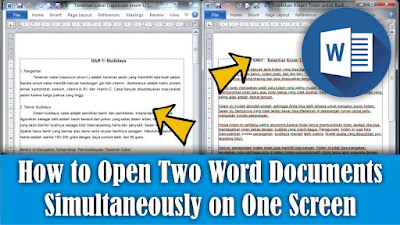
Maybe some of you want to open two Word documents simultaneously on one screen, but are confused about how to do it. So in this tutorial I will share the method with friends. To open two document files at the same time, first open the two Word documents. After that, friends, minimize both documents, by clicking the "Minimize" button next to the "Close" button in the top right corner. Then you just need to adjust the width and height of the two document files so that they can fit on one PC monitor screen or your laptop screen. So, how about it friends, it's easy, right? That's how to open 2 Word files on one screen, I hope this tutorial can be useful for all of you.

How to Fix Sideways Arranged Word Worksheets

Image
Maybe there are friends who are just learning to use Microsoft Word and feel confused by the appearance of pages in Word which are arranged sideways, usually two or more pages arranged sideways, which are usually arranged one page down. Friends, don't worry, we can overcome this by setting up Zoom. The Zoom settings in Microsoft Word are in the lower right corner, friends, you can set the Zoom bigger so that the Word page display can return to one page arranged downwards. Apart from that, we can also adjust the zoom in the "View" menu. There we can manage the Zoom even better because there are advanced settings for Zoom. So that's how to deal with Word worksheets that are arranged sideways, I hope this tutorial can be useful for all of you.
How to Make Portrait and Landscape Pages in Google Docs

Image
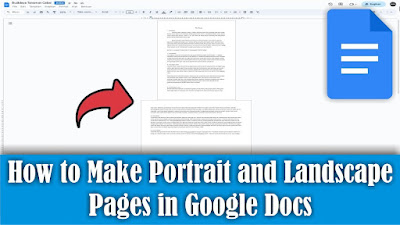
Maybe some of your friends are currently learning to use Google Docs to create written documents. As you know, Google Docs is basically the same as Microsoft Word, but in terms of features Google Docs is not as complete as Microsoft Word. Including working paper settings, however, we can make paper or work pages in Google Docs in portrait and landscape form in one document. The method is very easy. Friends, first determine which page you want to change to landscape view, then select all the text on that page. Then friends, go to the "Format" menu and select "Page Orientation". Then a "page orientation dialog box" will appear, then select the selected content, after that select "landscape" orientation. Then click "Ok" to save the settings. And automatically the selected page will change from portrait to landscape. So that's how to make a page in Google Documents portrait and landscape in one document, I hope this tutorial can be usef...

How to Create a Landscape Page in Google Doc

Image
Maybe some of your friends are starting to create a document in Google Docs, but are having difficulty finding the settings to change the paper to Landscape form because they are used to using Microsoft Word. So, that's why I will share the method with friends. First go to the "Format" menu in Google docs, then friends select "Page orientation". Then the "Page Orientation dialog box" will appear. To change the paper shape from portrait to landscape, friends, change the orientation to "Landscape", then select "Ok" to save the settings. Now automatically all pages in Google docs will change to Landscape. That's how to create a landscape page in Google Docs, I hope this tutorial is useful.

How to Delete Multiple Sheets in Excel at Once

Image
Maybe there are still some friends who are still deleting sheets that are not needed in Excel one by one. This method is good if the number of sheets to be deleted is small, so what if there are a lot of sheets? Surely it will be difficult, right? For this reason, in this tutorial I will share how. Friends, open the Excel file that you want to delete the sheets in, then right-click with the mouse on one of the sheets you want to delete. After that, friends, select the "Select All Sheets" option. Well, in Microsoft Excel we can't delete or empty the sheet, so we have to leave one sheet. The way, friends, is to press the Ctrl key on the keyboard, and hold it down, don't let go, then click on one of the sheets. Then, friends, release the Ctrl button that was pressed earlier, after that, friends, right-click on the sheet that was selected earlier and that you want to delete with the mouse. Then select the Delete option to delete the marked sheet. So how about it friends, ...