Posts

Showing posts from 2022

How to Print 1 Image Into 2 Parts in Microsoft Word
Image
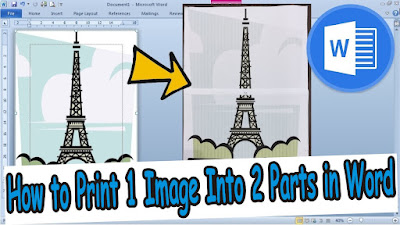
The method is very easy, friends, first enter the image that will be printed into two parts of paper in Word. I'm sure my friends already know how to insert pictures in Word, friends, set the width and height of the pictures so that they fit in one worksheet. After that friends enter the Print menu. Now in this way I use a Canon brand printer, for other printer brands I don't know maybe this feature exists. After entering the Print menu, friends select or click Properties. After that a new Canon Properties window will appear. Friends, click the Page Setup menu in Canon Properties, then in the Page Layout section, change it from Normal-Size to Tiling/Poster. In the preview on the left, the paper that was once divided into 2 parts or paper. After everything has been set, you click OK to save the settings, and click Print to continue with the printing or printing process, and you can see the results. More Tutorials: How to Insert 2 Tables Side by Side in Word How to Copy Table in ...
How to Move One Word Page to Another Word Document

Image
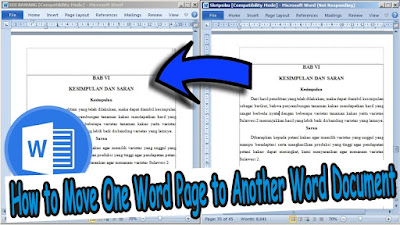
Maybe friends are making a paper or assignment, where one of the pages in the paper is obtained from another word document that happens to exist. So, instead of getting tired of typing again, we'd better just move it by copying it. The method is very easy, friends can immediately select or select all the writing on one page that you want to move to another document. Then friends right-click on the mouse and select copy, or you can also press the Ctrl key and the C key on the keyboard simultaneously. After that, we move on to the other document, where all you have to do is create a new page. If what we copied earlier wanted to be moved to the last page, friends can immediately create a new page at the end of the document by placing the cursor at the end of the text then pressing enter until a new page appears. The method is the same, if you want to place the copy in the middle of the document. After creating a new page, friends can immediately paste the writing from one page earlier...

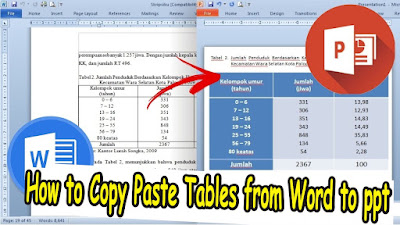
How to Copy Paste Tables from Word to PowerPoint

Image
Maybe friends are making a presentation in PowerPoint from the results of reports done in Word, there are also tables that you want to include in the PowerPoint. Instead of getting tired of re-creating tables, it's better if the existing tables in Word are copied into PowerPoint. As for the way to copy and paste a Word table to ppt, the method is very easy, friends, all you have to do is select or select all parts of the table that will be moved to ppt without exception. Then friends directly copy it, after that open the PowerPoint file. Friends, create a new slide, the new slide created is the "Title Only" slide. After that, paste the table from Word earlier, friends, adjust the width of the table with the width of the existing slide, friends can also add a title or table title to the existing text box. For advanced table settings in PowerPoint, friends can set them in Table Tools on the Design and Layout menu. More Tutorials: How to Make Big Curly Brackets in Word How t...

How to Set Print Area in Microsoft Excel

Image
Just as the name suggests, Print Area in Excel is used to mark the area you want to print or print. If you have marked the area you want to print, then other areas on the Excel work page other than the marked area will not be printed. The way to set the Print Area is very easy, you just highlight or mark the cells to be printed. After that friends go to Page Layout, then friends select Print Area and select Set Print Area. Automatically the area we selected earlier will appear dotted line around it. However, try to make sure that the area we selected earlier is sufficient for one page of paper, otherwise the print area we selected earlier will be clipped onto the next sheet of paper.

How to Show Rulers in Excel

Image
Maybe my friends had asked, do you really have a ruler in Excel? friends rarely see the ruler in Excel because most of the Excel views that are used or that appear on the Excel work page are Normal views. Meanwhile, the ruler or ruler in Excel appears in the Workbook Page Layout view. Now, to bring up the ruler in Excel, the method is friends, just go to the View menu and then put a checklist on the Ruler. Automatically after friends check the Ruler, a ruler will appear at the top and the left side of the Excel work page.

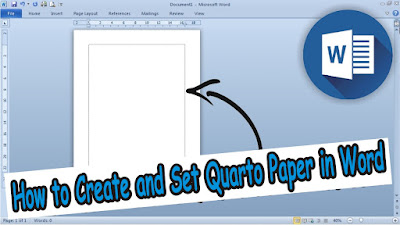
How to Create and Set Quarto Paper Sizes in Word

Image
Maybe some friends print using quarto paper and are confused about setting the quarto paper size in Word because the quarto paper is not listed in the paper size setting. In Word, quarto paper doesn't exist, but this paper size is listed under another name, but the size is the same. The size of quarto paper in word is the same as the size of "Letter" paper with a size of 21.5 cm x 27.9 cm. So if friends want to arrange quarto paper in Microsoft Word, just choose Letter type because Letter size is the same as Quarto. More Tutorials: How to Make Big Curly Brackets in Word How to Delete Page Number in Specific Page How to Set Password for Word Document 2007 How to Divide Into 4 Microsoft Word How to Remove Red Underline in Word

How to Remove Active Email Links in Excel

Image
So there are times when we get an Excel file containing email data, the email link is active, the one marked with the email is blue. Actually it's good if the email link is active so we can easily connect with the email, but it will be annoying if we accidentally click on it. To remove active links in email writing, the method is very easy. Friends can immediately right-click on the mouse in an active email link, then friends select "Remove hyperlink". After that, the link contained in the email will automatically disappear and the email will become plain text.

How to Change Lowercase to Uppercase at the Beginning of a Sentence in Word

Image
Now there are times when we type an article in Word, we forget to capitalize the letters at the beginning of the sentence. Because it is a stipulation in writing that at the beginning of a sentence after it is closed with a period, the letter must be uppercase, so we have to edit it again one by one to make it uppercase. However, you don't need to edit one by one if you forget to change the letters at the beginning of the sentence to uppercase, because we can change them automatically. The method is very easy, select all text or type which will change the first letter of the sentence to uppercase. Then on the " Home " menu, click " Change Case " with the " Aa " icon. After that several options will appear, friends, select the top one, namely " Sentence Case ", automatically after friends click, the letters in each sentence in the selected writing will change to uppercase. More Tutorials: How to Make Big Curly Brackets in Word Ho...

How to Convert Excel to PDF Nicely

Image
Maybe friends are confused when converting an Excel file to a PDF file, the result is a mess where some of the contents are cut off so it's not very good to look at. Now to make an Excel file that is converted to a PDF file not messy anymore, the method is very easy. We only need to set it on the Page Layout Menu, the first thing we do is determine the paper size that we will use, try to make sure that all the data that we are going to convert into PDF files must all fit on one paper size. Friends can see whether there is data that is truncated or not in Print Preview. If there is missing data, friends can adjust the width of the column or row or you can also adjust the size of the writing to be reduced or enlarged. So, if the existing data can't fit if it's in a Portrait or elongated shape, you can change it to a Landscape or widened shape so that the data that we're going to convert to PDF isn't truncated anymore. If friends feel that the Excel data is ready to be...

How to Rotate Text In a Table in Microsoft Word

Image
Now, usually the table column headings that we make will be very long compared to usual and we can no longer shorten them. For this reason, the best step we can take is to rotate the text contained in the table. Rotating here is directing the writing to be vertical or perpendicular. Now to make writing in the Word table vertical, the method is very easy. Select or select the text that we will rotate, then enter the "Layout" menu, after that select "Text Direction". So immediately the text that we selected earlier will rotate to be perpendicular or vertical. More Tutorials: How to Make Big Curly Brackets in Word How to Delete Page Number in Specific Page How to Set Password for Word Document 2007 How to Divide Into 4 Microsoft Word How to Remove Red Underline in Word

How to Remove Page Numbers on PowerPoint Slides

Image
Actually the numbering of pages or slide numbers in PowerPoint is not so important compared to the numbering of pages in Word. However, with the number on the PowerPoint slide, we can find out how many slides we have opened when presenting it. However, to remove this slide number if it is already on the PowerPoint slide we have, the method is very easy. Enter the "Insert" menu, then select "Slide Number". Remove the checkmark in the "Slide Number" section then click "Apply to All" if you want to remove the page numbers on all slides, or select "Apply" if you want to delete only the slide numbers on the opened slide.

How to Convert Excel 2007 Files to PDF Files

Image
Do you still have friends who use Excel 2007 or do you happen to use a PC that still uses Excel 2007 inside? and convert the Excel 2007 file into a PDF file. Friends, don't be confused, because how to convert an Excel 2007 file into a PDF file is very easy. Set the Excel file data first so that it fits the paper used so that later when it is converted to a PDF file it will be neat. Then friends click the "Office Button" in Excel 2007 which is in the upper left corner of the Excel worksheet, then friends select "Save As". After that, friends, select "PDF or XPS", then a new window will appear "Publish as PDF or XPS". Choose a location to save the changed file later, place it in a location that is easy for friends to see on the computer. For advanced settings, friends can immediately click "Option", then click "Publish" to continue the change process and see the results.

How to Print Full Photos on A4 Paper

Image
Maybe friends are looking for ways on how to print photos on A4 paper in full or without the slightest margin, what's more using the standard printer that is commonly used, namely the Canon iP 2770 printer. So, friends, you can try this tutorial. First, open the photo on your computer using Microsoft Picture Manager or another application, then enter the "Print" menu or simultaneously press the Ctrl key and the P key on the keyboard. Then click "Option" which is on the bottom right, after that a new "Print Settings" window will appear. Select "Printer Properties" to enter the Canon printer settings, after that click "Borderless Printing" and click "OK" if a new window appears. Then click "OK" to save the settings, then click "Print" to start printing and you can see the results.

How to Set Margins to 3222 in Microsoft Word

Image
Maybe friends are working on a paper assignment, and one of the rules that must be followed is setting the margins with a size of 3222. The 3222 margins here mean 3 cm left margin, 2 cm top margin, 2 cm right margin, and 2 cm margin. bottom 2 cm. Okay, go ahead, friends, enter the Page Setup menu, then select Margins and select Custom Margins for advanced margin settings. Then a new window will appear, where friends can directly set the top margin, left margin, right margin, and bottom margin. After everything has been set according to the size that has been determined, friends can immediately click OK to save the settings. And automatically the margins will be adjusted to the size of the margins that we set earlier. More Tutorials: How to Make Big Curly Brackets in Word How to Delete Page Number in Specific Page How to Set Password for Word Document 2007 How to Divide Into 4 Microsoft Word How to Remove Red Underline in Word

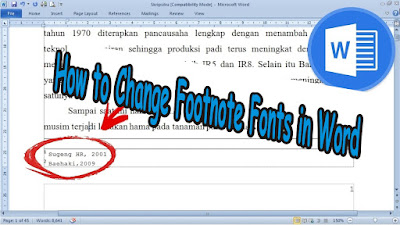
How to Change Footnote Fonts in Microsoft Word 2010

Image
So, if you are wondering, can you change the footnote font? or how to change the footnote font type in word? I answered, the method is very easy and the method is the same as we change the font in writing as usual. Friends only mark or select the footnote that you want to change the type of writing, after that friends enter the Home menu then select the type of font or writing that you want to use in the Font Style. Friends, just choose the writing style and automatically after friends click on the type of font that friends want, it will change the font in the footnote or footnote in Word. More Tutorials: How to Remove Table Lines in Word Without Deleting Text How to Print 2 Pages 1 Paper in Word 2007 How to Print on B5 Binder Paper How to Print One Big Picture on Multiple Pages How to Remove Table Lines in Word Without Using an Eraser

How to Copy a Logo From a Laptop/Computer to Microsoft Word 2010

Image
Maybe some of you want to make a cover page that requires a logo, we can insert the logo quickly without requiring a lot of steps. Usually if we want to insert a logo into a word page, we need to enter the Insert menu and select an image on a laptop or computer. So it turns out that we can directly copy it, the method is very easy and the same as we copy as usual. Friends, first look for the logo on your laptop or computer storage, then open Microsoft Word. Re-open the logo folder that you want your friends to enter into word, right-click on the mouse on the logo and select Copy, or you can directly press the Ctrl key and P key simultaneously on the keyboard. Then friends reopen Microsoft Word. Paste the logo on the word page by right-clicking the mouse on the Word page and then selecting Paste, or you can also press the Ctrl key and the V key simultaneously on the keyboard to speed up the process. Now after that the logo will automatically appear on the Word page, then friends can imm...

How to Set Default Paper Size in Word

Image
Well, usually if we open a new document in Microsoft Word to do a job, we will first reset the paper size to match the paper size we will use for printing. It would be great if the new document we open would default to the paper size we want.  The way to set the default paper size in Word is very easy.  First enter the "  Page Layout  " menu then select "Size". More Tutorials: How to Rotate Text in Table in Microsoft Word How to Delete Table in Microsoft Word Mail Merging With Microsoft Excel and Word How to Remove Text Border in Word How to Change Tab Stops in Word Then select "More Paper Size" again, after which a new "Page Setup" window will appear.  Specify the desired paper size, for example A4 paper size, then click "Default" located in the lower left corner of Page Setup.  A notification dialog box will appear, click "Yes" to confirm it. After that, try to close the Word document and open a new Word document and see the...

How to Remove Text Box From Excel

Image
Maybe friends are getting an Excel document or file, where in the Excel work page there is an annoying Text Box so friends want to remove it or delete it. But friends don't know how to delete it, then how do you delete it? The way to delete it is very easy, first, friends, hover over the border of the Text Box box so that the cursor changes shape to an arrow icon. After that, click and press delete on the keyboard, now the Text Box in Excel will automatically disappear or be deleted. That's all for my tutorial this time entitled how to delete a Textbox in Excel, I hope this tutorial can be useful for all my friends. That's all and good luck. More tutorials: How to Show Margins in Excel 2007 Print Preview How to Clear Print Area in Excel How to Open 2 Different Excel Files on 1 Screen How to Print 2 Pages on 1 Sheet in Excel 2010 How to Print Landscape in Excel

How to Print Booklet in PDF Both Sides

Image
Booklet printing is a way of printing that looks like a book, so later the PDF file printed with the booklet will look like a book. The way to print booklets on PDF documents using Acrobat Reader DC is very easy. First, open your PDF file or document using Acrobat Reader DC, then enter the print menu. Then in the " Page Sizing and Handling " section, select " Booklet ". Leave the settings and just click " Print " to continue printing. More tutorials: How to Convert Word 2010 to PDF How to Convert a Word 2007 Document to PDF How to Turn Zip Into PDF How to Know PDF Paper Size Excel to PDF Converter in Excel 2007 In the middle of the printing process, a notification will appear telling us to re-enter the printed output into the printer. However, the blank is placed towards the front to print the remaining pages. After that click "Ok" to continue printing the remaining pages. After the printing process is complete, all you have to do is fold the pri...

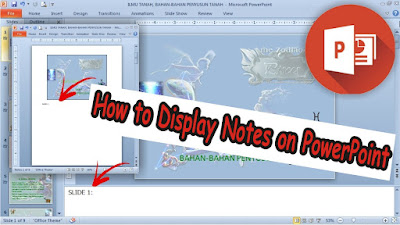
How to Display Notes on PowerPoint

Image
Usually we can see Notes in PowerPoint at the bottom of the display from Microsoft PowerPoint, we can also display Notes right below the Slide, and we can also display these Notes when printing PowerPoint Slides. Firstly, if the Note disappears at the bottom of the PowerPoint view it is very easy to bring it back up. The trick is you point the cursor at the bottom border of the PowerPoint until the cursor changes to an up and down arrow, then click and hold, then swipe up. Then the Note display will appear below the PowerPoint. More tutorials: How to Change Slide Order in PowerPoint How to Change Character Spacing in PowerPoint How to Remove a Page Number From PowerPoint How to Delete a Slide in PowerPoint To display Notes right at the bottom of the slide, you just change the slide view by going to the "View" menu, then changing from "Normal" view to "Notes Page" view. Automatically the display will change with a note that we can write notes right below th...

How to Clear Print Titles in Excel

Image
There is an advantage that we can get if we activate Print Title in Excel, that is, we don't have to bother typing the title on every page, if we want to print in Excel with the same title on every page. The most benefit is when we create a table that is more than one page long. By using Print Title, we don't need to be tired anymore in making column headings from the table on each page because it will automatically appear when printed. More tutorials: How to Show Margins in Excel 2007 Print Preview How to Clear Print Area in Excel How to Open 2 Different Excel Files on 1 Screen How to Print 2 Pages on 1 Sheet in Excel 2010 How to Print Landscape in Excel However, there are drawbacks if we use this feature, which is that column headings will continue to appear even though the page we are printing is not a continuation of the table we created. So, to remove or deactivate Print Titles, the method is the same as when we activated it, that is, you enter the "Page Layout" ...

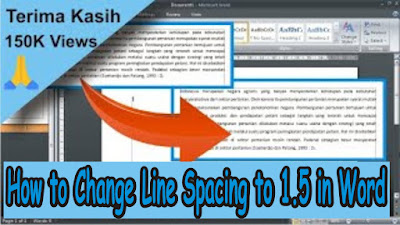
How to Change Line Spacing to 1.5 in Word

Image
Maybe friends are still confused about how to set the size or spacing between lines in Microsoft Word, because sometimes in making paper assignments or even writing a thesis, sometimes the spacing size is determined. One of the sizes of spacing between lines that is commonly used is the spacing size of 1.5. The way to change the spacing between lines to 1.5 is very easy. If friends have typed the text, then first select all the writing that will be set the size of the space. Then friends pay attention to the " Home " menu. More Tutorials: How to Rotate Text in Table in Microsoft Word How to Delete Table in Microsoft Word Mail Merging With Microsoft Excel and Word How to Remove Text Border in Word How to Change Tab Stops in Word In the " Paragraph " section, click " Line and Paragraph Spacing ". There will appear several sizes of spacing between lines that you can choose, now because we are going to set the existing text to a spacing size of 1.5, friends ch...

How to Set Paper Size in Word

Image
Paper has various sizes, and in Microsoft Word we can adjust the paper size according to our needs. The paper sizes that we can set in Microsoft Word include Letter, Legal, A5, A4, and several other sizes. Maybe some of you don't know how to set the paper size in Word? How to set the paper size in Word 2010 is very easy, friends, just enter the "Page Layout" menu, then click "Size". There will appear various sizes of paper that you want, choose according to your needs and according to the paper that will be used for printing or printing. More Tutorials: How to Rotate Text in Table in Microsoft Word How to Delete Table in Microsoft Word Mail Merging With Microsoft Excel and Word How to Remove Text Border in Word How to Change Tab Stops in Word If there is no paper size you want, you can click "More Paper Size" to determine the desired size yourself. In the Page Setup view that appears, friends can determine the size of the desired paper Width and Height...

How to Print Photo on Full Paper

Image
Maybe friends are looking for ways on how to print photos on A4 paper in full or without the slightest margin, what's more using the standard printer that is commonly used, namely the Canon iP 2770 printer. So, friends, you can try this tutorial. First, open the photo on your computer using Microsoft Picture Manager or another application, then enter the "Print" menu or simultaneously press the Ctrl key and the P key on the keyboard. Then click "Option" which is on the bottom right, after that a new "Print Settings" window will appear. Select "Printer Properties" to enter the Canon printer settings, after that click "Borderless Printing" and click "OK" if a new window appears. Then click "OK" to save the settings, then click "Print" to start printing and you can see the results.

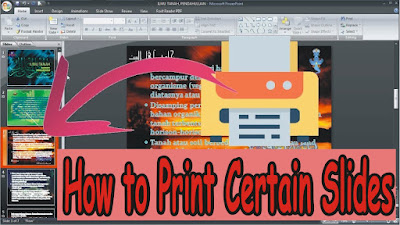
How to Print Certain Slides in PowerPoint

Image
Sometimes when we are going to print in Microsoft PowerPoint we don't want to print all the slides in the PowerPoint, we only want to print certain slides. Maybe there are still friends who don't know how, keep reading this post until it's finished. The way to print certain slides in Microsoft PowerPoint is very easy. First open the PowerPoint file  that will be printed, then enter the " Print " menu by pressing the Ctrl and P keys simultaneously on the keyboard. More tutorials: How to Change Slide Order in PowerPoint How to Change Character Spacing in PowerPoint How to Remove a Page Number From PowerPoint How to Delete a Slide in PowerPoint After that, in the " Print Range " section, you can select " Current Slide " if you want to print 1 slide you want, and select " Slides " if you want to print certain slides by entering the number of the slide you want to print. (Example: 1;3;5-12). After that click " OK " to proceed to ...

How to Show Thumbnails in PowerPoint

Image
Well, usually we see a small slide on the left or Thumbnails Slide. However, sometimes suddenly and mysteriously the Thumbnails Slide display disappears or is not visible in PowerPoint. Surely friends are confused, right? It turns out that we can bring it back, and how to bring it up is very easy. The trick is, friends point the cursor on the left side of PowerPoint until the cursor display changes to left and right arrows. More tutorials: How to Change Slide Order in PowerPoint How to Change Character Spacing in PowerPoint How to Remove a Page Number From PowerPoint How to Delete a Slide in PowerPoint After that friends click on the mouse, hold it, and drag the mouse to the right. The slide thumbnails are visible and friends can release their mouse clicks. To adjust the width, friends can do the same method and then slide even more to the right.

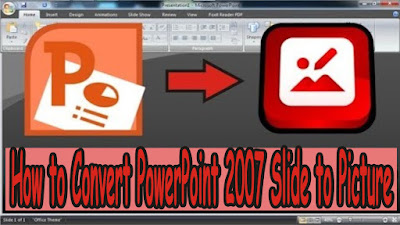
How to Convert PowerPoint 2007 Slide to Picture

Image
The way to change ppt slides into image form is very easy. First of all open the ppt file which later the slides will be converted to image format, after that click the " Office Button" which is on the top left. Then select " Save As"  then select " Other Formats" . After that a new window will appear, specify the location or place where the slide is stored in the form of an image. For example I will place it on " Desktop" . Then in the " Save as type" section , select the image format, namely " PNG" or " JPG" . After that click "Save". More tutorials: How to Change Slide Order in PowerPoint How to Change Character Spacing in PowerPoint How to Remove a Page Number From PowerPoint How to Delete a Slide in PowerPoint Select " Every Slide" to change all existing slides. Wait for the process to finish... The results of changing PowerPoint slides to image formats have been saved on the Desktop. Open it...

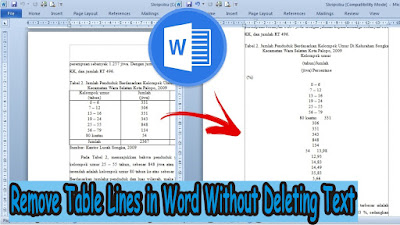
How to Remove Table Lines in Word Without Deleting Text

Image
On this occasion, I again shared with all my friends a tutorial, which hopefully this tutorial can be useful. The title of this tutorial is how to quickly delete table lines in Word 2010 without removing text. Okay, let's get straight to it, as for the method, it's very easy. First prepare a table in advance, which later we will remove the lines and leave only the writing in the word document. After that, click on the table so that the " Table Tools " menu appears. More Tutorials: How to Rotate Text in Table in Microsoft Word How to Delete Table in Microsoft Word Mail Merging With Microsoft Excel and Word How to Remove Text Border in Word How to Change Tab Stops in Word In " Table Tools ", select " Layout ". Now in the " Data " section of " Layout" , click " Convert to Text ". Then a new window will appear " Convert Table to Text ", just click " OK ". So, the table will automatically disappear and o...

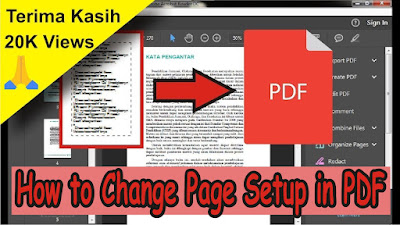
How to Change Page Setup in PDF

Image
Maybe there are still many of you who don't know how to set page setup or paper size in PDF. Indeed, PDF is very different from Microsoft Office, in Microsoft Office we can easily set the page setup or paper size to make it easier to print or print. Then, how do you set page setup in PDF? In this post, it will be revealed how to set a closing page, how to set the paper size, how to find out the paper size and how to change the paper size in PDF. First of all open the PDF file, incidentally which uses Adobe Acrobat Reader DC to open the PDF file. More tutorials: How to Convert Word 2010 to PDF How to Convert a Word 2007 Document to PDF How to Turn Zip Into PDF How to Know PDF Paper Size Excel to PDF Converter in Excel 2007 To set and change the page setup or paper size, please, friends, go directly to the Print menu by simultaneously pressing the Ctrl key and the P key on the keyboard. Or you can also click on the print icon in the top menu. For more details, consider the following ...

How to Print 2 Pages 1 Paper in Word 2007

Image
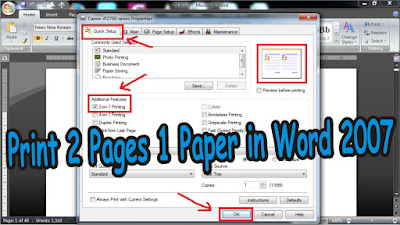
There are several benefits of printing 2 pages 1 paper in Word 2007, one of which is that it can save paper used . The method is very easy, prepare a Word 2007 document that has many pages in advance, indeed this method can be useful if the file we are going to print has many pages. First enter the " Print " menu, by pressing the Ctrl and P keys simultaneously, or enter the " Office Button " menu. Then go to " Print Properties ", incidentally this method uses a Canon printer. More Tutorials: How to Rotate Text in Table in Microsoft Word How to Delete Table in Microsoft Word Mail Merging With Microsoft Excel and Word How to Remove Text Border in Word How to Change Tab Stops in Word After that, in the " Additional Features " section, select " 2-on-1 " Printing to print 2 pages on 1 paper. After that, click " OK " and click " OK " again to start printing. That's all for our tutorial on this occasion, if you have any...

How to Change Uppercase to Lowercase in PowerPoint

Image
Sometimes when we are typing in Microsoft PowerPoint, we forget to change the Caps Lock or change from uppercase (capital) to lowercase so that if we retype it it will take a long time. Therefore there is an easy way so that we are not tired of retyping. First, select the one you want to change to lowercase, then enter the "Home" menu, and in the "Font" section, select "Change Case". Then several options will appear, friends select "lowercase" to change all letters to lowercase. Now automatically the writing that was previously all capital letters changes to all lowercase letters, friends can also change to another display such as the first letter in each word in capitals, the letters in each sentence are capitals, and so on. More tutorials: How to Remove Red Underline in PowerPoint How to Delete Text Box in PowerPoint How to Print Landscape in PowerPoint How to Print PPT 4 Slides Per Page That's the way to change capital letters to lowercase...