Posts

How to Print 4 Pictures on One Page in Word 2010
Image
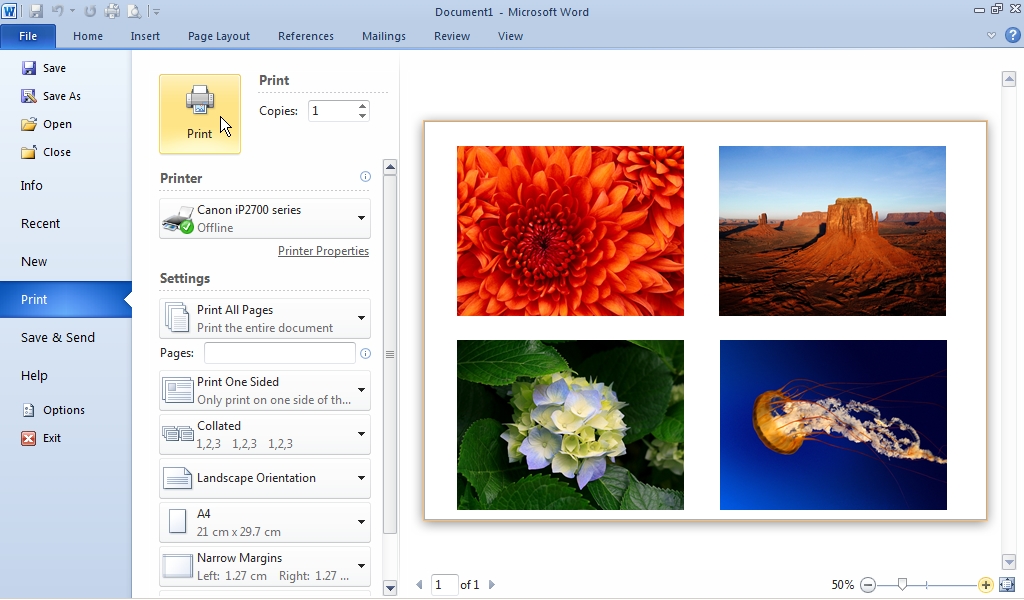
Maybe you want to print some pictures on Microsoft Word for assignment needs or for other needs, but it's a little difficult to arrange the pictures to fit on 1 sheet of paper. Oh yes, this way you can also use more than 4 pictures on 1 sheet of paper. The method is very easy, the key is that you just change the settings on the image so that the position and size of the image can be changed more easily, namely the "Wrap Text" settings. First enter or insert the images that your choose, then set all of these images in Wrap Text to "Behind Text" or "In Front of Text". More Tutorials: How to Set Password for Word Document 2007 How to Divide Into 4 Microsoft Word How to Remove Red Underline in Word How to Insert 2 Tables Side by Side in Word How to Copy Table in Word After you change the settings, please change the size and layout of the image so that it fits on 1 sheet of paper. When it's finished, you can immediately print it and see the results. ...
How to Print 2 Pages on 1 Sheet in Excel 2010

Image
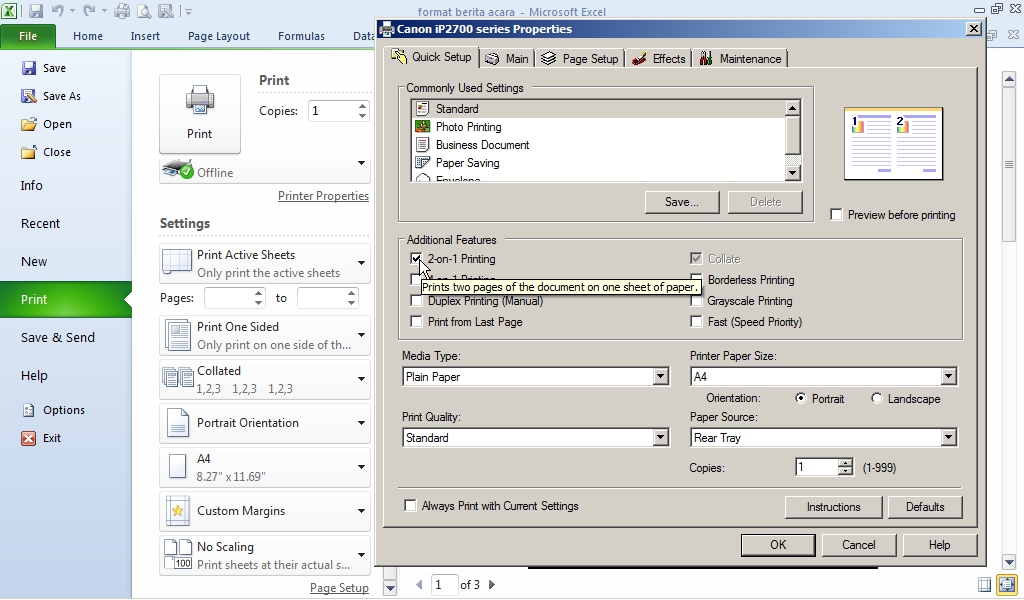
Maybe many of my friends already know how to print 1 sheet of paper 2 pages in Excel, but no it's wrong if I go back to giving the method. The benefit of using this method in printing is that we can save or reduce paper usage when printing. The method is very easy, first of all friends enter the print menu by clicking on the file menu in excel 2010 and selecting Print, or by quickly pressing the P and Ctrl keys on the keyboard simultaneously. After that click Properties... More tutorials: How to Remove Page 1 Watermark in Excel How to Search for Duplicates in Excel Workbook How to Merge Cells in Microsoft Excel Mail Merging With Microsoft Excel and Word Excel to PDF Converter in Excel 2007 Then in the Additional Features section, select 2 in 1 printing. Selecting 2 in 1 printing will automatically change the number of pages per sheet to two. Examples can be seen in the preview that is beside. We can also change the size of the paper that will be used for printing or printing, and f...

How to Print Landscape in PowerPoint

Image
The landscape shape is one of the two page shapes that are selected when printing. This landscape shape is elongated sideways or horizontal. In general, when printing slides in PowerPoint, one page for several slides is printed, namely portrait or vertical. How to print or print landscape on powerpoint? The method is very easy. First of all open the Microsoft Office PowerPoint file which we will print in landscape or landscape form. After that go to the print menu by pressing Ctrl+P on the keyboard or click file then select print. More tutorials: How to Change Uppercase to Lowercase in PowerPoint How to Print 6 Slides on One Page in PowerPoint 2007 How to Autoplay Video in PowerPoint How to Hide Slide in PowerPoint To be able to print several slides on one page in landscape form, you must first change the print layout. Select notes page or outline. After that, change the orientation from portrait to landscape. Well, then select the number of slides that will be included on each page. T...

How to Print Landscape in Excel

Image
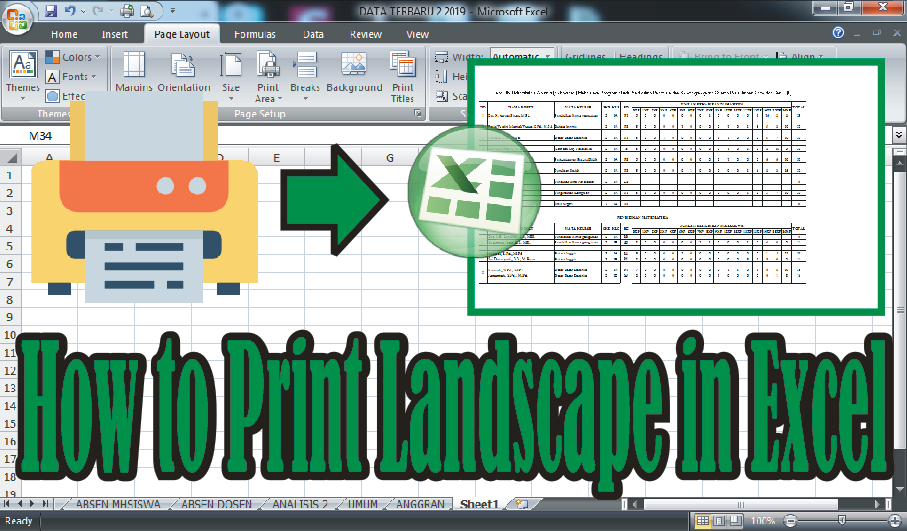
In general, people printing on Microsoft Excel use portrait orientation, but there are times when we use landscape orientation if our worksheet is elongated. How do you print in landscape orientation in Microsoft Excel? There are at least two ways to print in landscape orientation. The first way is before printing, change the page orientation first by selecting the page layout menu, then on the page setup select Orientation and select Landscape. Before printing, look at the print preview to see if the text that we are going to print in landscape is enough for one page, if not, make edits and print. More tutorials: How to Remove Page 1 Watermark in Excel How to Search for Duplicates in Excel Workbook How to Merge Cells in Microsoft Excel Mail Merging With Microsoft Excel and Word Excel to PDF Converter in Excel 2007 The second way is to set it on the print menu, if you use prints with the Canon brand, the method is very easy. First enter the print menu by pressing the Ctrl + P key on th...