Posts

How to Show Margins in Excel 2007 Print Preview
Image
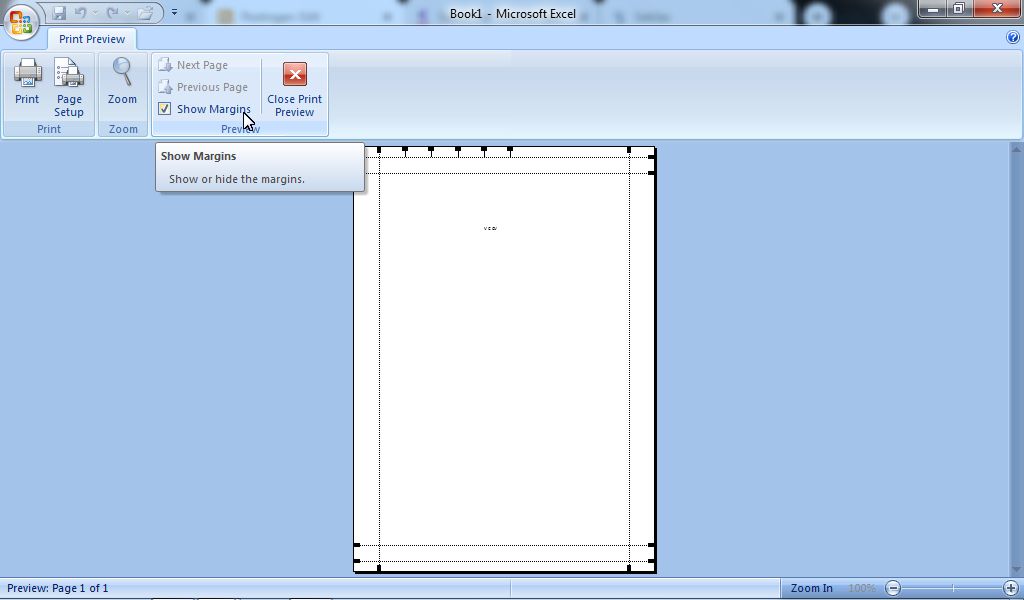
In general, there are two ways that we can use to set margins in Microsoft Office Excel 2007. One of them is to set and edit Excel margins in Print Preview.  The trick is to enter the   Print  menu by pressing the P and Ctrl keys on the keyboard simultaneously.  Then a new Print window will appear, and select Preview in the lower left corner. Or if you want to be quick, you can also click the Office button in the upper left corner of the Excel worksheet, then hover over  Print  and select  Print Preview , after which it will immediately enter the  Print Preview  view.  in the  Preview  section , click  Show Margins . More tutorials: How to Remove Page 1 Watermark in Excel How to Search for Duplicates in Excel Workbook How to Merge Cells in Microsoft Excel Mail Merging With Microsoft Excel and Word Excel to PDF Converter in Excel 2007 Now, after that a margin line will appear around the worksheet.  Set margins as ...
How to Clear Print Area in Excel

Image
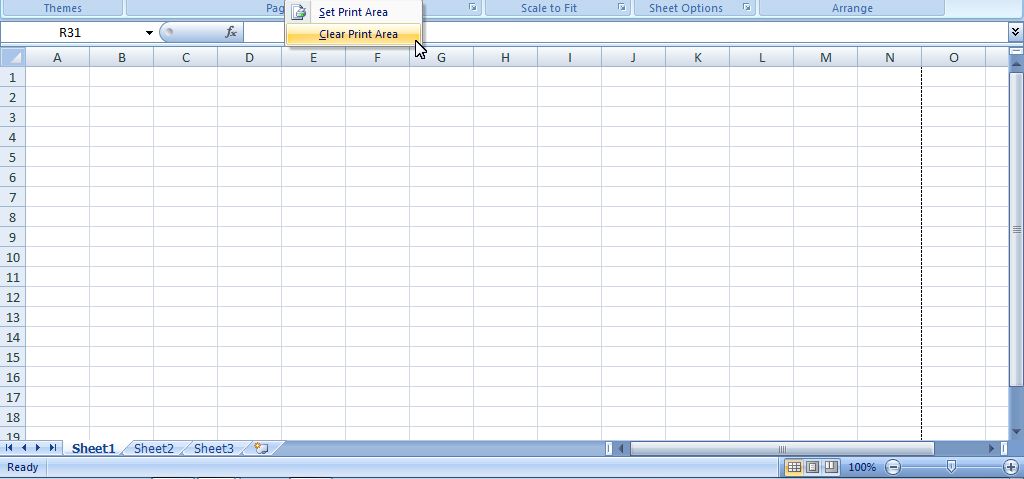
Print Area or print area is used to mark the area to be printed, usually this feature is used when printing an Excel file that extends downwards. Okay, let's get straight to the point, as for getting rid of the print area in Excel, the method is very easy. First open the Excel document that we are going to remove the print area from and make sure the document has an active print area. Then enter the Page Layout menu. Then click Print Area and select Clear Print Area. So automatically the Print Area will disappear. How about friends, it's easy right? that's our tutorial this time entitled how to remove print area in Excel, I hope this post is useful for you. If you have questions, please write them in the comment box below. See you on the next post. More tutorials: How to Remove Page 1 Watermark in Excel How to Search for Duplicates in Excel Workbook How to Merge Cells in Microsoft Excel Mail Merging With Microsoft Excel and Word Excel to PDF Converter in Excel 2007

How to Open 2 Different Excel Files on 1 Screen

Image
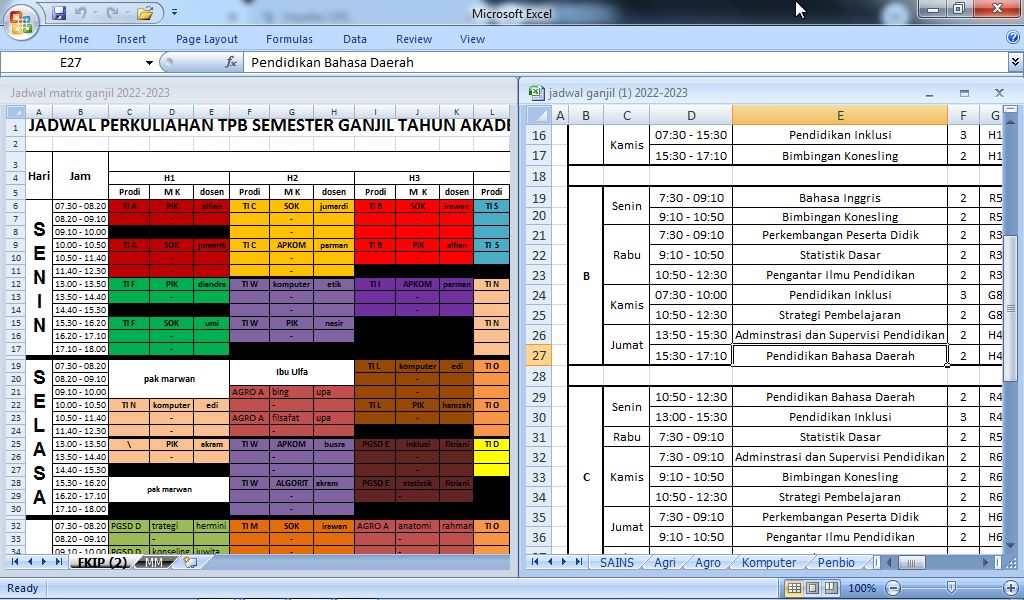
Well, it's different from word files, where document files can be opened simultaneously and can also be minimized so that two files can be juxtaposed left and right in one screen. However, in the excel document, the way to open the two files is slightly different. Okay, as for the way to display 2 excel files or documents in 1 screen, the method is very easy. Open the two excel documents first, then click the Restore button, the button flanked by the Minimize and Close buttons in the upper right corner of the excel document. More tutorials: How to Remove Page 1 Watermark in Excel How to Search for Duplicates in Excel Workbook How to Merge Cells in Microsoft Excel Mail Merging With Microsoft Excel and Word Excel to PDF Converter in Excel 2007 Eits, but you don't click the Restore button on the top, but click the restore button on the bottom. So, set the width so that the document file covers half of the screen. Do the same for the other document. Thus we can open or display two ...

How to Print 4 Pictures on One Page in Word 2010

Image
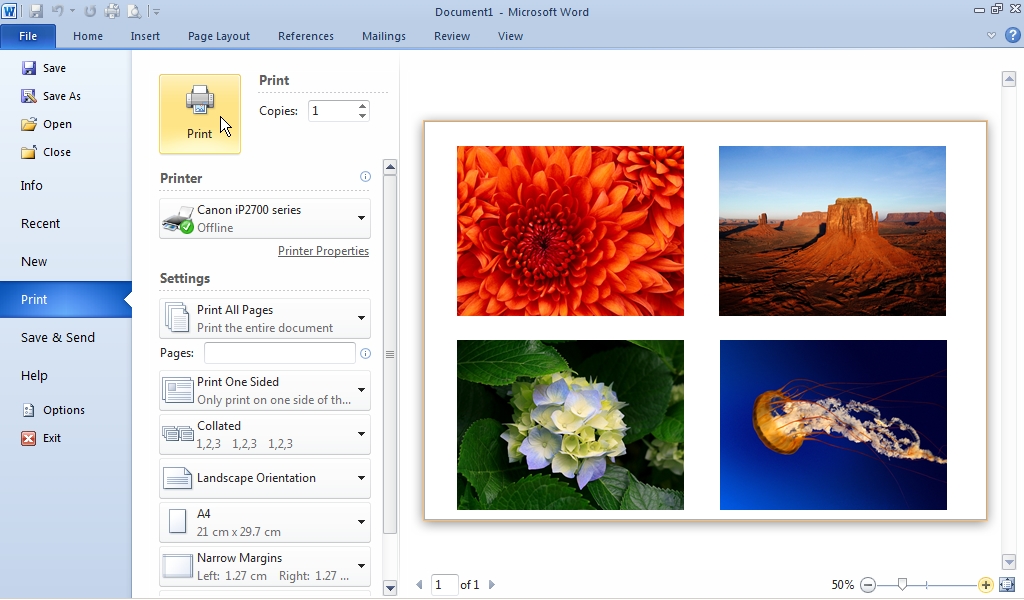
Maybe you want to print some pictures on Microsoft Word for assignment needs or for other needs, but it's a little difficult to arrange the pictures to fit on 1 sheet of paper. Oh yes, this way you can also use more than 4 pictures on 1 sheet of paper. The method is very easy, the key is that you just change the settings on the image so that the position and size of the image can be changed more easily, namely the "Wrap Text" settings. First enter or insert the images that your choose, then set all of these images in Wrap Text to "Behind Text" or "In Front of Text". More Tutorials: How to Set Password for Word Document 2007 How to Divide Into 4 Microsoft Word How to Remove Red Underline in Word How to Insert 2 Tables Side by Side in Word How to Copy Table in Word After you change the settings, please change the size and layout of the image so that it fits on 1 sheet of paper. When it's finished, you can immediately print it and see the results. ...