Posts

How to Delete Text Box in PowerPoint

Image
Well, sometimes when we are making a presentation on Microsoft PowerPoint or PPT, we are required to delete the text box or text box on the slide. The writing box in question is a box that can be written in it. Okay, right away, the way to delete a text box is very easy, even classified as very easy. You just click on the right line of the text box contained in the PowerPoint slide, then you press the delete button on the keyboard and the text box will automatically disappear. More tutorials: How to Change Uppercase to Lowercase in PowerPoint How to Print 6 Slides on One Page in PowerPoint 2007 How to Autoplay Video in PowerPoint How to Hide Slide in PowerPoint
How to Hide Scrollbar But Still Scroll

Image
On a Microsoft Word worksheet, we usually see a scroll bar on the right side and at the bottom of the word worksheet, or in cool language it is called a vertical scroll bar and a horizontal scroll bar. Well, it turns out we can hide it, and the method is very easy. First of all go to the file menu, then select Options, after that a new window will appear, namely word options. Then friends select Advanced, look for the display section then uncheck the Show horizontal scroll bar and Show vertical scroll bar . Click OK to save the settings and see the result. Automatically the scroll bars on the right and below will disappear. More Tutorials: How to Set Password for Word Document 2007 How to Divide Into 4 Microsoft Word How to Remove Red Underline in Word How to Insert 2 Tables Side by Side in Word How to Copy Table in Word More Tutorials: How to Make a Check Mark In a Box in Word How to Write the Degree Symbol in Word How to set automatic capital letters at the beginning of sentences in ...

How to View Scroll Bar in Word

Image
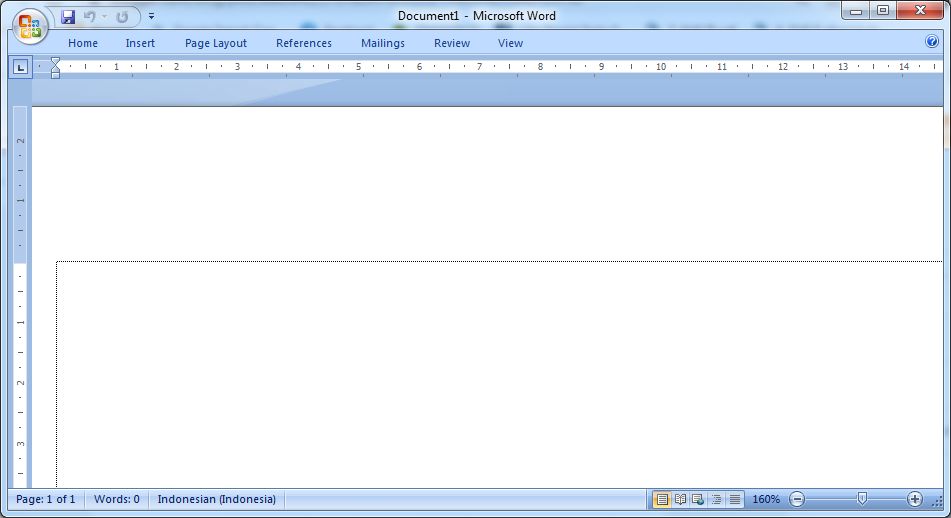
On a Microsoft Word worksheet, we usually see a scroll bar on the right side and at the bottom of the word worksheet, or in cool language it is called a vertical scroll bar and a horizontal scroll bar. Well, it turns out that we can bring it up if the scroll bar is not visible on the worksheet and the method is very easy. First of all go to the "File" menu, then select "Options", after that a new window will appear, namely "Word Options". Then select "Advanced", look for the "display section" then check the "Show Horizontal Scroll Bar" and "Show Vertical Scroll Bar" . Click OK to save the settings and see the result. Automatically Scroll bar located on the right side and below will appear. More Tutorials: How to Set Password for Word Document 2007 How to Divide Into 4 Microsoft Word How to Remove Red Underline in Word How to Insert 2 Tables Side by Side in Word How to Copy Table in Word More Tutorials: How to Make a ...

How to Show Margins in Excel 2007 Print Preview

Image
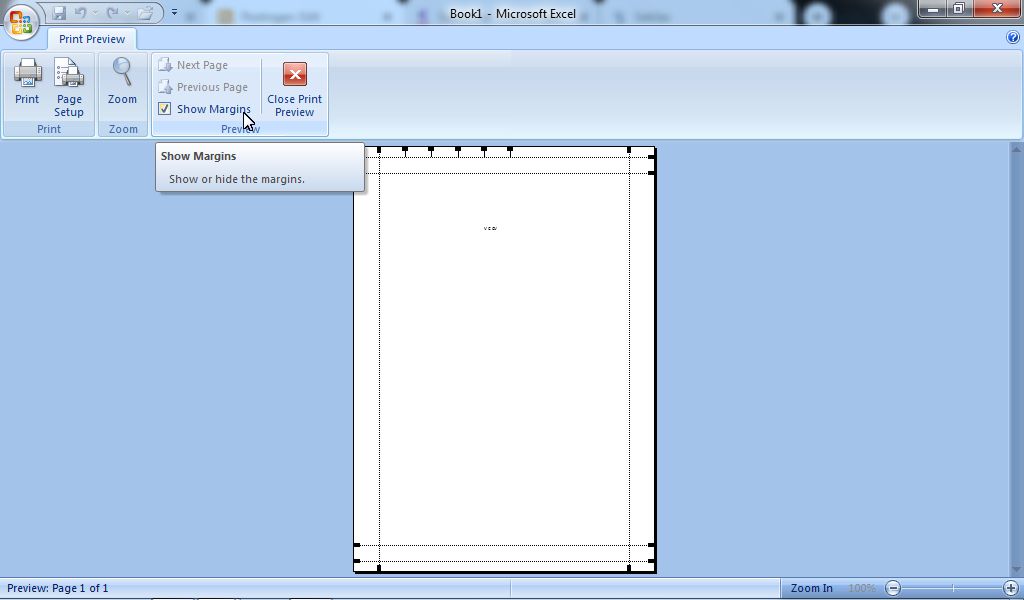
In general, there are two ways that we can use to set margins in Microsoft Office Excel 2007. One of them is to set and edit Excel margins in Print Preview.  The trick is to enter the   Print  menu by pressing the P and Ctrl keys on the keyboard simultaneously.  Then a new Print window will appear, and select Preview in the lower left corner. Or if you want to be quick, you can also click the Office button in the upper left corner of the Excel worksheet, then hover over  Print  and select  Print Preview , after which it will immediately enter the  Print Preview  view.  in the  Preview  section , click  Show Margins . More tutorials: How to Remove Page 1 Watermark in Excel How to Search for Duplicates in Excel Workbook How to Merge Cells in Microsoft Excel Mail Merging With Microsoft Excel and Word Excel to PDF Converter in Excel 2007 Now, after that a margin line will appear around the worksheet.  Set margins as ...