Posts

How to Change Tab Stops in Word
Image
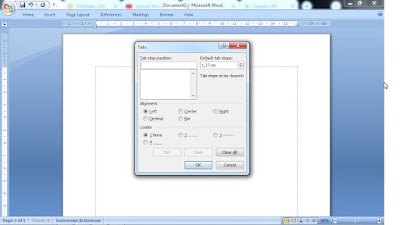
Tabs have many functions and are often used in creating a document in Word, one of which is that we can make the beginning of a paragraph indented by using tabs. So it turns out that we can also change the distance the tab jumps, friends, the method is very easy. First enter the "Paragraph" setting, by right-clicking on the mouse, then selecting paragraph. Now a new Paragraph settings window will appear as below. Then friends click " Tabs..." which is on the bottom left to enter the tab settings. Now, after entering the tab settings, friends can change the tab button jump distance on the " Default tab stops" . There you can change whether you want to get closer or further away, after that click OK to save the settings and see the results. So, that's the way to set tabs in Microsoft Word 2010, how about friends? easy right? Good luck More Tutorials: How to Print on B5 Binder Paper How to Print One Big Picture on Multiple Pages How to Remove Table Lines ...

How to Know PDF Paper Size

Image
PDF files are files that are widely used for digital document exchange purposes. To open this PDF file, you need a PDF file opener application, one of the applications for opening PDF files is Adobe Reader. When opening a PDF file we cannot edit what is in the file. Such as writing, margins, paper size and others like those in Microsoft Word. However, we can see the paper size of the PDF file before the file is printed, and the paper size can even be changed as needed. The method is very easy. More tutorials: How to Print Booklet in PDF Both Sides How to Change Page Setup in PDF How to Print 2 Page in 1 Paper PDF How to Print B5 in PDF How to Convert RAR to PDF Friends enter the Print menu by simultaneously pressing the Ctrl key and the P key on the keyboard, or you can also click the print icon at the top. Then select Page Setup in the lower left corner. After that a new Page Setup window will appear, where friends can see the paper size of the PDF file that friends open, there friend...

Excel to PDF Converter in Excel 2007

Image
Do you use Excel 2007 or do you happen to use a PC that still uses Excel 2007 inside? and convert the Excel 2007 file into a PDF file. Don't be confused, because how to convert an Excel 2007 file into a PDF file is very easy. Set the Excel file data first so that it fits the paper used so that later when it is converted to a PDF file it will be neat. Then click the "Office Button" in Excel 2007 which is in the upper left corner of the Excel worksheet, then select "Save As". After that, select "PDF or XPS", then a new window will appear "Publish as PDF or XPS". Choose a location to save the changed file later, place it in a location that is easy for friends to see on the computer. For advanced settings, friends can immediately click "Option", then click "Publish" to continue the change process and see the results. More tutorials: How to Remove Text Box From Excel How to Clear Print Titles in Excel How to Show Formula Bar on...

How to Print From Notepad

Image
Notepad is a text editor and source code editor that runs on the Windows operating system. Even though we are text editors, that doesn't mean we can't print data or documents through this application. The way to print in Notepad is almost the same as printing in word, but the only difference is the print menu. Here I have provided a text or document data that we will print later. After that, enter the Print menu, by clicking the File menu and then selecting Print, or by pressing the Ctrl and P keys simultaneously on the keyboard. So, the print menu on Notepad looks like this, different from the print menu on Microsoft Office. As usual, on the other printer menu, there is a section for selecting the type of printer that will be used for printing on Select Printer. In the Preferences section to be able to enter Printer Properties, I happen to be using a Canon printer so the settings for Canon printers appear. In the Page Range section, because Notepad doesn't have pages, it w...