Posts

How to Delete Text Box in Word
Image
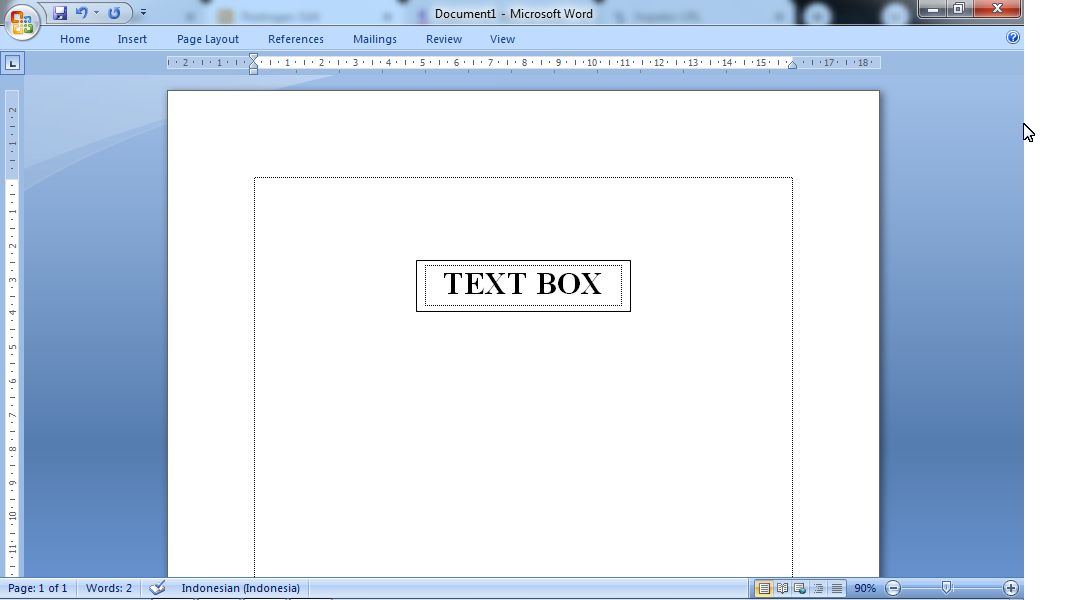
Well, as you know, text boxes are usually used to create a chart, whether it's a structural chart or something else. And usually we are wrong or mistaken in making it so we need to delete one or several existing text boxes. As for how to delete or remove text boxes in Microsoft Word, the method is very easy, friends. First, move the cursor to the outer line of the text box until the cursor changes shape, after that click, then press the Delete button on the keyboard on the laptop or on the computer. And automatically the text box or text box will disappear or be deleted. More Tutorials: How to Set Default Paper Size in Word How to Change Line Spacing to 1.5 in Word How to Set Paper Size in Word How to Remove Table Lines in Word Without Deleting Text How to Print 2 Pages 1 Paper in Word 2007 More Tutorials: How to Set Automatic Tabs to Indent Paragraphs When Entered How to Set A5 Paper Size in Word How to Rotate a Photo or Image in Microsoft Word How to Print 1 Image Into 2 Parts in...

How to Print on Microsoft Word 2007

Image
Go directly to the " Office Button" , then select " Print". After that a new window will appear "Print". Before printing, in the "Printer" section, you must first select the type or type of print that we will use.  In the "Page range" section, there are several options for printing. Select "All" to print all the pages in the document, select " Current Page" if you want to print only one sheet that we want, for example we only want to print page 3 without printing pages 1 and 2. More Tutorials: How to Set Default Paper Size in Word How to Change Line Spacing to 1.5 in Word How to Set Paper Size in Word How to Remove Table Lines in Word Without Deleting Text How to Print 2 Pages 1 Paper in Word 2007 And select " Page" , if you want to skip the pages to be printed. For example pages 1,3,5 and 6 (how to write, 1,3,5,6).In the " Copies " section , we can duplicate or we can determine how many files are...

How to Insert Portrait and Landscape in Same Word Document

Image
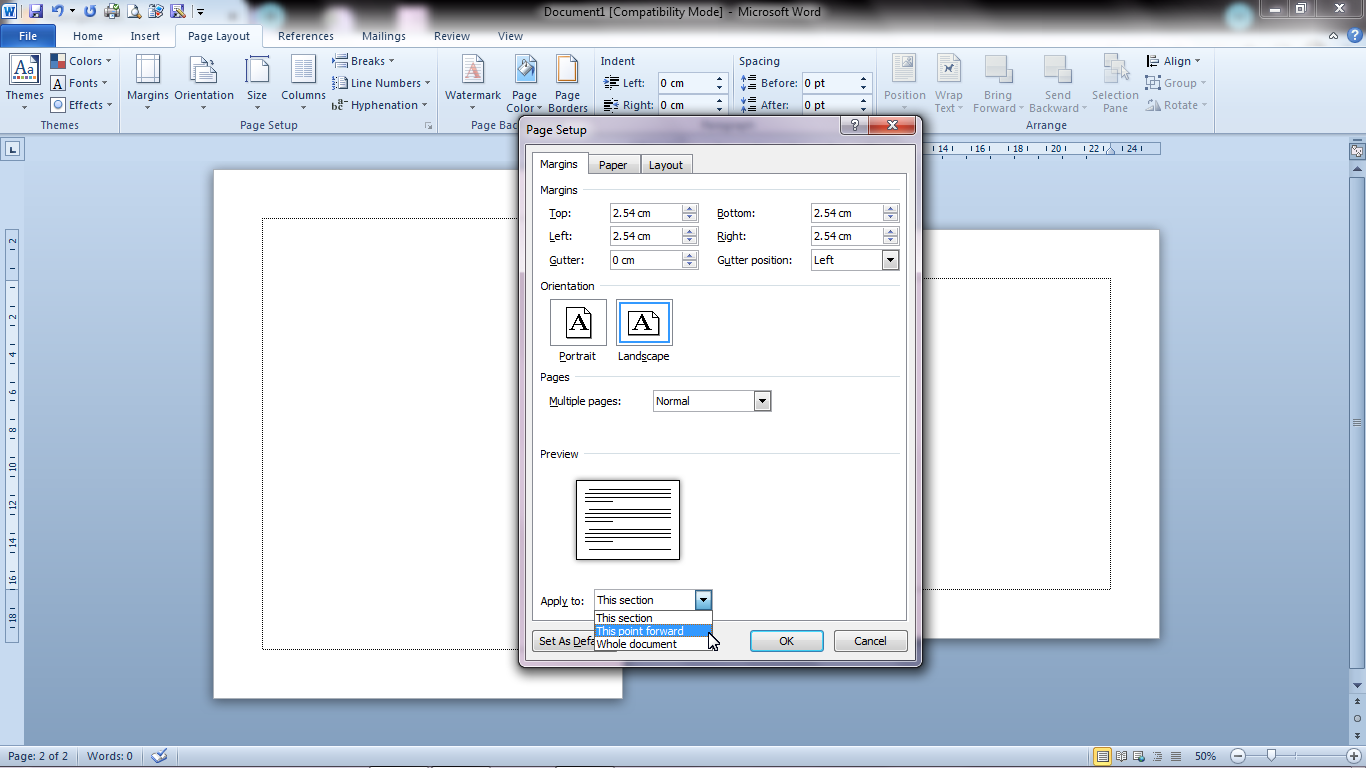
Actually, the method is very easy and almost everyone knows about it. The first step is to determine which page we will change to landscape. After that, select the "Page Layout" menu, then select " Page Setup" , click the arrow in the lower right corner. There will be a " Page Setup" Dialog box that will appear, change the paper shape from " Portrait" to " Landscape" , then change " Whole Document" to " This Point Forward" , then click Ok. More Tutorials: How to Set Default Paper Size in Word How to Change Line Spacing to 1.5 in Word How to Set Paper Size in Word How to Remove Table Lines in Word Without Deleting Text How to Print 2 Pages 1 Paper in Word 2007 So now one of our pages has changed to landscape, to change it back to portrait, please follow the steps as above. I hope my article is useful for all readers and if anyone wants to comment, please write it in the comments box below. Stay tuned and keep up with ...

How to Merge Cells in Microsoft Excel

Image
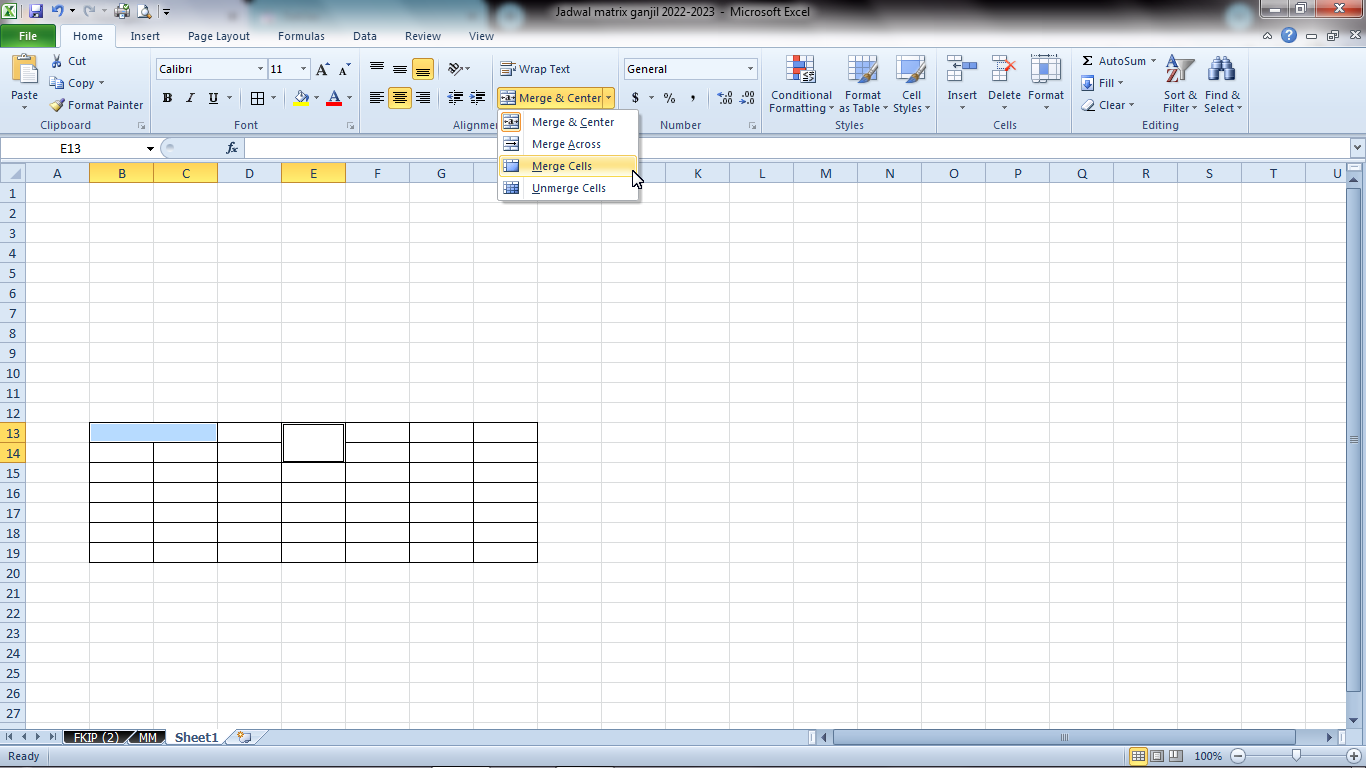
Merging two cells into one is very useful when we are making a table, there are times when one cell is not enough to make a table in excel, therefore it is necessary to combine two cells into one. Here's how to combine two cells into one in Excel, it's very easy. the first step select the two  cells that will be combined. Then select " Merge and Center" in the " Alignment " section of the "Home" menu. Finally, the cells that were previously two have merged into one. More tutorials: How to Remove Text Box From Excel How to Clear Print Titles in Excel How to Show Formula Bar on Excel How to Hide and Unhide Excel Worksheet How to Copy Sheet to Another Excel File