Posts

How to Print 6 Slides on One Page in PowerPoint 2007

Image
Usually in presenting work or other things in an event, we usually use the Microsoft Office PowerPoint application so that it can be easily seen and understood by the participants present. And usually besides the files we will present, we also make printouts to give to some of the participants so they can be read easily. How to Print Power point 6 slides at once in 1 Sheet is very useful when we have too many slides to print, imagine if we have as many as 20 slides then we will also print 20 sheets each person and that will be very burdensome, therefore with how to print PowerPoint 6 slides at once In 1 Sheet we will be helped. More tutorials: How to Remove Red Underline in PowerPoint How to Delete Text Box in PowerPoint How to Print Landscape in PowerPoint How to Print PPT 4 Slides Per Page Setting up power point so you can print six slides on one sheet of paper is very easy. First of all, friends must first enter the print menu by going to the " Office Button " menu then se...

How to Autoplay Video in PowerPoint

Image
There are times when we make percentages using PowerPoint or PPT, where in the percentages we make we also include a video as one of the materials for our explanation when it comes to percentages. It would be nice if when the slide containing the video appears, the video will also play automatically or autoplay without having to click it first. The way to make videos on PowerPoint slides play automatically or Autoplay during slide shows without having to click on the video is very easy. Open the ppt or slide that has a video in it, click on the video section until the "Video Tools" menu appears. More tutorials: How to Remove Red Underline in PowerPoint How to Delete Text Box in PowerPoint How to Print Landscape in PowerPoint How to Print PPT 4 Slides Per Page Then friends, go to the "Playback" menu in "Video Tools", in the "Video Options" section, change "On Click" to "Automatically". After that, try Slide Show mode and see th...

How to Copy Table in Word

Image
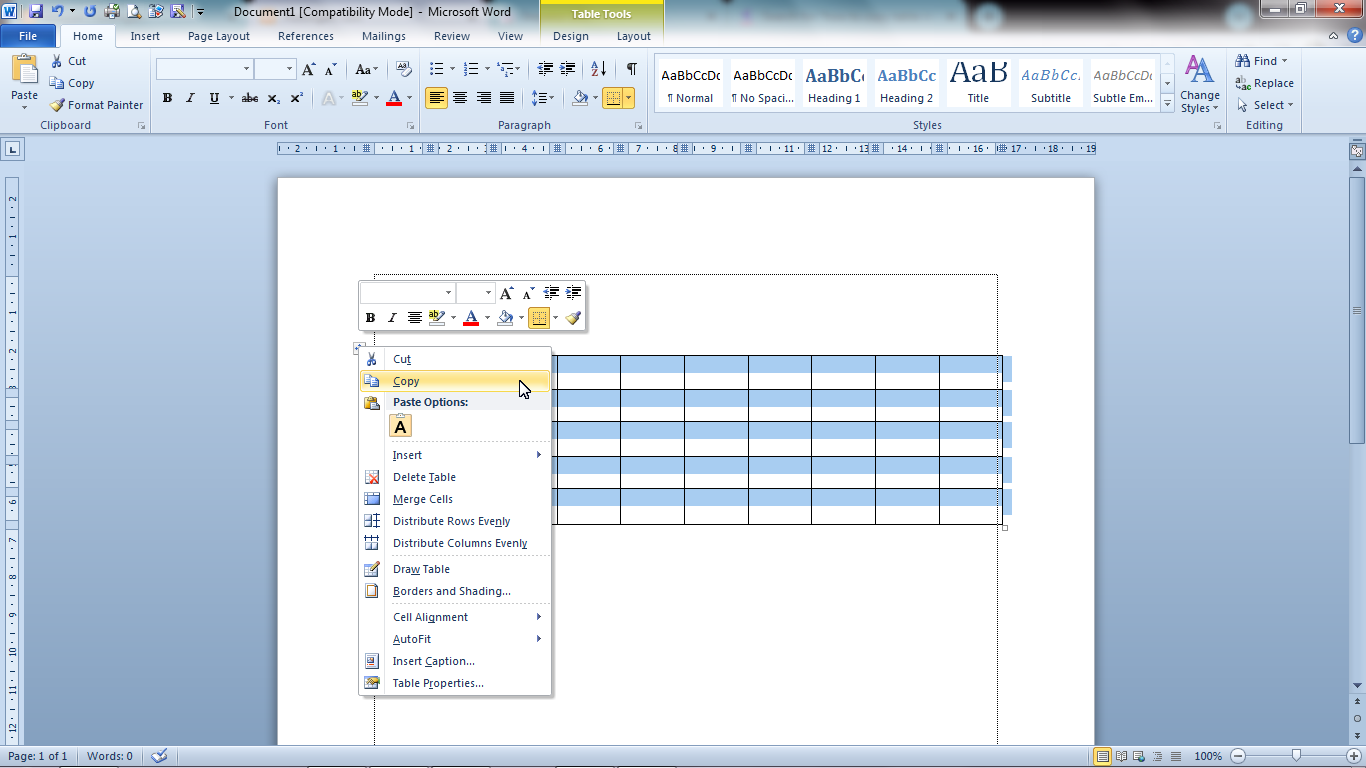
There are times when we create a document in word, we also create several tables where the form of the table is the same but the data inside is different. Now, instead of making tables over and over again, it is better if we copy the previous table and replace the data so that the process is fast. For how to copy tables in Microsoft Word 2010, the method is very easy. Determine in advance the table to be copied, then friends point the cursor at the upper left corner of the table, until a box appears in the table. Friends, click on the box until the entire table is selected or blocked. More Tutorials: How To Change Footnote Font in Word How to Put Page Number On Microsoft Word How to show Text Boundaries in Microsoft Word How to Show Vertical and Horizontal Ruler in Word After that friends right click on the mouse then select "Copy", then friends go to the page where the copy of the table will be placed. Place the cursor or click on a location on the page, right-click again on...

How to Hide Slide in PowerPoint

Image
The slide that we will hide is the slide that is on the mini slide beside the PowerPoint screen so that later it will not be visible in the PowerPoint slide show view. Okay, go ahead, first of all, open the power point file where we will hide the slides. Then right-click on the mouse slide that we will hide, then select "Hide Slide". Now, automatically the slide we choose is hidden and is no longer visible when we present our power point slides. More tutorials: How to Remove Red Underline in PowerPoint How to Delete Text Box in PowerPoint How to Print Landscape in PowerPoint How to Print PPT 4 Slides Per Page