Posts

How to Copy Sheet to Another Excel File
Image
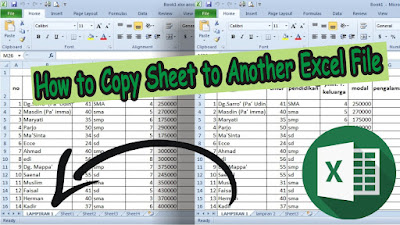
Well, there are times when we create a document in Excel, we also want to include Excel data contained in other files. Actually, we can definitely copy the data contained in the sheet in another Excel file to be included in the Excel file that we are creating, but the column and row settings will be disassembled or will not follow the settings in the previous file. So, the way to move an Excel sheet to another Excel file is very easy. First open the Excel file that we need for the sheet moving process, then right-click the mouse on the sheet that will be moved. More tutorials: How to Show Margins in Excel 2007 Print Preview How to Clear Print Area in Excel How to Open 2 Different Excel Files on 1 Screen How to Print 2 Pages on 1 Sheet in Excel 2010 How to Print Landscape in Excel Then select " Move or Copy ", then in the " To book " section, select the destination Excel file from the sheet you want to move. Then decide whether you want to move the sheet or just copy...

How to Divide Into 4 Microsoft Word

Image
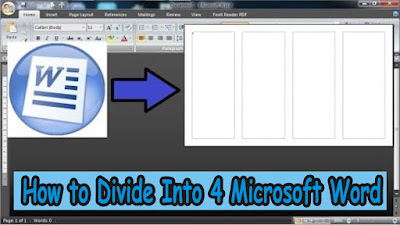
The way to divide a Microsoft Word worksheet into four parts is very easy. First of all open Microsoft Office Word which later we will divide the work paper into 4 columns. After that, select the " Page Layout " menu , then select " Columns " , and select " More Columns.. " for more advanced settings. After that a new window will appear in the form of advanced settings from " Columns ". In the " Number of columns " section , change it to 4. You can see changes to the number of columns or sections in the worksheet in " Preview " . Click " Line Between " if you want a dividing line between the existing columns. More Tutorials: How To Change Footnote Font in Word How to Put Page Number On Microsoft Word How to show Text Boundaries in Microsoft Word How to Show Vertical and Horizontal Ruler in Word After everything is in order, just click " OK " to save the settings. Well, now the Microsoft Word worksheet has b...

How to Remove Red Underline in Word

Image
Usually when we type in Microsoft Word, a wavy red line appears below it, sometimes the wavy line is green. And if we type in English correctly, no red lines will appear. Now, to remove the line forever from the Word worksheet, the method is very easy. First of all friends enter " Word Options ", if in Word 2007 click " Office Button " then select " Option ", if in Word 2010 click "File" then select " Option ". After that, if you have entered " Word Options ", friends select " Proofing ". More Tutorials: How To Change Footnote Font in Word How to Put Page Number On Microsoft Word How to show Text Boundaries in Microsoft Word How to Show Vertical and Horizontal Ruler in Word Then in the " When correcting spelling and grammar in Word " section, uncheck the words " Check spelling as you type " then click " OK " to save the settings and automatically the wavy red line under the writing will ...

How to Remove Page 1 Watermark in Excel

Image
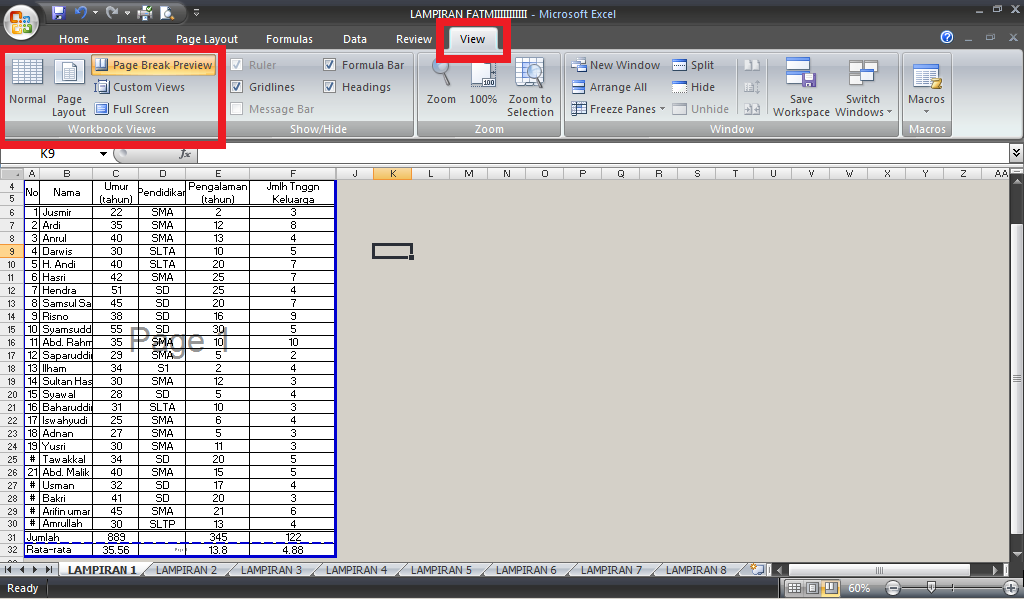
Usually when we are given Excel files from friends or bosses at work to view or study, sometimes the appearance is slightly different from the display we usually know. The worksheet display in question is the presence of a Page writing watermark in the middle of the worksheet. Actually the Page writing watermark in Excel cannot be deleted or removed, but the watermark can disappear if the worksheet view is changed. So, if friends don't know how to change the appearance of an excel worksheet, the method is very easy. First of all, friends, enter the "View" menu, then in the "Workbook Views" section, friends, select "Normal". More tutorials: How to Remove Text Box From Excel How to Clear Print Titles in Excel How to Show Formula Bar on Excel How to Hide and Unhide Excel Worksheet How to Copy Sheet to Another Excel File So, now the display of our excel worksheet has returned to normal view and the page writing watermark in the middle of the worksheet has ...