Posts

How to Print Certain Slides in PowerPoint
Image
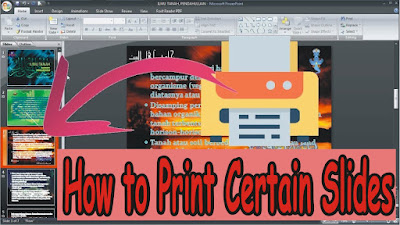
Sometimes when we are going to print in Microsoft PowerPoint we don't want to print all the slides in the PowerPoint, we only want to print certain slides. Maybe there are still friends who don't know how, keep reading this post until it's finished. The way to print certain slides in Microsoft PowerPoint is very easy. First open the PowerPoint file  that will be printed, then enter the " Print " menu by pressing the Ctrl and P keys simultaneously on the keyboard. More tutorials: How to Change Slide Order in PowerPoint How to Change Character Spacing in PowerPoint How to Remove a Page Number From PowerPoint How to Delete a Slide in PowerPoint After that, in the " Print Range " section, you can select " Current Slide " if you want to print 1 slide you want, and select " Slides " if you want to print certain slides by entering the number of the slide you want to print. (Example: 1;3;5-12). After that click " OK " to proceed to ...

How to Show Thumbnails in PowerPoint

Image
Well, usually we see a small slide on the left or Thumbnails Slide. However, sometimes suddenly and mysteriously the Thumbnails Slide display disappears or is not visible in PowerPoint. Surely friends are confused, right? It turns out that we can bring it back, and how to bring it up is very easy. The trick is, friends point the cursor on the left side of PowerPoint until the cursor display changes to left and right arrows. More tutorials: How to Change Slide Order in PowerPoint How to Change Character Spacing in PowerPoint How to Remove a Page Number From PowerPoint How to Delete a Slide in PowerPoint After that friends click on the mouse, hold it, and drag the mouse to the right. The slide thumbnails are visible and friends can release their mouse clicks. To adjust the width, friends can do the same method and then slide even more to the right.

How to Convert PowerPoint 2007 Slide to Picture

Image
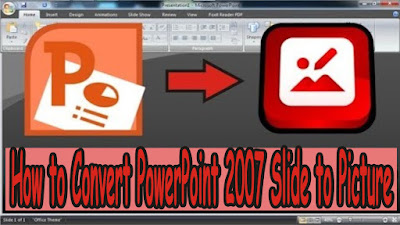
The way to change ppt slides into image form is very easy. First of all open the ppt file which later the slides will be converted to image format, after that click the " Office Button" which is on the top left. Then select " Save As"  then select " Other Formats" . After that a new window will appear, specify the location or place where the slide is stored in the form of an image. For example I will place it on " Desktop" . Then in the " Save as type" section , select the image format, namely " PNG" or " JPG" . After that click "Save". More tutorials: How to Change Slide Order in PowerPoint How to Change Character Spacing in PowerPoint How to Remove a Page Number From PowerPoint How to Delete a Slide in PowerPoint Select " Every Slide" to change all existing slides. Wait for the process to finish... The results of changing PowerPoint slides to image formats have been saved on the Desktop. Open it...

How to Remove Table Lines in Word Without Deleting Text

Image
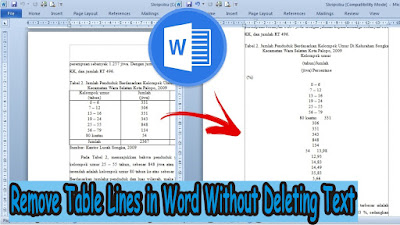
On this occasion, I again shared with all my friends a tutorial, which hopefully this tutorial can be useful. The title of this tutorial is how to quickly delete table lines in Word 2010 without removing text. Okay, let's get straight to it, as for the method, it's very easy. First prepare a table in advance, which later we will remove the lines and leave only the writing in the word document. After that, click on the table so that the " Table Tools " menu appears. More Tutorials: How to Rotate Text in Table in Microsoft Word How to Delete Table in Microsoft Word Mail Merging With Microsoft Excel and Word How to Remove Text Border in Word How to Change Tab Stops in Word In " Table Tools ", select " Layout ". Now in the " Data " section of " Layout" , click " Convert to Text ". Then a new window will appear " Convert Table to Text ", just click " OK ". So, the table will automatically disappear and o...