Posts

How to Clear Print Titles in Excel

Image
There is an advantage that we can get if we activate Print Title in Excel, that is, we don't have to bother typing the title on every page, if we want to print in Excel with the same title on every page. The most benefit is when we create a table that is more than one page long. By using Print Title, we don't need to be tired anymore in making column headings from the table on each page because it will automatically appear when printed. More tutorials: How to Show Margins in Excel 2007 Print Preview How to Clear Print Area in Excel How to Open 2 Different Excel Files on 1 Screen How to Print 2 Pages on 1 Sheet in Excel 2010 How to Print Landscape in Excel However, there are drawbacks if we use this feature, which is that column headings will continue to appear even though the page we are printing is not a continuation of the table we created. So, to remove or deactivate Print Titles, the method is the same as when we activated it, that is, you enter the "Page Layout" ...
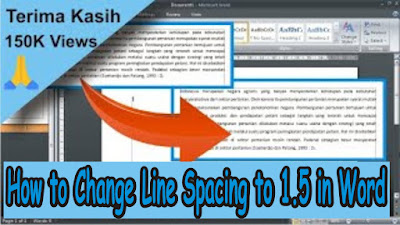
How to Change Line Spacing to 1.5 in Word

Image
Maybe friends are still confused about how to set the size or spacing between lines in Microsoft Word, because sometimes in making paper assignments or even writing a thesis, sometimes the spacing size is determined. One of the sizes of spacing between lines that is commonly used is the spacing size of 1.5. The way to change the spacing between lines to 1.5 is very easy. If friends have typed the text, then first select all the writing that will be set the size of the space. Then friends pay attention to the " Home " menu. More Tutorials: How to Rotate Text in Table in Microsoft Word How to Delete Table in Microsoft Word Mail Merging With Microsoft Excel and Word How to Remove Text Border in Word How to Change Tab Stops in Word In the " Paragraph " section, click " Line and Paragraph Spacing ". There will appear several sizes of spacing between lines that you can choose, now because we are going to set the existing text to a spacing size of 1.5, friends ch...

How to Set Paper Size in Word

Image
Paper has various sizes, and in Microsoft Word we can adjust the paper size according to our needs. The paper sizes that we can set in Microsoft Word include Letter, Legal, A5, A4, and several other sizes. Maybe some of you don't know how to set the paper size in Word? How to set the paper size in Word 2010 is very easy, friends, just enter the "Page Layout" menu, then click "Size". There will appear various sizes of paper that you want, choose according to your needs and according to the paper that will be used for printing or printing. More Tutorials: How to Rotate Text in Table in Microsoft Word How to Delete Table in Microsoft Word Mail Merging With Microsoft Excel and Word How to Remove Text Border in Word How to Change Tab Stops in Word If there is no paper size you want, you can click "More Paper Size" to determine the desired size yourself. In the Page Setup view that appears, friends can determine the size of the desired paper Width and Height...

How to Print Photo on Full Paper

Image
Maybe friends are looking for ways on how to print photos on A4 paper in full or without the slightest margin, what's more using the standard printer that is commonly used, namely the Canon iP 2770 printer. So, friends, you can try this tutorial. First, open the photo on your computer using Microsoft Picture Manager or another application, then enter the "Print" menu or simultaneously press the Ctrl key and the P key on the keyboard. Then click "Option" which is on the bottom right, after that a new "Print Settings" window will appear. Select "Printer Properties" to enter the Canon printer settings, after that click "Borderless Printing" and click "OK" if a new window appears. Then click "OK" to save the settings, then click "Print" to start printing and you can see the results.