Posts

How to Adjust Spacing Between Letters in Microsoft Word
Image
Usually this method is used to make writing made in word fit the page used. Is the writing in the form of a title or other writing that you want to close the letters in the writing so that they are even closer together. The method is very easy, you first mark or select the text that you want to close the spacing of the letters, then you right-click on the mouse and select Font. After that, a new Font settings window will appear. Friends enter the Advanced menu, where friends can adjust the spacing between letters by changing from normal to Condensed in the Spacing section. then friends can adjust the distance again if you want to be even closer by changing the size that is beside it. After that click OK to save the settings. Now that's how to compress letters in Microsoft Word 2010, if friends feel that the explanation above is not clear, I suggest friends to also see the video tutorial that I have previously prepared below. More Tutorials: How to Convert Word 2010 to PDF How...
How to Make Straight Colon in Microsoft Word

Image
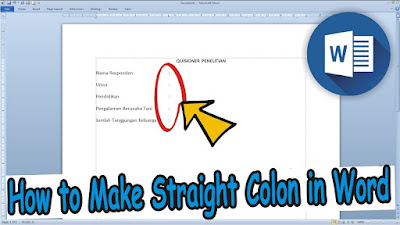
Maybe some of you are still confused when making a list that has colons that we have to straighten from top to bottom so that it looks good. Many of my friends still use the space key to make the colon straight, and that method is wrong. The method is very easy, we don't use the space key on your keyboard, but we use the Tab key. The way friends just press the tab key at the end of a word or sentence can be once or twice, depending on the longest sentence you type. In this way, the friends' colons will be straight from top to bottom. More Tutorials: How to Convert Word 2010 to PDF How to Convert a Word 2007 Document to PDF How to Rotate Text in Table in Microsoft Word How to Delete Table in Microsoft Word Mail Merging With Microsoft Excel and Word

How to Set Automatic Tabs to Indent Paragraphs When Entered

Image
Can you create automatic paragraphs? where if we enter from the first paragraph to the second paragraph automatically at the beginning of the paragraph it will be indented. It will definitely make it easier for friends to type in Word. Well, the method is very easy. First go to the " File " menu then select " Option ", then select " Proofing " then select " Auto Correct Options ". Then a new " AutoCoorect " window will appear, then select the " AutoFormat As You Type " menu and check the box " Set left-and first-indent with tabs and backspace ". After that click " Ok " to save the settings and click " Ok " again. Then friends can try to make a new paragraph by entering at the end of the previous paragraph. Automatically the new line will be indented. More Tutorials: How to Insert 2 Tables Side by Side in Word How to Copy Table in Word How to Delete Text Box in Word How to Print on Microsoft Word 2...

How to Set A5 Paper Size in Word

Image
The way to set or set the A5 paper size in Microsoft Word is very easy. Friends enter the Page Layout menu, then select Size, after that several paper size options will appear that you can choose from. Because we will set the paper size to A5 paper size, so we choose A5 paper size (14.8 cm x 21 cm). If there is no A5 paper size in this option, friends can set the A5 paper size by selecting More Paper Size. After that a new Page Setup window will appear, friends enter A5 paper sizes, namely Width: 14.8 cm and Height: 21 cm. Then click OK to save the settings and see the results, the paper size on the Word worksheet has changed. More Tutorials: How to Insert 2 Tables Side by Side in Word How to Copy Table in Word How to Delete Text Box in Word How to Print on Microsoft Word 2007 How to Insert Portrait and Landscape in Same Word Document