Posts

How to Generate Automatic currency symbol in Excel

Image
If friends type or calculate nominal money in Excel, it's a bit less good if the currency symbol is typed in manually, even better if the currency symbol appears automatically when we type in the nominal money. Now, to generate currency symbols automatically in Excel, the method is very easy. Friends, first determine or select a cell where a currency symbol will appear automatically. After that friends right click on the mouse and select Format Cells. Then a new window will appear Format cells, friends change from General to Accounting. After that, in the Symbol section, select the currency symbol you want, for example the Rupiah currency symbol or Rp. After that click OK to save the settings. To use it, friends just write down the desired amount of money, then press enter on the keyboard, then the currency symbol will automatically appear in front of the amount typed earlier. If you think the explanation above is not clear, I suggest you also watch the video tutorial that I have p...

How to Show Missing Sheet Tabs in Excel

Image
Maybe friends are confused when opening an Excel file, suddenly the sheet tabs are not in place, even though these sheet tabs are very useful when we process data in Excel. Now, to bring it up is very easy. Select the File menu in Microsoft Excel 2010, then select Options at the very bottom. Select Advanced and scroll down until you find the words show sheet tabs and put a check on that text. After that click OK to save the settings and see the results. If you think the explanation above is not clear, I suggest you also watch the video tutorial that I have previously prepared below. Good luck.

How to Show Column and Row Headers in Excel

Image
Maybe you are confused when you open Microsoft Excel and find that the column and row headers are not in place. Even though column and row headers are very important, because there we can find commands for setting columns and rows in Excel. Now to bring up column and row headers, the method is very easy, go to the File menu, then select Options. Select Advanced, then find Show row and column headers and check the text. After that click OK to save the settings and see the results. If you think the explanation above is not clear, I suggest you also watch the video tutorial that I have previously prepared below. Good luck.

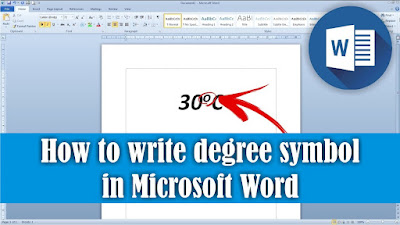
How to Write the Degree Symbol in Word

Image
Maybe friends are a bit confused when typing a degree but don't know how to make the symbol. To make a degree symbol in Microsoft Word, we can use three ways, one of which I will share with all my friends. First, type the number you want to add the degree symbol to, for example we will make 37 degrees. So first make the number 37, then place the cursor at the end of the number. After that, friends, click Superscript on the Home menu, which has the symbol X squared 2. You can also make a superscript by pressing the Ctrl key, Shift key, and + button simultaneously on the keyboard. Then our cursor will shrink, now type the lowercase O as a form of the degree symbol, after that friends click Superscript again to return the cursor to normal. If you think the explanation above is not clear, I suggest you also watch the video tutorial that I have previously prepared below. Good luck. More Tutorials: How to Remove Text Border in Word How to Change Tab Stops in Word How to Rem...