Posts

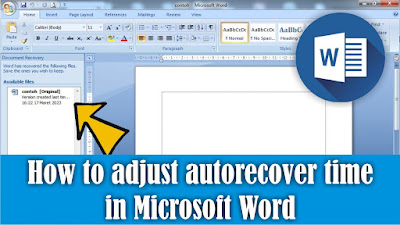
How to Autorecover Settings in Word
Image
What's restored? what is recovered is the Word data that we created, but suddenly our computer or laptop turns off without having time to save it first. So usually after we turn it back on, our Word data will appear auto recover on the left side. Apparently, to be able to recover our word data automatically, there is a time limit, by default the data in word is saved automatically after 10 minutes. So what if you haven't had 10 minutes yet? then our data will not be recovered. We can set the automatic recovery time by going to the File menu, then selecting Options. Then select the Save section. In the words Save AutoRecover information every, change it to every 1 minute, so that every one minute our data will be recovered automatically. After that, click OK to save the settings and friends can try to type something then wait for 1 minute, then force Word to close, then reopen Word, AutoRecover will appear on the left of the Word worksheet. If you think the explanation above is ...

How to Make a Check Mark In a Box in Word

Image
Maybe some of you have made a design in Microsoft Word, namely the shape or image of a checkmark in the box, but are confused about how to make it. Therefore I will tell how to friends. To make a checkmark in a box in Word can be done in several ways, this time I will share an automatic way without having to make a box first and then the check symbol. Friends go to the Insert menu, then select Symbols and click More Symbols. Then in the Font section, change it to Wingdings. Scroll down to the bottom until you find the check symbol in the box, click on the symbol then click Insert and close the symbol window. To enlarge the tick in the box above, friends, just change the font size on the Home menu. If you think the explanation above is not clear, I suggest you also watch the video tutorial that I have previously prepared below. Good luck. More Tutorials: How to Remove Text Border in Word How to Change Tab Stops in Word How to Remove Text Box Lines in Word How to Hide Scro...

How to Combine Shapes in PowerPoint

Image
So maybe friends want to make a shape from a combination of two different shapes, but friends are confused about how to put the two shapes together. The method is very easy. Friends, select the two shapes or shapes that you want to combine or combine, then enter the Format menu in the Drawing tools. In the Arrange section, friends select Group and select Group again. After friends click Group, the shape was united into one. If you think the explanation above is not clear, I suggest you also watch the video tutorial that I have previously prepared below. Good luck.

How to Appear Leading Zeros in Excel

Image
Maybe there are some friends who are confused when they want to write down a number with a zero in front, every time you type it, the leading zero will disappear. There are several ways you can do it so that zero appears in front of other numbers in Excel. One way is before writing zeros at the beginning of other numbers, friends first type an apostrophe ('). After that type zeros and other numbers, then enter friends, then the zeros will still appear in front. If you think the explanation above is not clear, I suggest you also watch the video tutorial that I have previously prepared below. Good luck.