Posts

How to Recover Deleted Files on PC Computers and Laptops

Image
Maybe friends accidentally delete or delete important files on a computer or laptop, and friends are confused about how to restore the deleted files to be recovered or restored. In general, most computers or laptops use the Windows operating system, and usually when we delete a file on Windows, the file will be stored first in the trash or Recycle Bin. So, if you delete a file, try to check in the Recycle Bin whether the file you deleted earlier is in the Recycle Bin. If so, friends can restore the file by right-clicking on the mouse on the file we want to restore. Then click Restore, the file will automatically disappear in the Recycle Bin and will appear in the folder where we last saved it, for example on the Desktop. So how about friends, how easy is it? That's the way to recover deleted files on a Windows Computer or Laptop. Hopefully this tutorial can be useful for all my friends.

How to Write in Pictures in Word

Image
To add text to an image in Microsoft Word, the method is very easy, the first step is to insert the image into Word, which we will add text to later. Besides that, prepare the writing that we will enter. It's best if the pictures and writing are related to each other, it's weird if the pictures are animals but the writing is about flowers. After that, set the size of the image in Word, it's best to change it to a large size so that later the writing can be seen. To add text in the image, we can use several ways, one of which is by using a Text Box. To do this, friends go to the Insert menu and select Text Box. Then friends, fill in the writing in the text box. Then friends, set the position and size of the writing in such a way, also set the typeface and the size of the letters and the spacing if the writing is more than one line. You can also adjust the color of the writing, and if necessary, effects can be added to the writing. For setting the text box, you can make it tr...

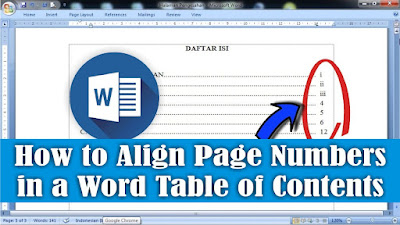
How to Align Page Numbers in a Word Table of Contents

Image
Sometimes we see a table of contents page where the page numbers are not aligned from top to bottom so that it makes the table of contents not look good. Sometimes also on the table of contents page we often see that the page numbers are aligned, but the dotted lines are not aligned at the end. Now, to align page numbers on the table of contents page, this is related to how we line the dots in the table of contents. Do friends make it automatically or manually. If you make it manually, you can be sure that the page numbers will be misaligned from top to bottom, or if the numbers are aligned then the dotted lines are not aligned. Then the best way is to make it automatically. Now, to align page numbers on the table of contents page, the method is very easy. Friends, first make a dotted line automatically on the table of contents page because by making a dotted line automatically it will make it easier to align the page numbers. Then at the end of the dotted line, press the space bar onc...

How to Add Page Numbers in Google Docs

Image
Maybe friends who have just switched from Microsoft Word to Google docs to create a document but are still confused about adding several features, one of which is adding page numbers. Although Microsoft Word and Google docs have the same function and some features are not much different. Well, as for adding page numbers in Google docs, the method is very easy. First of all open Google docs which we will add page numbers to. To make or add page numbers in Google docs, we can find the options on the Format menu and Insert Menu. In the insert menu we can determine the position of the page number whether we will install it at the top or bottom. Or we can also make the page number not appear on the start page in Google Docs. Well, how about friends, how easy is it? That's the way to add page numbers in Google Docs, I hope this tutorial can be useful for all of you.