Posts

How to Delete Files on Google Drive
Image
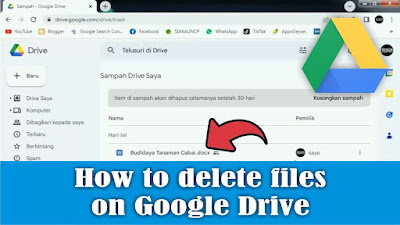
Sometimes friends want to delete files in your Google Drive, but are still confused about how. Maybe friends who have been using the Google Drive storage service for a long time already know how. As for deleting files on Google Drive, the method is very easy, first open Google Drive, friends using a Google account. Then first determine the files to be deleted, click with the mouse, then friends can right click on the mouse. Then select move to trash, or you can also click on the three dots in the file and select move to trash, or you can also press the Delete button on your keyboard. And all files that were deleted earlier will be stored first in the trash. If you want to delete it permanently, you can delete it in the trash on your Google Drive. Well, how about friends, how easy is it? That's how to delete files on Google Drive. Hopefully this tutorial can be useful for all my friends.
How to Create a New Folder on Google Drive

Image
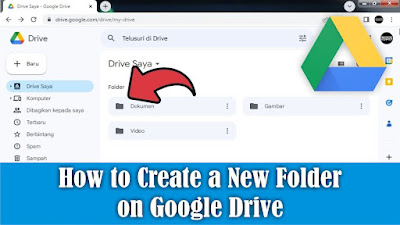
After friends enter several files into Google Drive, what next? Next is to make a folder for the file so that the files in our Google Drive are not cluttered or look neater. The way to create a new folder on Google Drive is very easy, first open Google Drive using your friends Google account. Then right-click on the mouse outside the Google Drive file, then select New Folder. Or you can also click on the down arrow next to My Drive, then select New folder. Then a New Folder dialog box will appear, fill in the name of the folder that we will create, then select or click Create. Then automatically a new folder will appear on your friends Drive and is ready to be filled with files. So how about friends, how easy is it? That's the way to create a new folder on Google Drive, I hope this tutorial can be useful for all of you.

How to Move Word Files to Google Drive

Image
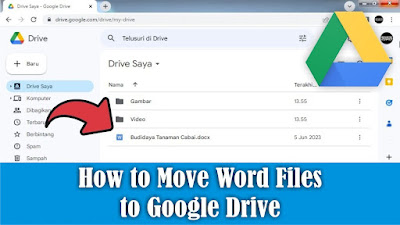
Google Drive is a synchronized data storage service developed by Google. Friends can store all kinds of files on Google Drive, including Word document files that friends think are important and don't want to lose if they are stored on a computer or laptop storage. However, storage on Google Drive is limited to 15 GB, if you want to increase your storage quota, friends can buy it to get extra storage. But for me 15 GB is big enough so no need to add more. Now, to insert or move Word files into Google Drive, the method is very easy, first, friends, first open Google Drive using your Google account. After that, friends, click the down arrow next to My Drive. Then select Upload File, then please search for and select the Word file you want to include or move to Google Drive. After that, click Open and please wait because the upload process is running. After the process is complete, the selected Word file will automatically appear in Google Drive. So how about friends, how easy is it? T...

How to Move Word Files to Desktop Screen

Image
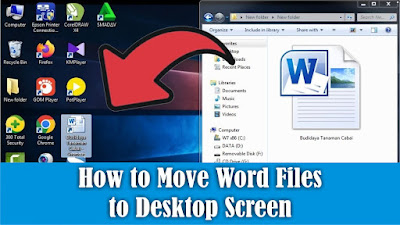
The desktop is the first screen you see when you turn on your computer or laptop. Therefore I prefer to save files on the Desktop screen compared to data storage, especially if we put the file in many folders so we spend time looking for it. In general, we move Word files to the Desktop screen by simply copying and pasting, or we can also move Word files to the Desktop screen by creating a shortcut or shortcut. In my opinion, this method is very good compared to Copy or Cut. The method is very easy, friends first select the Word file you want to move or create a shortcut on the Desktop screen, then right-click on the mouse on the file, then select Send to and select Desktop, a Word file will automatically appear in the form of a shortcut. So if we open the Shortcut file on the Desktop, it's the same as opening the original file in the storage folder so it's easier to get it. Well, how about friends, how easy is it? That's the way to move Word files to the Desktop screen. Ho...