Posts

How to Print Black and White on pdf Files
Image
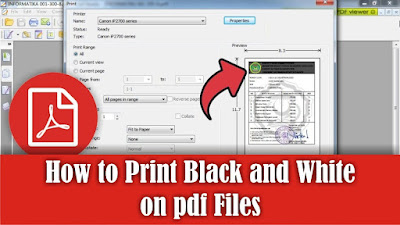
Maybe there are still some of you who haven't or are still confused about how to print in black and white or print without color on PDF files, especially on the Foxit Reader application. So in this tutorial I will tell you how. OK, straight away, friends, open the PDF file using the Foxit Reader application, then go to the print menu by clicking on the printer icon or by pressing the Ctrl and P keys simultaneously on the keyboard. To be able to print without color or just in black and white, friends, you can immediately check the words Print at Grayscale, then it will automatically remove the color from the PDF file. Friends, you can see the changes in the preview display on the right. After that, you can immediately click OK to continue with the printing process and you can see the results. So, that's how to print black and white on PDF files in the Foxit Reader application, I hope this tutorial is useful.
How to Extract One Files From a .rar File

Image
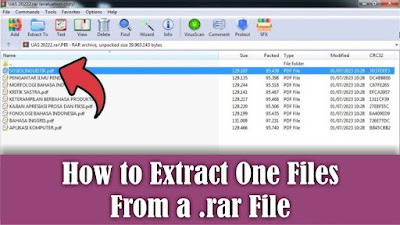
 This tutorial is useful if you want to extract or remove files in a Rar file, but you don't want to extract all the existing files. Previously here I used the WinRar application to open Rar files, if you haven't installed it yet, please install it first. OK, straight away, friends, open the Rar file from which we will extract one of the files, then friends, right click on the mouse on one of the files you want to extract. Then several options will appear to extract files, namely "Extract to a specified folder" and "Extract without confirmation". To make things easier, I will choose "Extract without confirmation", so that the extracted file will appear in the same folder as the Rar file. Friends, just click "Extract without confirmation", and the file will automatically come out of Rar. How about it friends, it's easy, that's how to extract one of the files in a rar file. Hopefully this tutorial can be useful for all of you.

How to Split a PDF File Into Several New Files

Image
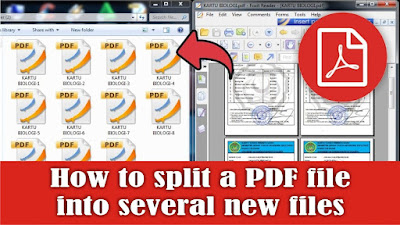
There are times when we get a PDF file containing test cards from several students, now these cards will be given to each student, but how can they be divided if the cards are combined in one pdf file? The car is that we separate it first, then we divide it. It is very easy to separate it, but what is important is that we need our computer or laptop to be connected to the internet network because later it will be separated online. After your laptop or computer is connected to the internet, open the ilovepdf.com site site . Maybe some of my friends are familiar with this site, okay then friends choose Split PDF. Select the PDF file to split. Then select Extract Pages, friends can see the PDF file that was previously one into several files depending on how many pages there are. After that, you can leave the Extract Mode to extract all pages, then select Split PDF to proceed to the splitting process. Now after that friends can download the PDF which has been separated, or it will be downl...

How to Print PDF File 1 Page Into 4 Parts

Image
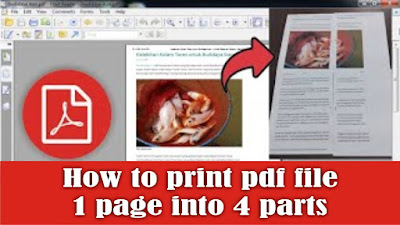
Maybe friends have an image file, but the file is in the form of a PDF file and friends want to print the PDF image in large size. Now, the way to print a large 1-page PDF file into 4 parts is very easy. First, friends, first open the PDF file that will be printed into 4 parts or paper, then friends, enter the print menu. So here I am using a Canon brand print which has features that make it easier for us to print into 4 parts. Then go to Properties, then the Canon Ip 2700 series properties dialog box will appear. Then select the Page Setup menu and in the Page Layout section, change it from Normal Size to Tiling/Poster. To print into 4 parts, friends, open the settings on Specify. Then the Tiling/Poster Printing dialog box will appear again, then change the Image Divisions from Divided into 2 to Divided into 4 (2 x 2). After that click OK to save the settings and click OK again to close the Canon Ip 2700 series properties. Then friends click Print to continue the printing process and ...