Posts

How to Set Automatic Indentation in Google docs
Image
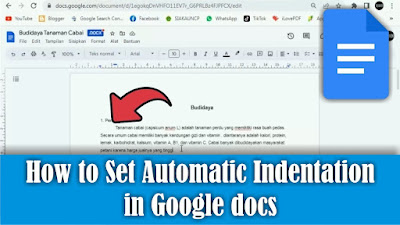
What is meant by automatic indentation in a paragraph is the same as the indented line at the beginning of the paragraph. So, instead of friends getting tired of organizing it, it's better if we make the indentation automatic. In this tutorial I will share how. First open the document file in Google docs, then go to the format menu then select Alignment & Indent, then select Indent Options. Then a new Indent options window will appear, pay attention to the special indent section, change it from none to the first line. After that, change the size of the indentation or indentation according to your needs, then select apply to save the settings and apply to the document. Now the indent will automatically be indented according to the distance specified earlier. How about it friends, it's easy, right? that's how to set automatic indentation on the first line of a paragraph in Google docs.
How to Delete Files in Google Drive in Bulk

Image
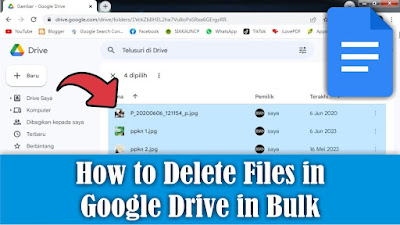
Maybe there are still friends who are still confused about deleting files in Google Drive, but there are so many files to be deleted that it will be difficult to delete them one by one. So, I will share how to delete lots of them at once. OK, straight away, friends, click on one of the files in Google Drive, then friends, press the Ctrl button and the A button on the keyboard to select or mark all the existing files. Then, friends, pay attention to the three dots at the top of the file you selected. Click the three dots, several options will appear, select Move to trash. So, the selected file will automatically be deleted and will be moved to the Google Drive trash. How about it friends, it's easy, right? That's how to delete lots of files in Google Drive at once, I hope this tutorial is useful.

How to Print Black and White on pdf Files

Image
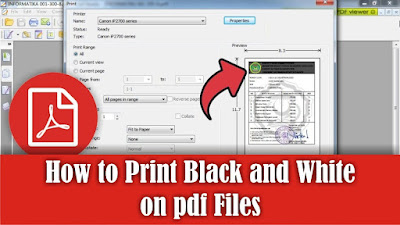
Maybe there are still some of you who haven't or are still confused about how to print in black and white or print without color on PDF files, especially on the Foxit Reader application. So in this tutorial I will tell you how. OK, straight away, friends, open the PDF file using the Foxit Reader application, then go to the print menu by clicking on the printer icon or by pressing the Ctrl and P keys simultaneously on the keyboard. To be able to print without color or just in black and white, friends, you can immediately check the words Print at Grayscale, then it will automatically remove the color from the PDF file. Friends, you can see the changes in the preview display on the right. After that, you can immediately click OK to continue with the printing process and you can see the results. So, that's how to print black and white on PDF files in the Foxit Reader application, I hope this tutorial is useful.

How to Extract One Files From a .rar File

Image
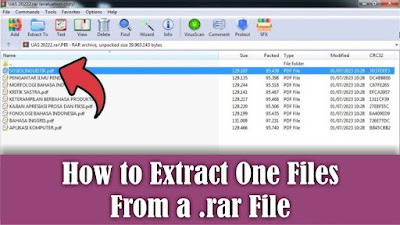
 This tutorial is useful if you want to extract or remove files in a Rar file, but you don't want to extract all the existing files. Previously here I used the WinRar application to open Rar files, if you haven't installed it yet, please install it first. OK, straight away, friends, open the Rar file from which we will extract one of the files, then friends, right click on the mouse on one of the files you want to extract. Then several options will appear to extract files, namely "Extract to a specified folder" and "Extract without confirmation". To make things easier, I will choose "Extract without confirmation", so that the extracted file will appear in the same folder as the Rar file. Friends, just click "Extract without confirmation", and the file will automatically come out of Rar. How about it friends, it's easy, that's how to extract one of the files in a rar file. Hopefully this tutorial can be useful for all of you.