Posts

How to Add New Blank Page in Microsoft Word
Image
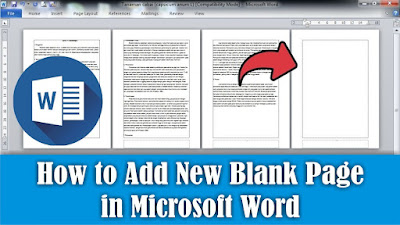
Maybe some of you are still confused about adding a new paper page in Microsoft Word. So, in this tutorial I will share how. There are several ways to create a new page in Microsoft Word. The first way, we can press the enter key on the keyboard at the end of the page until a new page appears. Or we can also create a new page by pressing the Ctrl key and the Enter key on the keyboard so that a new page appears. Alternatively, we can go to the Insert menu, then select Blank Page. Friends, just choose the method which you think is easier and quicker to do. So, how about it friends, it's easy, right?
How to Combine 2 Word Files Into One

Image
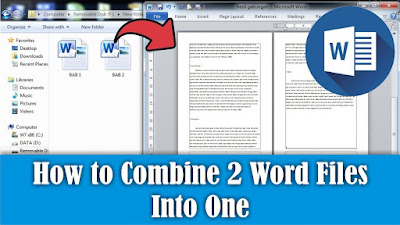
Maybe friends don't think so, it turns out that Word files can also be combined into one, this method is very good when friends are confused about typing so we just have to take the text from another document and make it into one. As for how to combine two Word files into one method, it is very easy, first open the document file that you want to combine. Next, friends, place the cursor at the beginning or end of the document, if you want to add text from another document to the beginning or end of the text. After that, go to the "insert" menu, then select "Object", then select "Text from file", look for the documents we want to combine. Click the file and click "Insert". Now automatically the file or text in the other document will appear, you just need to arrange it to match the existing file. So, how about it friends, it's easy, that's how to combine Word files into one.

How to Set Automatic Indentation in Google docs

Image
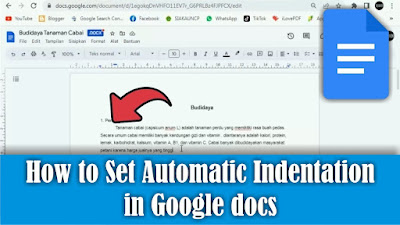
What is meant by automatic indentation in a paragraph is the same as the indented line at the beginning of the paragraph. So, instead of friends getting tired of organizing it, it's better if we make the indentation automatic. In this tutorial I will share how. First open the document file in Google docs, then go to the format menu then select Alignment & Indent, then select Indent Options. Then a new Indent options window will appear, pay attention to the special indent section, change it from none to the first line. After that, change the size of the indentation or indentation according to your needs, then select apply to save the settings and apply to the document. Now the indent will automatically be indented according to the distance specified earlier. How about it friends, it's easy, right? that's how to set automatic indentation on the first line of a paragraph in Google docs.
How to Delete Files in Google Drive in Bulk

Image
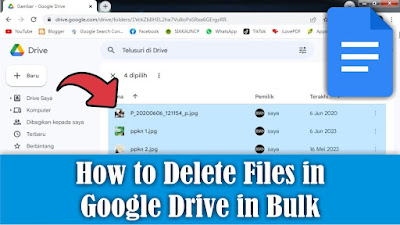
Maybe there are still friends who are still confused about deleting files in Google Drive, but there are so many files to be deleted that it will be difficult to delete them one by one. So, I will share how to delete lots of them at once. OK, straight away, friends, click on one of the files in Google Drive, then friends, press the Ctrl button and the A button on the keyboard to select or mark all the existing files. Then, friends, pay attention to the three dots at the top of the file you selected. Click the three dots, several options will appear, select Move to trash. So, the selected file will automatically be deleted and will be moved to the Google Drive trash. How about it friends, it's easy, right? That's how to delete lots of files in Google Drive at once, I hope this tutorial is useful.