Posts

How to Print Certain Pages in Microsoft Word
Image
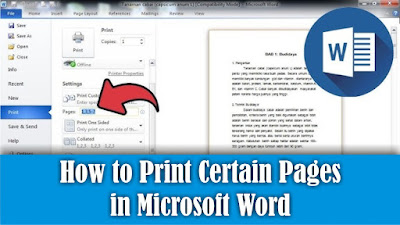
Maybe there are still some friends who are still confused about how to print certain pages in Microsoft Word, but the method is very easy. First of all, open the word document that we will print on a certain page. Then go to the Print menu. After that, friends, pay attention to the Settings section, friends, change from Print All Pages to Print Custom Range, or friends, you can directly fill in the pages that we want to print in the Pages section. The rule for writing pages to be filled in is 1-5 to print pages 1-5 only. Or you can also set the pages to be printed, namely pages 1, 3, 5-12, which means only pages 1, 3, 5 to 12 will be printed while pages 2 and 4 will not. Fill in according to the page you want to print or print. After that, click Print to continue with the printing process. So how about it friends, it's easy, right? That's how to print non-consecutive pages or certain pages in Microsoft Word.
How to Print a Lot of Pictures on One Page

Image
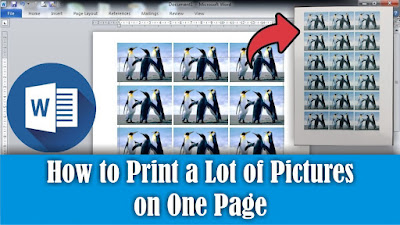
Maybe friends want to print a large number of photos in Word, but the photos must be the same and have the same size. The method is very easy, in this tutorial I will share it with all my friends. First, insert the photo that we want to print, then set the photo in length and width and place it on the edge of the work paper. Then friends, click on the image, then press the Ctrl key on the keyboard, don't release it, then click again on the image, hold down, don't release the click first, then move the mouse to the side of the image. Do the same for the image next to it. So, for the bottom image, friends, press the Ctrl key on the keyboard, don't release it, then click on all the images then click on the image again then slide it down. Do the same thing for the image below again. So, how about it friends, it's easy, right? That's how to print lots of photos on 1 paper in Microsoft Word.

How to Add New Blank Page in Microsoft Word

Image
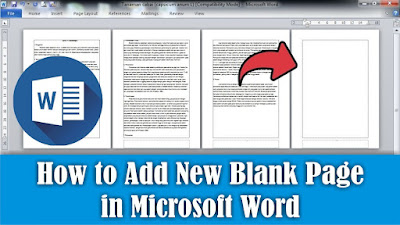
Maybe some of you are still confused about adding a new paper page in Microsoft Word. So, in this tutorial I will share how. There are several ways to create a new page in Microsoft Word. The first way, we can press the enter key on the keyboard at the end of the page until a new page appears. Or we can also create a new page by pressing the Ctrl key and the Enter key on the keyboard so that a new page appears. Alternatively, we can go to the Insert menu, then select Blank Page. Friends, just choose the method which you think is easier and quicker to do. So, how about it friends, it's easy, right?

How to Combine 2 Word Files Into One

Image
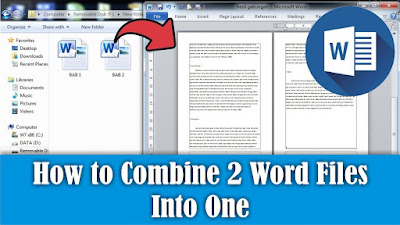
Maybe friends don't think so, it turns out that Word files can also be combined into one, this method is very good when friends are confused about typing so we just have to take the text from another document and make it into one. As for how to combine two Word files into one method, it is very easy, first open the document file that you want to combine. Next, friends, place the cursor at the beginning or end of the document, if you want to add text from another document to the beginning or end of the text. After that, go to the "insert" menu, then select "Object", then select "Text from file", look for the documents we want to combine. Click the file and click "Insert". Now automatically the file or text in the other document will appear, you just need to arrange it to match the existing file. So, how about it friends, it's easy, that's how to combine Word files into one.