Posts

How to Make Portrait and Landscape Pages in Google Docs
Image
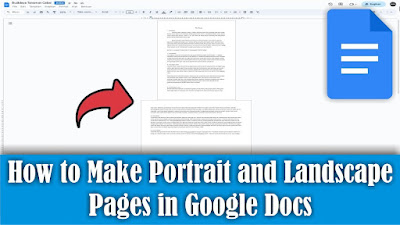
Maybe some of your friends are currently learning to use Google Docs to create written documents. As you know, Google Docs is basically the same as Microsoft Word, but in terms of features Google Docs is not as complete as Microsoft Word. Including working paper settings, however, we can make paper or work pages in Google Docs in portrait and landscape form in one document. The method is very easy. Friends, first determine which page you want to change to landscape view, then select all the text on that page. Then friends, go to the "Format" menu and select "Page Orientation". Then a "page orientation dialog box" will appear, then select the selected content, after that select "landscape" orientation. Then click "Ok" to save the settings. And automatically the selected page will change from portrait to landscape. So that's how to make a page in Google Documents portrait and landscape in one document, I hope this tutorial can be usef...

How to Create a Landscape Page in Google Doc

Image
Maybe some of your friends are starting to create a document in Google Docs, but are having difficulty finding the settings to change the paper to Landscape form because they are used to using Microsoft Word. So, that's why I will share the method with friends. First go to the "Format" menu in Google docs, then friends select "Page orientation". Then the "Page Orientation dialog box" will appear. To change the paper shape from portrait to landscape, friends, change the orientation to "Landscape", then select "Ok" to save the settings. Now automatically all pages in Google docs will change to Landscape. That's how to create a landscape page in Google Docs, I hope this tutorial is useful.

How to Delete Multiple Sheets in Excel at Once

Image
Maybe there are still some friends who are still deleting sheets that are not needed in Excel one by one. This method is good if the number of sheets to be deleted is small, so what if there are a lot of sheets? Surely it will be difficult, right? For this reason, in this tutorial I will share how. Friends, open the Excel file that you want to delete the sheets in, then right-click with the mouse on one of the sheets you want to delete. After that, friends, select the "Select All Sheets" option. Well, in Microsoft Excel we can't delete or empty the sheet, so we have to leave one sheet. The way, friends, is to press the Ctrl key on the keyboard, and hold it down, don't let go, then click on one of the sheets. Then, friends, release the Ctrl button that was pressed earlier, after that, friends, right-click on the sheet that was selected earlier and that you want to delete with the mouse. Then select the Delete option to delete the marked sheet. So how about it friends, ...

How to Print Certain Pages in Microsoft Word

Image
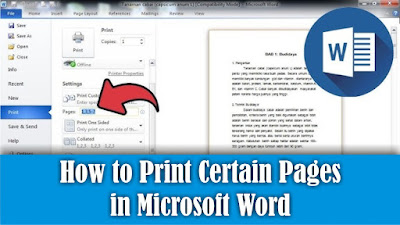
Maybe there are still some friends who are still confused about how to print certain pages in Microsoft Word, but the method is very easy. First of all, open the word document that we will print on a certain page. Then go to the Print menu. After that, friends, pay attention to the Settings section, friends, change from Print All Pages to Print Custom Range, or friends, you can directly fill in the pages that we want to print in the Pages section. The rule for writing pages to be filled in is 1-5 to print pages 1-5 only. Or you can also set the pages to be printed, namely pages 1, 3, 5-12, which means only pages 1, 3, 5 to 12 will be printed while pages 2 and 4 will not. Fill in according to the page you want to print or print. After that, click Print to continue with the printing process. So how about it friends, it's easy, right? That's how to print non-consecutive pages or certain pages in Microsoft Word.