Posts

How to Rotate Text in Table in Microsoft Word

Image
Now, usually the table column headings that we make will be very long compared to usual and we can no longer shorten them. For this reason, the best step we can take is to rotate the text contained in the table. Rotating here is directing the writing to be vertical or perpendicular. Now to make writing in the Word table vertical, the method is very easy. Select or select the text that we will rotate, then enter the "Layout" menu, after that select "Text Direction". So immediately the text that we selected earlier will rotate to be perpendicular or vertical. Hopefully this tutorial can be useful for all my friends, if there are friends who are still confused, please write down your questions in the comments box below. Good luck. More Tutorials: How to Print on B5 Binder Paper How to Print One Big Picture on Multiple Pages How to Remove Table Lines in Word Without Using an Eraser How to Make Big Curly Brackets in Word How to Delete Page Number in Specific Page More Tu...
How to Delete Table in Microsoft Word

Image
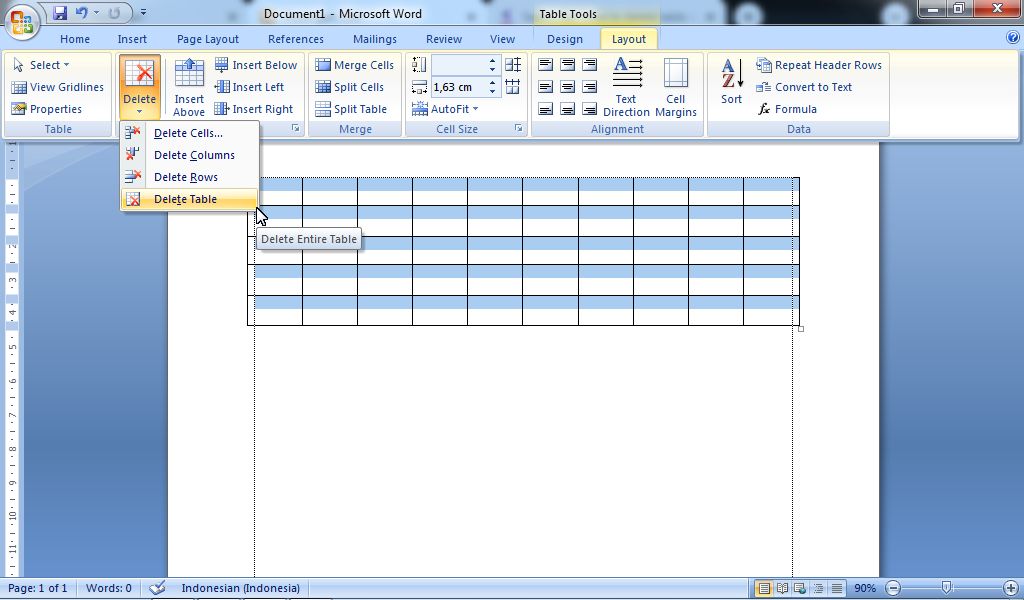
There are times when we make a mistake when creating a table, or when creating the table there are some columns, rows or even the table that is wrong and we want to delete it, but we don't know how to delete it. For this reason, in my article this time, I will share with all my visitor friends about how to delete columns, rows and tables in Microsoft Office Word 2007. More Tutorials: How to Print on B5 Binder Paper How to Print One Big Picture on Multiple Pages How to Remove Table Lines in Word Without Using an Eraser How to Make Big Curly Brackets in Word How to Delete Page Number in Specific Page In the following, I will describe one by one how to delete unused columns, rows or tables. Although the method that I will give you may already be known by many other. Before deleting an entire table, friends must first select all tables that you want to delete or delete. After that go to the  " Layout " menu then select " Delete" , then four delete options will appea...

How to Turn Zip Into PDF

Image
So usually when we download PDF documents on the internet, the downloaded files will be in the form of Zip files which contain several PDF files that we need. Indeed, archiving files into Zip or Rar makes it very easy to send many documents in one file. To remove the PDF file from the Zip file, the method is very easy, first install the Zip file opener application. Incidentally, here I am using the WinZip application to open Zip files, although well, we can also use the WinRar application. Okay, open the zip file using WinZip, then on the right side there is the words Unzip All Files, click the down arrow to specify the location where the PDF file is saved later, after that friends click Unzip to proceed to the file extraction process. Then the PDF file contained in the Zip file will come out at the specified location. More tutorials: How to Print Booklet in PDF Both Sides How to Change Page Setup in PDF How to Print 2 Page in 1 Paper PDF How to Print B5 in PDF How to Convert RAR to PD...

How to Remove a Page Number From PowerPoint

Image
Actually the numbering of pages or slide numbers in PowerPoint is not so important compared to the numbering of pages in Word. However, with the number on the PowerPoint slide, we can find out how many slides we have opened when presenting it. However, to remove this slide number if it is already on the PowerPoint slide we have, the method is very easy. Enter the "Insert" menu, then select "Slide Number". Remove the checkmark in the "Slide Number" section then click "Apply to All" if you want to remove the page numbers on all slides, or select "Apply" if you want to remove only the slide numbers on the opened slide. More tutorials: How to Display Notes on PowerPoint How to Print Certain Slides in PowerPoint How to Show Thumbnails in PowerPoint How to Convert PowerPoint 2007 Slide to Picture