Posts

How to Set A5 Paper Size in Word

Image
The way to set or set the A5 paper size in Microsoft Word is very easy. Friends enter the Page Layout menu, then select Size, after that several paper size options will appear that you can choose from. Because we will set the paper size to A5 paper size, so we choose A5 paper size (14.8 cm x 21 cm). If there is no A5 paper size in this option, friends can set the A5 paper size by selecting More Paper Size. After that a new Page Setup window will appear, friends enter A5 paper sizes, namely Width: 14.8 cm and Height: 21 cm. Then click OK to save the settings and see the results, the paper size on the Word worksheet has changed. More Tutorials: How to Insert 2 Tables Side by Side in Word How to Copy Table in Word How to Delete Text Box in Word How to Print on Microsoft Word 2007 How to Insert Portrait and Landscape in Same Word Document

How to Rotate a Photo or Image in Microsoft Word

Image
Maybe some of you are still confused when you insert a picture in Microsoft Word and you want the picture to be rotated for one reason or another. The method for rotating photos or images in Word is very easy. First of all, friends click on the picture or photo that friends have entered into Word. Then point the cursor at the green circle at the top of the image or photo, until the cursor changes to a rotating arrow. Then click and hold the green circle, then swipe to the bottom left or swipe to the bottom right until the image or photo rotates. Friends play the picture or photo according to your wishes and needs. After friends have determined the right position when the image or photo is rotated, friends release the click on the mouse earlier. More Tutorials: How to Insert 2 Tables Side by Side in Word How to Copy Table in Word How to Delete Text Box in Word How to Print on Microsoft Word 2007 How to Insert Portrait and Landscape in Same Word Document
How to Print 1 Image Into 2 Parts in Microsoft Word

Image
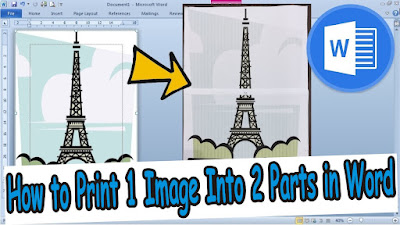
The method is very easy, friends, first enter the image that will be printed into two parts of paper in Word. I'm sure my friends already know how to insert pictures in Word, friends, set the width and height of the pictures so that they fit in one worksheet. After that friends enter the Print menu. Now in this way I use a Canon brand printer, for other printer brands I don't know maybe this feature exists. After entering the Print menu, friends select or click Properties. After that a new Canon Properties window will appear. Friends, click the Page Setup menu in Canon Properties, then in the Page Layout section, change it from Normal-Size to Tiling/Poster. In the preview on the left, the paper that was once divided into 2 parts or paper. After everything has been set, you click OK to save the settings, and click Print to continue with the printing or printing process, and you can see the results. More Tutorials: How to Insert 2 Tables Side by Side in Word How to Copy Table in ...

How to Move One Word Page to Another Word Document

Image
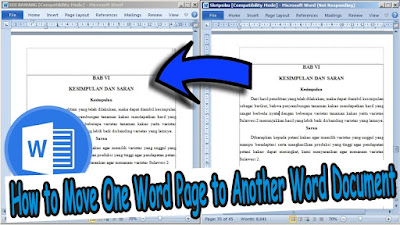
Maybe friends are making a paper or assignment, where one of the pages in the paper is obtained from another word document that happens to exist. So, instead of getting tired of typing again, we'd better just move it by copying it. The method is very easy, friends can immediately select or select all the writing on one page that you want to move to another document. Then friends right-click on the mouse and select copy, or you can also press the Ctrl key and the C key on the keyboard simultaneously. After that, we move on to the other document, where all you have to do is create a new page. If what we copied earlier wanted to be moved to the last page, friends can immediately create a new page at the end of the document by placing the cursor at the end of the text then pressing enter until a new page appears. The method is the same, if you want to place the copy in the middle of the document. After creating a new page, friends can immediately paste the writing from one page earlier...